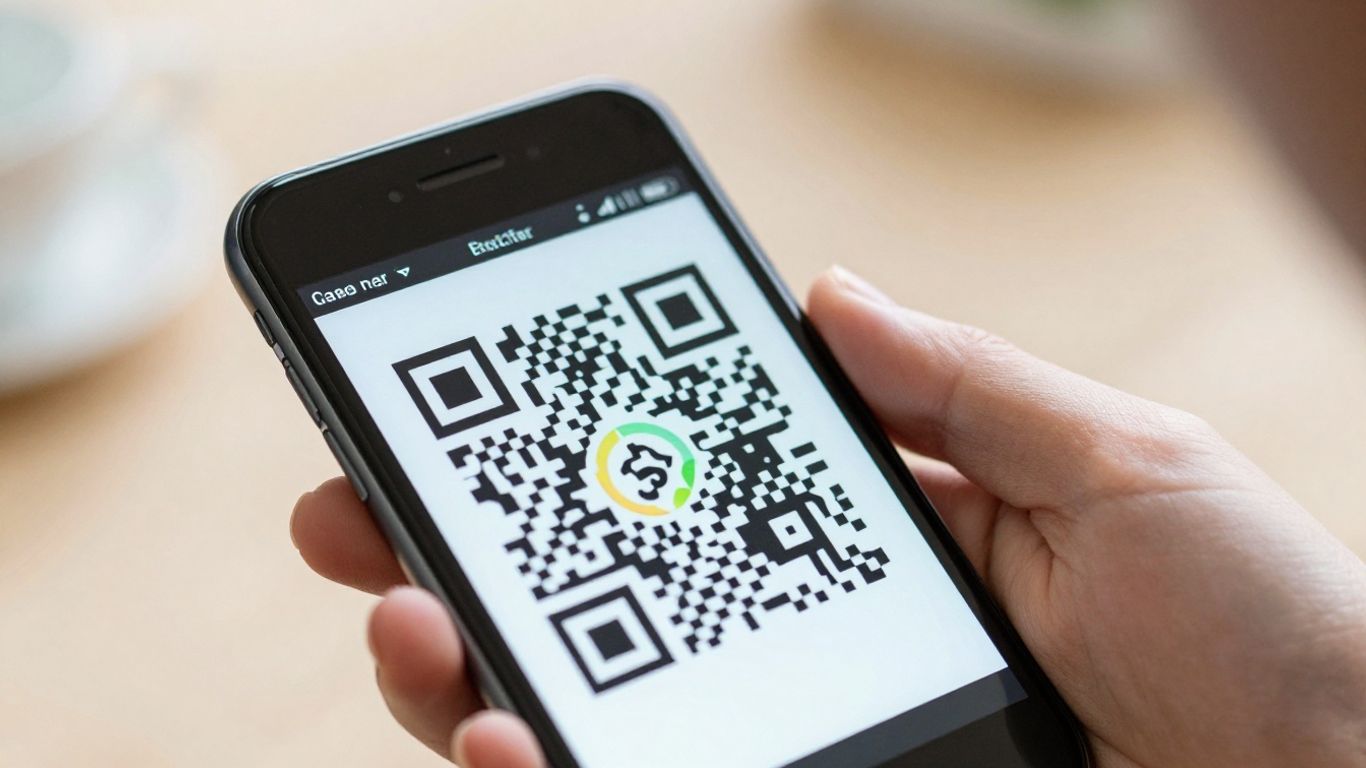
Scanning QR codes that are already on your phone’s screen, like in a screenshot or image, is simpler than you might think. Here are the main things to remember:
Key Takeaways
- iPhones can scan QR codes from images using the Photos app; look for a scan icon or a yellow highlight.
- Android users can scan QR codes from photos using Google Lens, often directly from the gallery.
- Screenshots are a common way to save QR codes for later scanning on your own device.
- Always be cautious of QR codes from unknown sources, as they can be used for scams.
- Using your phone’s built-in camera or gallery apps is generally the safest approach.
Scanning QR Codes From Your Phone's Screen
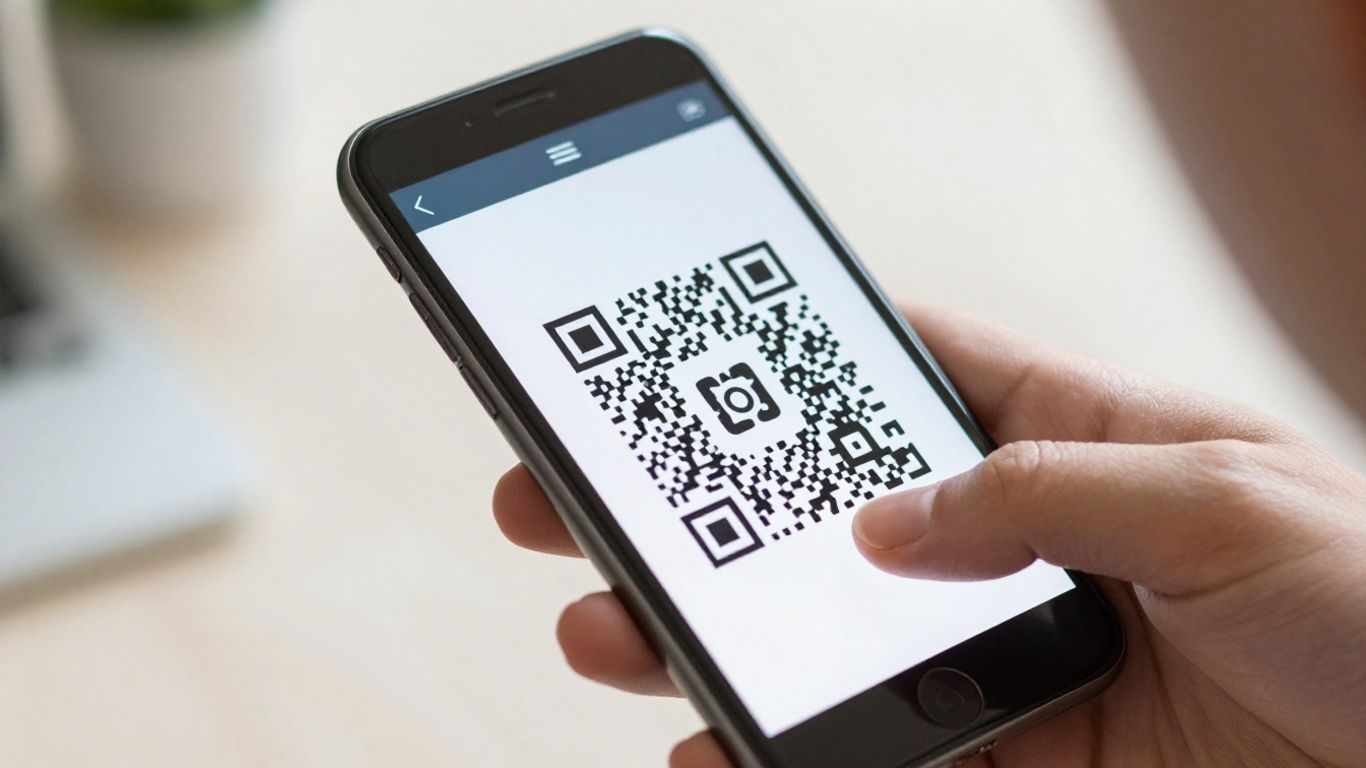
It’s a common situation these days: you receive a QR code in a message or as a screenshot, but your phone’s camera can’t seem to scan its own screen. Don’t worry, there are straightforward ways to handle this without needing another device. Both iPhones and Android phones have built-in features that let you scan QR codes directly from images or saved screenshots. This means you can easily access the information without any fuss.
Using Your iPhone's Photos App
For iPhone users, the Photos app is your best friend here. Simply open the screenshot or image containing the QR code. You’ll often see a small QR code icon or a ‘detected code’ badge appear near the code itself. Alternatively, you might see a yellow highlight around the QR code. Tapping either of these will allow you to open the link directly. If you don’t see these prompts immediately, you can also try using the ‘Open in Browser’ or ‘Open in Safari’ option from the Share sheet once the code has been recognised.
Leveraging Google Lens on Android
Android users can achieve similar results using Google Lens. Open the image or screenshot in your Google Photos app or your phone’s default gallery. Look for the Google Lens icon – usually at the bottom of the screen – and tap it. Google Lens will then scan the image for QR codes and other scannable information. Once detected, you’ll have options to open, copy, or share the link. Some Android phones also offer a ‘Scan from photo’ option directly within their native Camera app settings.
Saving Screenshots for Later Scanning
If you receive a QR code in an app like WhatsApp or an email, and you can’t scan it directly, the easiest method is to take a screenshot. Save the image to your phone’s gallery. Then, you can follow the steps above for either iPhone or Android to scan the code from your saved photos. This approach is particularly useful if you’re not in a position to scan immediately or if the code is part of a larger image. For businesses looking to manage their QR codes effectively, platforms like Xcan.it offer dynamic QR codes. This means you can update the destination link without needing to reprint the code, track scan performance in a dashboard, and improve your campaigns across various media.
Built-In Scanning Capabilities
Most modern smartphones come with QR code scanning built right in, meaning you don’t always need a separate app. This is super handy because it means you can get straight to the information or website without any extra fuss.
iPhone Camera and Code Scanner
On iPhones, your built-in Camera app is usually smart enough to recognise QR codes automatically. Just open the Camera app, point it at the QR code, and you should see a notification pop up at the top of the screen. Tap that, and you’ll be taken straight to the linked content. If you want a more dedicated scanning experience, especially for full-screen codes, you can add the ‘Code Scanner’ to your Control Centre. To do this, go to Settings > Control Centre and tap the green plus icon next to ‘Code Scanner’. Then, when you swipe down from the top-right of your screen (or up from the bottom on older models), you’ll see the scanner icon ready to go.
Android Camera and Google Lens
Android phones are pretty similar. Many default Camera apps will scan QR codes directly. You might need to enable this feature in your camera settings, often under options like ‘QR Code Scanner’ or ‘Google Lens suggestions’. If your camera app doesn’t have this built-in, Google Lens is your best friend. You can usually access Google Lens directly from your gallery app by opening an image and tapping the Lens icon, or sometimes through a dedicated Lens app. It’s really good at identifying codes within photos, not just live camera feeds. This means you can scan codes from screenshots or images saved on your phone without any trouble.
Understanding Safe Previews
One of the best things about using your phone’s built-in scanner is the ‘safe preview’ feature. Before you actually open a link from a QR code, your phone will usually show you the URL it’s about to take you to. This is a really important safety step. It gives you a chance to check if the link looks suspicious or unexpected. If it doesn’t look right, you can simply ignore it and not open it. This simple preview can help you avoid accidentally landing on a malicious website, which is a growing concern with things like ‘quishing’ attacks. It’s always a good idea to pay attention to these previews, especially if the QR code came from an unexpected source. For businesses looking to make their QR campaigns more robust and trackable, platforms like Xcan It offer dynamic QR codes. This means you can update the link a QR code points to without ever needing to reprint it, and you can track scan data in a central dashboard, which is brilliant for improving real-world campaigns across print, signage, and other assets.
Troubleshooting Unreadable Codes
Sometimes, even with the best intentions, a QR code just won’t scan. Don’t worry, it’s usually a simple fix. Most of the time, the issue boils down to a few common culprits: the code itself, your phone’s camera, or the environment you’re scanning in.
Ensuring Sufficient Contrast
This is probably the most frequent reason a QR code plays hard to get. Think of it like trying to read white text on a white piece of paper – it’s just not going to happen. For a QR code to be easily read by your phone’s camera, there needs to be a clear difference between the dark squares and the light background.
- Dark on Light is Best: Always aim for black or a very dark colour on a plain white or light background.
- Avoid Pale Colours: Light blues, greys, or yellows can be tricky for cameras to distinguish.
- Watch Out for Metallic or Glossy Finishes: These can cause glare, making the code difficult to read. Matte finishes are generally much better.
The Importance of Quiet Zones
Ever seen a QR code crammed right up against a logo or some text? That’s a problem. The ‘quiet zone’ is simply the clear, empty space around the QR code. It acts like a buffer, helping the camera to isolate the code and read it accurately. Without enough quiet zone, the scanner can get confused. A good rule of thumb is to leave at least four modules (those little squares) of clear space on all sides of the code. This is especially important if you’re placing a logo in the centre; make sure it doesn’t encroach on this vital border.
Optimising Size and Distance
It sounds obvious, but the size of the QR code and how far away you are from it really matter. If a code is too small and you’re standing too far back, the camera simply can’t make out the details. Conversely, if you’re too close to a very dense code, the same problem occurs.
- The 10x Rule: A handy guideline is that the optimal scanning distance is roughly 10 times the width of the QR code. So, if your code is 5cm wide, try scanning from about 50cm away.
- Consider the Environment: If you’re printing codes on posters or signs that people will view from a distance, make sure they’re large enough. For close-up use, like on a product label, a smaller code is fine.
If you’re finding that your QR codes aren’t scanning reliably, it might be time to look at a more robust solution. Services like Xcan.it allow you to use dynamic QR codes. This means you can update the link the QR code points to without ever needing to reprint it – a huge time-saver. Plus, you get access to a dashboard where you can track scans, giving you insights into how your campaigns are performing across print, signage, and other assets. This kind of flexibility and data can really improve your real-world campaigns.
Choosing the Right QR Scanner
When it comes to scanning QR codes, you’ve got options. Most of the time, your phone’s built-in camera app is all you need. It’s quick, it’s safe, and it doesn’t ask for extra permissions. For iPhones, the Camera app handles QR codes automatically, and you can even add a dedicated Code Scanner to your Control Centre for quick access. Android users will find similar functionality in their default Camera app, often with Google Lens suggestions ready to go. These built-in tools are usually the best starting point because they’re designed to be fast and private.
However, there might be times when you need a bit more. Perhaps you’re dealing with different types of codes beyond the standard QR, like Data Matrix or PDF417, which are common on product packaging or tickets. Or maybe you want to track how many people are scanning your codes. In these cases, a dedicated app can be really useful. When looking for a third-party app, prioritise privacy and security above all else.
Here’s what to look for in a good QR scanner app:
- Privacy First: Opt for apps that are ad-free and don’t track your activity. They should only ask for necessary permissions, like camera access.
- Safety Features: A good app will show you a preview of the URL before you open it, giving you a chance to spot anything suspicious. Some even block known malicious websites.
- Multi-Format Support: If you scan more than just standard QR codes, make sure the app supports other formats like Data Matrix, PDF417, and Code 128. This is handy for retail, event tickets, and logistics.
- Performance: Look for apps that focus quickly, even in low light or on small codes. Offline decoding is also a plus, meaning you can scan codes even without an internet connection (though opening the link will still require data).
For businesses looking to make their QR code campaigns more effective, platforms like Xcan.it offer advanced features. They allow you to create dynamic QR codes, which means you can update the destination link without needing to reprint the code itself. This is a game-changer for print, signage, and any physical assets. Plus, Xcan.it provides a dashboard to track scans, giving you insights into how your campaigns are performing in the real world. This kind of flexibility and insight can really improve your marketing efforts.
When choosing any QR scanner, whether it’s built-in or an app, always remember that a QR code is essentially a link. Treat it with the same caution you would an email link. Always check the preview if available, and never rush into entering personal information or making payments from a code you weren’t expecting.
Security Considerations for On-Screen Codes
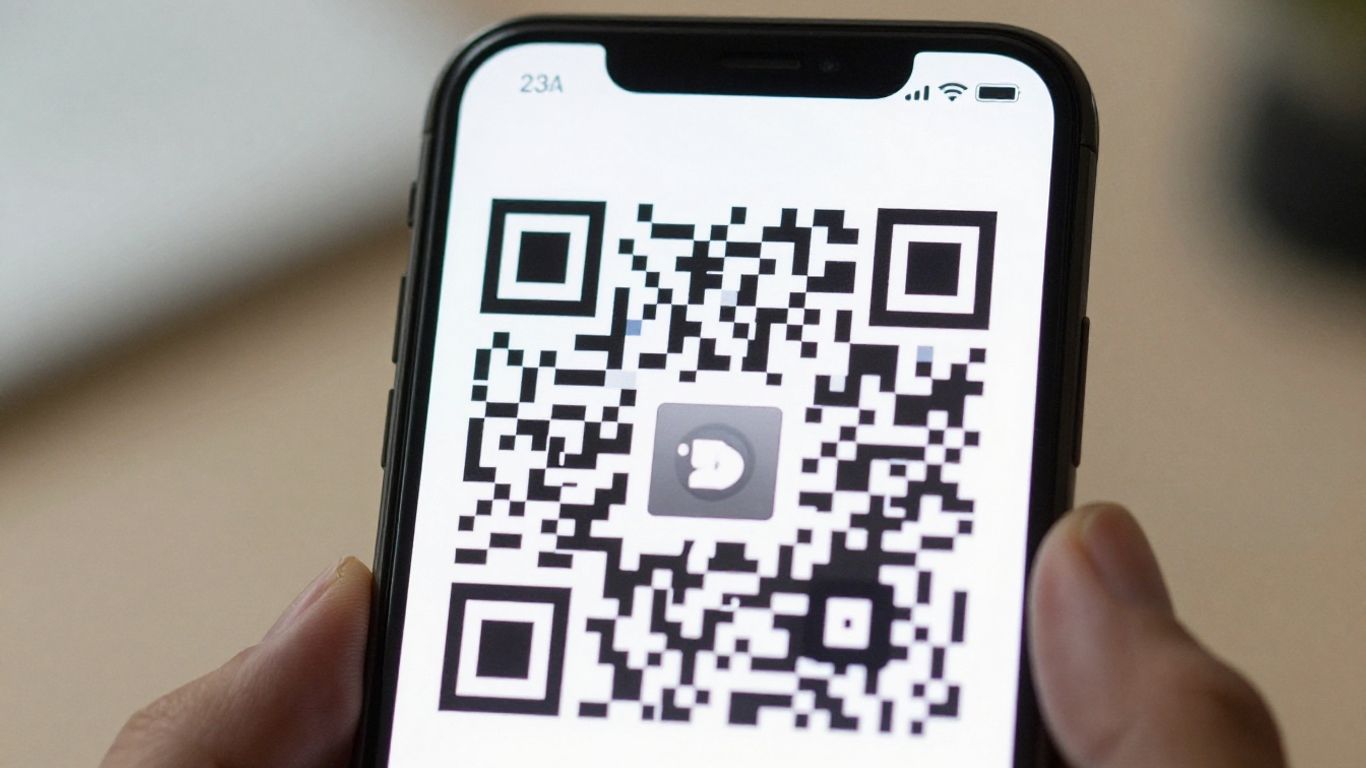
While QR codes offer a quick way to access information, it’s wise to approach them with a healthy dose of caution, especially when they appear on your phone screen. Think of them like links in an email – you wouldn’t click every single one without a second thought, would you? The same principle applies here.
Treating On-Screen Codes Like Email Links
Just because a QR code is digital, perhaps in a message or a PDF, doesn’t automatically make it safe. Scammers are increasingly using these codes precisely because people tend to assume they’re secure. Always ask yourself: does this code make sense in this context? If you receive a QR code out of the blue, or if it’s from an unknown source, be extra careful. It’s always best to stick to built-in scanning tools or apps you trust implicitly. When your phone shows you the URL after scanning, take a moment to inspect it. Does it look right? Is it the official website you expect? If anything seems off, it’s better to be safe and not proceed.
Recognising Potential 'Quishing' Attacks
‘Quishing’ is a portmanteau of QR code and phishing, and it’s a growing concern. Attackers embed malicious links within QR codes, often disguised as legitimate requests. For example, you might see a QR code claiming to be from your bank, asking you to verify your account details. Never enter sensitive information like passwords, bank details, or one-time codes directly after scanning a QR code. If a website asks for such information, close the page and navigate to the official site manually through your browser or the company’s app. This extra step can save you a lot of trouble.
Verifying URLs Before Tapping
Most modern phones will display the destination URL after scanning a QR code, usually in a banner at the top of the screen. This is a vital safety feature. Before you tap to open the link, take a good look at the address. Check for:
- Correct spelling: Look out for slight misspellings that mimic legitimate sites.
- HTTPS: Ensure the site uses HTTPS for secure connections.
- Domain name: Does it match the expected brand or service? Be wary of shortened URLs or unfamiliar domains.
If the URL looks suspicious in any way, don’t tap it. You can always type the correct web address into your browser yourself. For businesses looking to manage their QR code campaigns effectively, services like Xcan.it are invaluable. They allow you to update QR code links without needing to reprint them, track scan data in a central dashboard, and utilise dynamic QR codes to optimise real‑world campaigns across print, signage, and other assets. This not only adds flexibility but also provides insights into campaign performance, which is key for local SEO and marketing efforts.
When thinking about codes on screens, it’s important to consider safety. We need to make sure these codes are protected from being misused. Think about how you can keep your codes secure. For more tips on keeping your codes safe, check out our website.
Conclusion
Scanning QR codes from your phone’s screen is now a straightforward process, thanks to the built-in features of modern smartphones. Whether you’re using an iPhone’s Photos app or Android’s Google Lens, you can easily access the information embedded in an image. Remember to always be mindful of security, treating on-screen codes with the same caution as any link you receive online. By following these simple steps, you can safely and effectively scan QR codes from your phone’s screen whenever you need to.
Frequently Asked Questions
Can I scan a QR code that's on my phone's screen with my phone's camera?
You can’t point your phone’s camera at its own screen to scan a QR code directly. However, you can use apps like Photos on iPhone or Google Lens on Android to scan QR codes from images or screenshots saved on your phone. It’s like telling the app to look at the picture instead of the live view.
How do I scan a QR code from a screenshot on my iPhone?
It’s pretty easy. Just open the screenshot in your Photos app. If there’s a QR code in it, you’ll usually see a little scan icon appear near the top or a yellow box around the code itself. Tap that icon or box, and your iPhone will let you open the link or take action.
What's the easiest way to scan a QR code from an image on Android?
On most Android phones, you can open the image in your gallery app (like Google Photos). Look for a Google Lens icon – it often looks like a colourful camera lens. Tap it, and Lens will find the QR code in the picture and let you interact with the link.
Is it safe to scan QR codes that I find in emails or messages?
You should be careful. Scammers sometimes send QR codes in emails or messages, hoping you’ll scan them without thinking. These are sometimes called ‘quishing’ attacks. Always check who sent it and what the link might be before you tap. If it looks suspicious, it’s best to ignore it.
What if the QR code on my screen won't scan?
Sometimes QR codes are hard to scan if they’re blurry, too small, or don’t have enough contrast (like a light grey code on a white background). Make sure the image is clear and has good contrast. If it’s a screenshot, try to make sure it’s not too pixelated or cut off.
Do I need to download a special app to scan QR codes from my phone's screen?
Usually, no. Both iPhones and most Android phones have built-in tools in their Photos or Gallery apps that can recognise and scan QR codes from images. So, you probably already have what you need without needing to install anything extra.