
Bulk Edit QR Codes: Update Multiple QR Codes at Once with Xcan.it
Xcan.it Bulk Edit lets you select several QR codes and replace their QR code type and content together.
Every code in the selected batch receives the same submitted type and content. Confirm the selected-code count before you apply the change.
Xcan.it customers can now make one shared change to a selected group of QR codes from the Custom Codes dashboard. That is useful when a campaign, location group or collection of printed materials needs the same new destination, rather than a different destination for every code.
The workflow is deliberately controlled: choose the codes, open Bulk Edit, check the count, select the replacement type, enter the new content and review everything before applying it. This guide shows the exact process and the checks worth making before and after submission.
What is bulk QR code editing?
Bulk QR code editing means applying one shared replacement to multiple selected QR codes in a single workflow. In Xcan.it, the submitted QR code type and content replace those fields for every code in the batch. You do not need to open and update each selected code separately.
This is not bulk creation, and it is not a spreadsheet for giving every code a different value. If two groups need different destinations, treat them as separate batches and review each one independently.
What is new in Xcan.it Bulk Edit?
The Bulk Edit workflow in Custom Codes now provides:
- selection boxes for choosing the QR codes to update;
- a confirmation screen showing how many codes are selected;
- a QR Code Type dropdown for the shared replacement type;
- a content field that adapts to the selected type;
- a Test control beside the URL field; and
- a final button that repeats the number of QR codes receiving the change.
The interface states that the new content replaces the type and content of each selected QR code. Names and usability are left untouched. It does not say that names, artwork, ownership or other fields are changed.
How do you bulk edit multiple QR codes in Xcan.it?
1. Open Custom Codes and find the right group
Sign in to Xcan.it, open Custom Codes and use the search field or existing list controls to locate the codes that need the same update. Decide the intended batch before selecting anything.
2. Select the QR codes
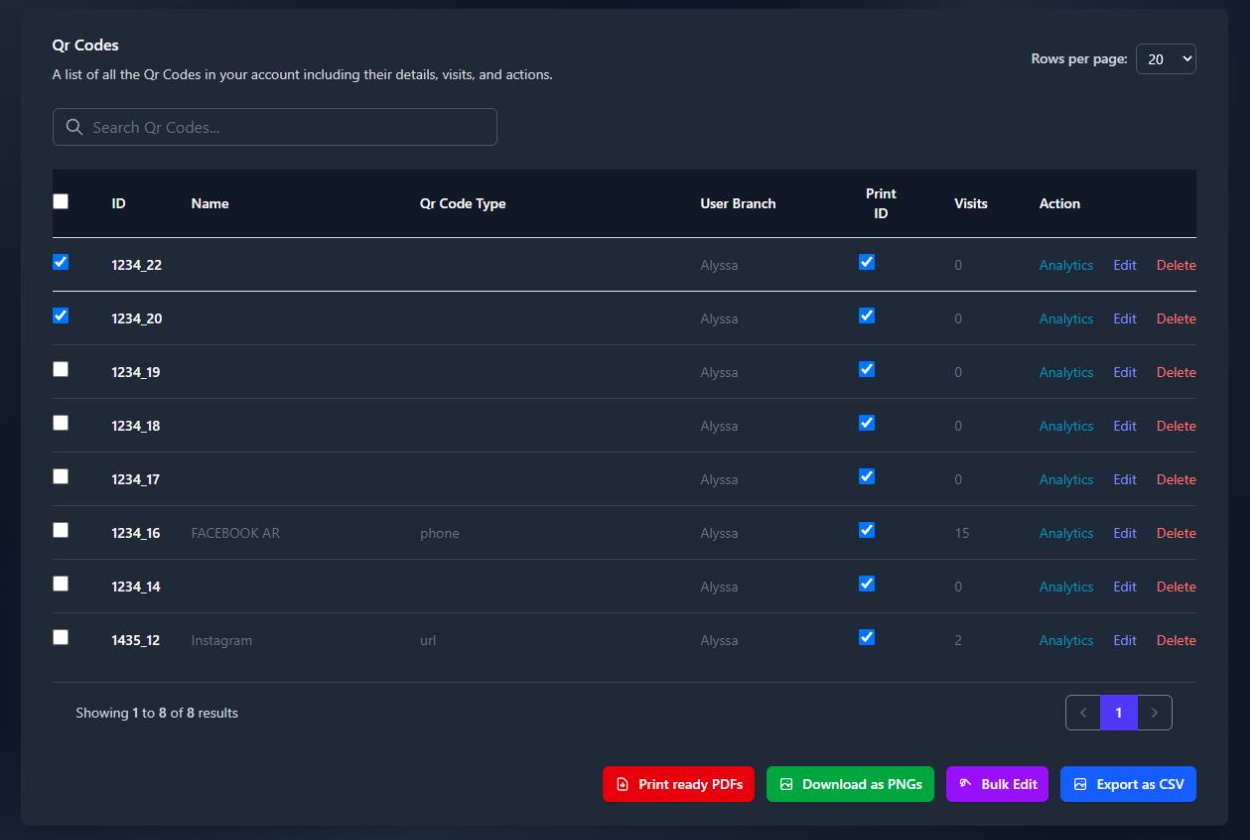
Tick the selection boxes in the far-left column. These are separate from the Print ID boxes towards the right. When the intended codes are selected, click the purple Bulk Edit button beneath the table.
3. Confirm the selected-code count
The Bulk Edit page shows how many QR codes are selected. The documented example shows two. If the number is wrong, select Cancel, return to the list and rebuild the batch. Do not continue on the assumption that you selected every code you intended.

4. Choose the QR code type
Open the QR Code Type dropdown and choose the type that should be applied to the entire selected batch. For a website destination, choose URL. For shared written content, choose Text. The inspected interface also lists other types, but this guide does not assume how every type behaves or which account can use it.

5. Enter and check the replacement content
Complete the field shown for your selected type. For a URL update, enter the full HTTPS destination and review the domain, page path and any tracking parameters. Use the Test control beside the field to inspect the destination before submission.
6. Apply the shared change
Check the selection count, type and content together. Then click Apply to [number] QR Codes. In the two-code example, the button reads “Apply to 2 QR Codes”. This is the final submission action, so use Cancel if anything needs correcting.

The screenshot above stops before submission. Its demonstration URL was not applied to any QR code.
7. Verify the result
After saving, return to Custom Codes and inspect an affected code. Scan a sample QR code using a normal phone camera and confirm that it opens the intended content. Repeat the check for every separately edited batch. For public-facing codes, the UK National Cyber Security Centre also advises people to be cautious with unexpected QR codes, so a recognisable and correct destination helps users make a safer decision.
What can you change with Bulk Edit?
| Field | Bulk Edit behaviour |
|---|---|
| QR code type | The selected replacement type is applied to every code in the batch. |
| QR code content | The submitted content replaces the existing content for every selected code. |
| Name and usability | The Bulk Edit screen states that these are left untouched. |
| Different content per code | Not supported by this shared-edit workflow. Create separate batches for separate replacements. |
| Design, ownership and other fields | Not documented as changing in this workflow. |
Where can UK businesses use a shared QR code update?
A marketing team could move a set of campaign codes from a launch page to a follow-up page. A multi-location operator could repoint a deliberately grouped set of signs to one revised information page. An agency could update several codes used for the same approved client campaign, provided the selected batch really belongs together.
The discipline matters more than the sector. Use one batch for one shared change. If codes serve different brands, locations, owners or audiences, confirm account permissions and divide the work into clearly named groups before editing. Bulk Edit should not be treated as a substitute for a multi-brand governance process.
What should you check before applying bulk changes?
- Correct QR codes selected
- Correct selected-code count
- Correct QR code type
- Correct replacement content
- Complete HTTPS destination
- One shared change for the batch
After submission, inspect an affected code and scan a sample. Repeat for each separate batch.
Common bulk editing mistakes to avoid
- Using the wrong boxes: select codes with the far-left selection boxes, not the Print ID boxes.
- Assuming everything is selected: the visible list is not proof that every code in an account is included. Trust the confirmation count.
- Mixing different destinations: one batch receives one shared type and content value.
- Skipping the URL review: check the domain, path and tracking parameters before applying.
- Treating the screenshot as a completed test: the documented demonstration stops before submission.
- Forgetting post-edit checks: inspect and scan an affected code after saving.
Frequently asked questions
Can I edit multiple QR codes at once?
Yes. Select the intended QR codes in Custom Codes, click Bulk Edit, confirm the count and apply one shared QR code type and content value to the batch.
Can I change the URL for several QR codes together?
Yes. Choose URL as the QR code type, enter the full HTTPS destination, test and review it, then apply it to the confirmed selection.
Will Bulk Edit change my QR code names?
The Bulk Edit screen states that names and usability are left untouched. The type and content are replaced.
Can every code receive a different destination?
Not in this workflow. Bulk Edit applies the same submitted type and content to every selected code. Use separate batches when destinations differ.
Does Bulk Edit change the printed QR artwork?
The documented workflow does not state that artwork changes. It describes replacement of the selected codes’ type and content.
How should I verify a bulk update?
Return to Custom Codes, inspect an affected code and scan a sample with a phone camera. Confirm the destination and repeat the check for every separately edited batch.
Ready to update a selected group?
Open Custom Codes, build one clear batch and confirm the count before applying the shared replacement.
Open Xcan.it