

So, you’re looking to get a PDF document out there with a handy QR code linked to it? It sounds simple enough, but there are a few things to think about to make sure it actually works well for people. We’ve put together a guide to help you get that pdf with qr code sorted, from start to finish. Whether it’s for marketing, information, or something else entirely, getting it right means people can actually access your document easily.
Key Takeaways
- Make sure your PDF is easy to view on a phone before you link to it.
- Pick a QR code generator that lets you change the link later if needed.
- Always test your QR code on different phones before you print it.
- Print your QR code with enough contrast and space around it so it scans easily.
- Consider using dynamic QR codes so you can update the linked PDF without reprinting.
Understanding Your PDF With QR Code Needs
Before you even think about generating a QR code, it’s important to get clear on what you actually want it to do. Simply linking a QR code to a PDF isn’t always the best approach, and understanding your specific goals will save you a lot of hassle down the line.
Defining the Purpose of Your QR Code
What’s the main reason someone would scan this QR code? Are you trying to provide more detailed product information, share a user manual, offer a downloadable brochure, or perhaps link to a company report? Knowing the ‘why’ behind the QR code helps shape everything else. For instance, a QR code on a product package might link to a PDF with assembly instructions, whereas one on a business card could link to a vCard or a PDF portfolio. The content needs to be relevant and immediately useful to the person scanning it. A QR code is essentially a bridge, connecting the physical world to specific data [b2ac].
Considering Your Audience and Access Levels
Who are you trying to reach with this PDF? Is it for the general public, existing customers, or internal staff? This will influence how you set up access. Publicly accessible documents, like marketing materials, can be linked directly. However, if the PDF contains sensitive information, like internal policies or customer-specific data, you’ll need to consider security. This might involve password protection or linking to a secure portal rather than the raw file. Think about whether the information needs to be freely available or if some form of gatekeeping is necessary.
Choosing the Right File Format for Mobile
Most people will be scanning QR codes with their smartphones. This means the linked document needs to be easily viewable on a small screen. While PDFs are generally a good choice, a massive, unoptimised PDF can be a pain to download and read on a mobile device. Consider:
- PDFs: Usually the best bet for documents. They maintain formatting and are widely compatible. Optimise them for size.
- Web Pages: Sometimes, a responsive web page is better than a PDF, especially for content that needs to be updated frequently or viewed interactively.
- Other Formats: Avoid formats like .docx or .pptx, as they often require specific apps to open and aren’t ideal for quick mobile viewing.
The goal is to make the user’s experience as smooth as possible from the moment they scan the code. If the PDF is very long, you might even consider offering a short summary PDF and a link to the full version, or optimising the file size before publishing. Platforms like Xcan.it offer dynamic QR codes, which are incredibly useful here. They allow you to update the destination link without reprinting the code, meaning if you decide a web page is better than a PDF later on, you can simply change the link. Plus, you can track scans in one dashboard, giving you insights into how your campaigns are performing across print, signage, and other assets.
Preparing Your Document for QR Code Linking
Before you even think about generating a QR code, it’s important to get your document ready. This isn’t just about making it look nice; it’s about making sure people can actually access and use it easily, especially on their phones.
Optimising PDF Size and Readability
Nobody likes waiting for a huge file to download, especially on a mobile connection. If your PDF is packed with high-resolution images or lengthy text, it might be worth trimming it down. Think about what information is absolutely necessary. Could some images be compressed without losing too much quality? Is there a way to break up a very long document into smaller, more manageable parts? A smaller file size means a quicker download and a happier user.
Ensuring Mobile-Friendly Document Design
Most QR codes are scanned on smartphones these days. So, how does your PDF look on a small screen? If it’s a standard A4 document, the text might be tiny and hard to read. Consider designing your PDF with mobile viewing in mind. This could mean using larger font sizes, simpler layouts, and avoiding dense blocks of text. If it’s a very long report, perhaps offer a concise summary PDF that links to the full version, or even a mobile-optimised webpage instead of a PDF altogether.
Setting Appropriate File Permissions
This is a big one. You need to decide who gets to see your document. Is it public information, or is it something only specific people should access? Make sure the hosting location for your PDF has the correct sharing settings. If it’s meant for everyone, set it to public. If it’s for customers only, you might need a password or a simple login. Getting this wrong can either expose sensitive information or block legitimate users.
For managing your documents and their access, platforms like Xcan.it offer a smart solution. They allow you to use dynamic QR codes, which means you can update the link your QR code points to without having to reprint the code itself. This is incredibly useful if the document changes or if you need to direct people to a new version. Plus, Xcan.it provides a dashboard to track scans, giving you insights into how your QR codes are being used in print, on signage, or on various assets. This helps you improve your real-world campaigns by understanding what’s working.
Selecting a QR Code Generator
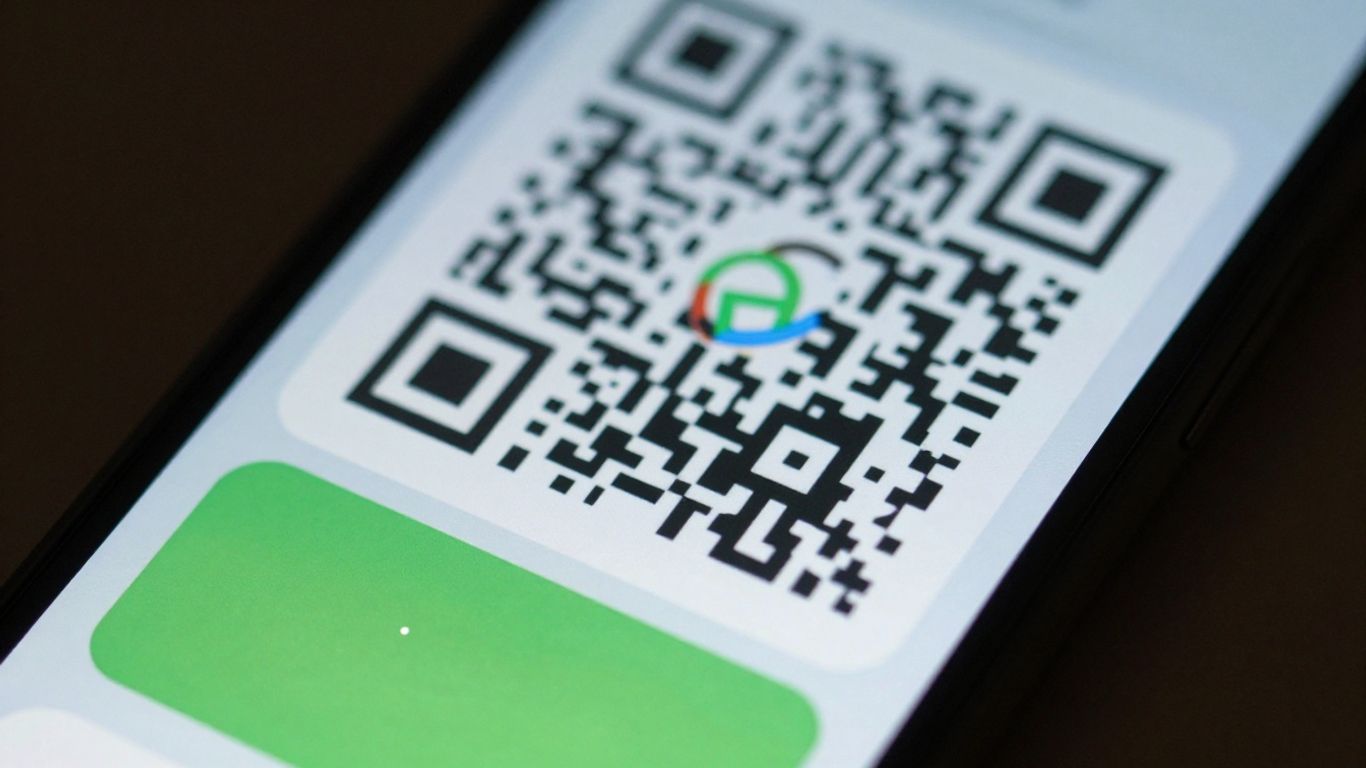
Choosing the right tool to create your QR code is more important than you might think. It’s not just about getting a scannable square; it’s about how that code functions, how it looks, and what you can do with it after it’s printed.
Free vs. Dynamic QR Code Solutions
When you’re starting out, a free QR code generator can seem like the obvious choice. Many services offer basic QR code creation without any cost. These are great for simple, one-off uses where the destination link is unlikely to change. You can easily generate a QR code for a website or a PDF using these tools. However, free generators often come with limitations. The links are usually static, meaning if the URL of your PDF changes, you’ll need to generate a completely new QR code and reprint everything. This can be a real headache for ongoing campaigns or materials that might need updating.
On the other hand, dynamic QR codes offer much more flexibility. While they typically come with a subscription fee, the benefits can quickly outweigh the cost. The main advantage of dynamic QR codes is that you can change the destination link at any time without having to reprint the code itself. This is incredibly useful for marketing materials, event information, or any document that might be updated. Services like Xcan.it provide dynamic QR codes, allowing you to update links, track scan analytics in a single dashboard, and improve your real-world campaigns across print, signage, and various assets. This means a single print run can serve multiple purposes over time, saving you time and money.
Features to Look For in a Generator
Beyond the free vs. dynamic decision, several features can make a QR code generator stand out:
- Customisation Options: The ability to add your logo, change colours, and select different shapes can make your QR code more visually appealing and on-brand. This helps it blend better with your existing marketing materials.
- Analytics and Tracking: For businesses, understanding how often and where your QR codes are scanned is vital. Dynamic QR code platforms often provide detailed analytics, showing you scan counts, locations, and device types. This data can inform future marketing strategies.
- Link Management: A good generator will offer a dashboard where you can manage all your QR codes, edit their destination links, and organise them by campaign.
- Download Formats: The option to download your QR code in various formats like PNG, SVG, or PDF is important for different printing needs. SVG files, for instance, are vector-based and can be scaled infinitely without losing quality.
Customisation Options for Branding
Making your QR code stand out is key. While functionality is paramount, aesthetics play a significant role in how your audience interacts with it. Most generators allow you to:
- Add a Logo: Placing your company logo in the centre of the QR code can significantly boost brand recognition. Just ensure it doesn’t obscure too much of the code, which could affect scannability. Using a higher error correction level can help with this.
- Change Colours: Moving away from the standard black and white can help your QR code fit better with your design. However, always maintain a strong contrast between the foreground and background colours for reliable scanning. Dark modules on a light background are generally best.
- Modify Shapes and Styles: Some generators let you alter the shape of the individual modules or the ‘eyes’ of the QR code. While this can add a unique touch, it’s important not to get too creative, as overly complex designs can sometimes hinder scanning performance.
When choosing a generator, consider not just the initial creation but also the long-term management and flexibility. For campaigns that need to stay current, dynamic QR codes are the way to go. Platforms like Xcan.it offer the ability to update links without reprinting, track scans in one dashboard, and use dynamic QR codes to improve real-world campaigns across print, signage, and assets, making them a strong contender for businesses looking for robust solutions. You can explore options for creating QR codes at ME-QR or QRStuff to get a feel for the different features available.
Generating Your PDF With QR Code
Now that you’ve got your PDF ready and know where it’s going to live, it’s time to actually make the QR code. This is where the magic happens, turning a simple link into a scannable gateway to your document. You’ll want to pick a QR code generator that suits your needs, whether that’s a quick free option or something more robust.
Linking to Your Hosted PDF Document
The QR code itself doesn’t contain your PDF. Instead, it’s a pointer, a digital shortcut to where your file is stored online. This means the first step is making sure your PDF is uploaded and accessible via a direct URL. Think of your website, a cloud storage service, or a dedicated document portal. The QR code generator will take this URL and encode it into the scannable pattern.
Customising the Appearance of Your QR Code
This is where you can make your QR code stand out and match your brand. Most generators let you play with colours, add your logo right in the middle, and even change the shape of the dots or the ‘eyes’ of the code. Just remember, while customisation is great, don’t go too wild. The primary goal is scannability. A good rule of thumb is to ensure there’s enough contrast between the dark and light elements of the code.
Downloading Your QR Code in Suitable Formats
Once you’re happy with the design, you’ll need to download the QR code. The format you choose depends on where you’ll be using it. For digital use, like on a website or in an email, a PNG file is usually perfect. If you’re printing, especially for larger formats or if you need to scale it up without losing quality, an SVG or PDF file is often a better choice. This ensures your QR code looks sharp no matter the size.
For those looking to manage their QR codes effectively, platforms like Xcan.it offer dynamic QR codes. This is a game-changer because it means you can update the link your QR code points to at any time, even after it’s been printed. No more reprinting flyers or signs if a document gets updated! Plus, Xcan.it provides a dashboard to track scan analytics, giving you insights into how your campaigns are performing across print, signage, and other assets. It’s a smart way to improve your real-world marketing efforts.
Best Practices for Printing QR Codes
So, you’ve got your PDF ready and your QR code generated. Now comes the part where it all comes together: printing. Getting this right is key to making sure people can actually access your document. It’s not just about slapping a QR code onto a piece of paper; there are a few things to consider to make sure it scans reliably every time.
Ensuring Sufficient Contrast and Quiet Zone
This is probably the most important bit. A QR code needs clear contrast between the dark and light modules to be read by a scanner. Think classic black on white – it’s a tried and tested combination for a reason. Avoid light colours on light backgrounds, or dark on dark. Also, don’t forget the ‘quiet zone’. This is the blank space around the QR code. It acts like a buffer, helping scanners distinguish the code from its surroundings. If you cram text or graphics right up to the edge, it can cause scanning issues.
The quiet zone is essential for scanability. It’s the unprinted border that surrounds the QR code, allowing scanners to isolate and read the data within.
Sizing Your QR Code Appropriately
How big should your QR code be? It really depends on where it’s going to be placed and how far away people will be when they scan it. A general rule of thumb is the ’10x rule’: the distance from the scanner to the code should be about 10 times the width of the code itself. So, if your QR code is on a poster that people will see from a few metres away, you’ll need a larger code. For something like a business card or a small flyer, a smaller code might be fine, but never go below 10mm (excluding the quiet zone) to ensure it’s readable. Scaling up improves scan reliability.
Choosing the Right Print Material and Finish
What you print on matters too. Glossy paper can create glare, which makes scanning difficult, especially under bright lights. Opting for a matte finish is usually a safer bet. If your QR codes are going to be exposed to the elements, like on outdoor signage, you’ll need durable, weather-resistant materials. For many everyday uses, like flyers or brochures, standard paper with a matte finish will work well.
For real-world campaigns across print, signage, and assets, using dynamic QR codes is a game-changer. Platforms like Xcan.it allow you to update the links your QR codes point to without reprinting them. This means if a URL changes or you need to update a document, you can do it instantly from a central dashboard. Plus, you can track scan analytics to see how your campaigns are performing. This flexibility and insight are invaluable for improving your marketing efforts.
Testing and Deploying Your QR Code
So, you’ve gone through all the steps, designed your PDF, created your QR code, and it looks fantastic. But before you send it out into the wild, there’s one crucial stage left: testing. It might seem like a small thing, but a QR code that doesn’t scan properly is worse than useless; it’s frustrating for everyone involved.
Verifying Scanability Across Devices
This is where you play detective. Grab a few different phones – an iPhone, an Android, maybe an older model if you have one. Open your camera app and give your QR code a good scan. Does it open the PDF straight away? Does it take a moment to load? Are there any error messages?
- Test on multiple devices: Different operating systems and camera apps can interpret QR codes slightly differently.
- Check different lighting conditions: Scan it in bright light, dim light, and even under artificial light to see if it holds up.
- Scan from different angles and distances: Make sure it’s not too finicky about how you hold your phone.
If your QR code is intended for a specific placement, like on a poster or a business card, try scanning it from that approximate distance and angle. This helps catch issues that might not appear when scanning from your desk.
Understanding Scan Analytics
This is where things get really interesting, especially if you’re using dynamic QR codes. Static QR codes just point to a URL, and once printed, that’s it. If the URL changes, you’re out of luck and have to reprint everything. Dynamic QR codes, however, offer a much more flexible approach.
With a service like Xcan.it, you can get valuable insights into how your QR codes are being used. You can track:
- Total scans: A simple count of how many times your QR code has been scanned.
- Scan location (aggregated): Some platforms can give you a general idea of where scans are happening, which can be useful for understanding campaign reach.
- Device type: See if most scans are coming from mobile or tablet, and which operating systems are most common.
This data is gold. It helps you understand what’s working, where your audience is engaging, and whether your QR code placement is effective. For instance, if a QR code on a flyer gets way more scans than one on a poster, you know where to focus your efforts next time. You can even use A/B testing to compare different designs or placements and see which performs better [2a00].
Updating Links Without Re-printing
This is perhaps the biggest advantage of using dynamic QR codes, and it’s a game-changer for real-world campaigns. Imagine you’ve printed thousands of brochures with a QR code linking to a product page. Six months later, that product page is updated, or the product is discontinued. With a static QR code, you’d have to design, print, and distribute entirely new brochures. That’s a huge waste of time and money.
Dynamic QR codes let you update the destination link at any time, without ever needing to reprint the physical QR code. This means your print materials never go stale. If a URL changes, a promotion ends, or you simply want to direct people to a new landing page, you can make that change instantly through your QR code management dashboard. Xcan.it excels here, allowing you to manage all your dynamic QR codes from a single dashboard, making it simple to update links, track scans, and improve your campaigns across print, signage, and other assets without the hassle of reprinting.
Once you’ve finished creating your QR codes, it’s time to put them to work! Testing ensures they scan correctly every time, and deploying them means getting them out there for people to use. Make sure your codes are easy to find and scan. Ready to see how simple it is to get your QR codes live? Visit our website today to learn more and start deploying!
Putting It All Together
So there you have it. Creating a PDF with a QR code isn’t some dark art; it’s a straightforward process that can really make your documents more accessible. Whether you’re sharing a report, a brochure, or even a CV, adding a QR code just makes things easier for everyone. Remember to test your code before you send it off, and you’ll be good to go. It’s a simple step that bridges the gap between your digital files and the physical world, making information a bit more handy for people.
Frequently Asked Questions
What’s the easiest way to make a QR code for a PDF?
The simplest method is to first upload your PDF to a place online where people can access it, like your website or a cloud storage service. Then, you’ll use a QR code generator to create a code that links directly to that online location. Make sure the PDF is easy to view on a phone, and choose a generator that lets you make the QR code look good.
Do I need to pay for a QR code generator?
Not necessarily! There are many free QR code generators available that let you create basic codes. However, if you want more advanced features like tracking scans or changing the link later without reprinting the code, you might need to look at paid or ‘dynamic’ QR code services.
Can I change where the QR code leads after I’ve printed it?
Yes, you can, but only if you use a ‘dynamic’ QR code service. These services allow you to update the link the QR code points to at any time, even after it’s been printed. This is super handy if the document you’re linking to changes or if you want to direct people to a new page.
How do I make sure my QR code actually works when scanned?
Always test your QR code on different phones and devices before you print a lot of them. Check that it opens the correct PDF quickly and clearly. Also, make sure there’s enough contrast between the dark and light parts of the code and that it has a clear space around it (called a ‘quiet zone’) so scanners can read it easily.
What’s the best file type to link to from a QR code?
For documents, PDF is usually the best choice. It’s widely supported and designed to look the same on any device. Other file types, like Word documents (.docx), might require the user to have specific software installed, which can be a hassle.
Can I put my company logo on the QR code?
Many QR code generators allow you to add your logo to the centre of the code. This can make it look more professional and branded. Just be careful not to make the logo too big, as it can sometimes make the QR code harder to scan. Using a generator with good error correction helps with this.












