
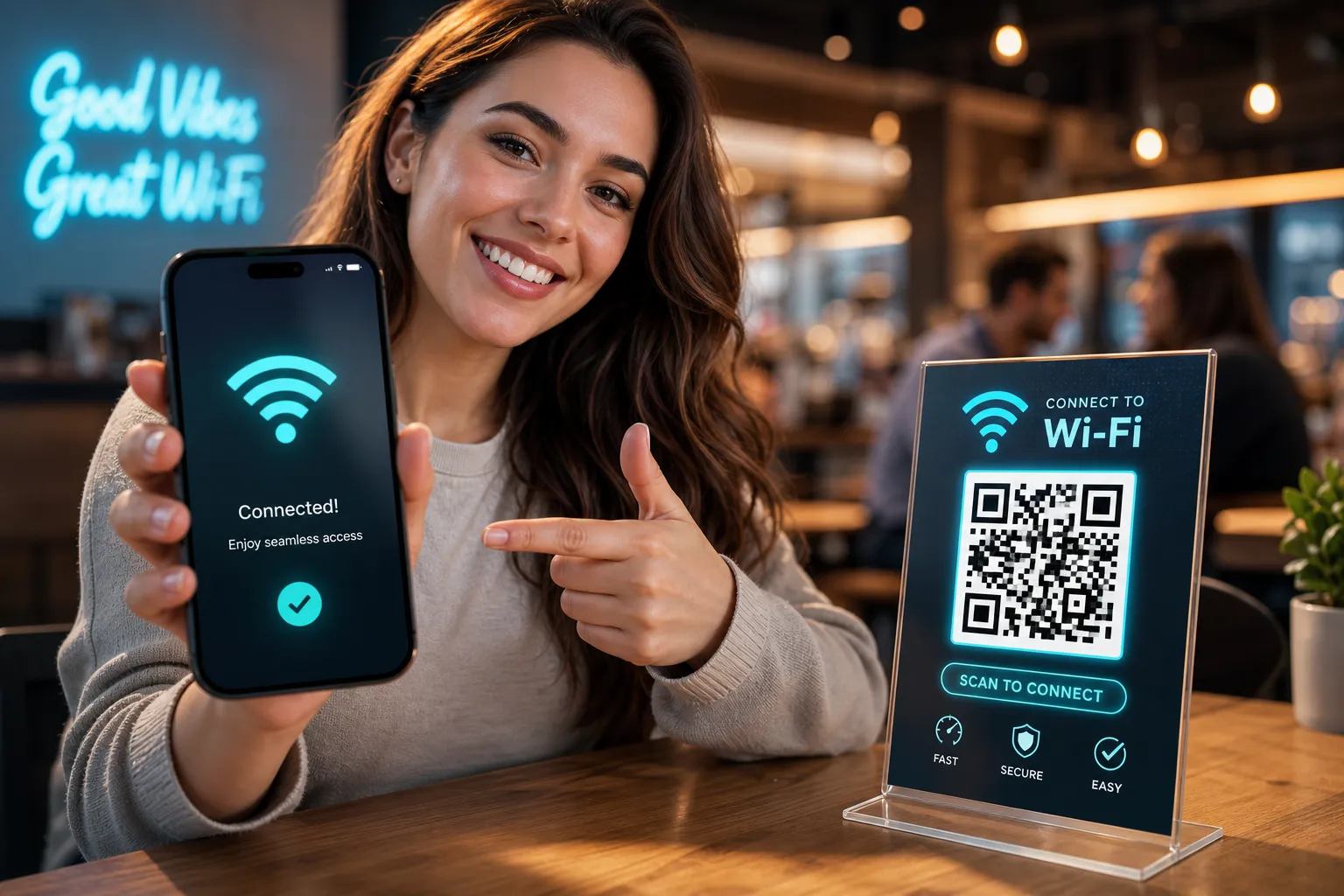
A customer walks into your café, settles into a chair, and within thirty seconds they’re turned around looking for someone to ask about the Wi-Fi. A staff member reads out a password. The customer types it wrong, tries again, and eventually gives up or asks a second time. That exchange costs goodwill, distracts your team, and plays out repeatedly across hospitality venues, co-working spaces, gyms, hotels, and waiting rooms across the UK.
Wi-Fi QR codes remove that friction entirely. Scan, tap, connected. No password visible to the room, no keyboard fumbling, no staff involvement. This guide explains exactly how these codes work under the hood, which generators handle your credentials safely, how to encode them correctly so they don’t silently fail, and how to produce printed signage that keeps working reliably on the wall. It also covers what happens when your network password changes, which is where most venues run into problems they didn’t anticipate at the outset.
Platforms like Xcan It are built specifically for this kind of physical deployment, where a printed code needs to keep working in the real world long after it first gets produced. Unlike a one-off generator that creates a static code and nothing more, a QR management platform gives you ongoing control: the ability to update credentials, monitor scan activity, and scale across locations without touching the physical signs. That distinction matters more than it might seem, and we’ll return to it.
What Wi-Fi QR codes actually are (and how they work)
A Wi-Fi QR code is not a link to a website. It encodes a structured text string directly into the QR pattern, and when a phone’s camera reads that pattern, the operating system interprets the string and offers to join the network automatically. No browser opens, no app launches, no redirect happens. The connection offer comes from the OS itself.
The string sitting inside every Wi-Fi QR code follows this structure: WIFI:T:WPA;S:YourNetwork;P:YourPassword;;. Each field carries a specific piece of information. The T field is the security type (WPA, WPA2, WPA3, or nopass for open networks). Note that many implementations use T:WPA for both WPA2 and WPA3 transition-mode networks, as client handling of the WPA3 value can vary between devices. The S field is your SSID, the network name exactly as it appears. The P field is the password. There is also an optional H field set to true if the network is hidden. The double semicolons at the very end are not decorative; omitting them is one of the most common reasons a code scans without triggering the connection prompt.
For a clear, technical description of the Wi‑Fi QR payload format and field semantics, see the QR code format guide, which walks through the exact encoding rules and common pitfalls.
When a modern iPhone or Android device reads this payload, the operating system handles the rest. No third-party app is needed on current devices. This is fundamentally different from a URL-based QR code that opens a browser tab. The phone recognises the WIFI: prefix as a special protocol, parses each field, and surfaces a prompt to join the network directly.
From the guest’s perspective, the experience is: point the camera, tap the notification, connected. Compare that to reading a password off a card, finding the right network in the settings list, and typing a fourteen-character string with a mix of letters and numbers, and the case for switching is obvious.
Choosing a Wi-Fi QR generator that keeps your credentials safe
Most people reach for the first generator they find in search results. The risk with many of these tools is that they process your SSID and password on a remote server to produce the QR image. For a home network, that may be an acceptable trade-off. For a business network, it is an unnecessary exposure of credentials you almost certainly don’t want leaving your device.
Client-side generation means the QR image is built entirely inside your browser, on your machine, without your credentials ever being transmitted. You can verify this by disconnecting your internet connection before generating the code. If the generator still works offline, your data is staying local. If it fails, the processing is happening server-side.
Two generators with explicit, documented client-side claims are QiFi and dnsrobot.net. QiFi states directly that it renders the code in your browser and that no data is transmitted to the server; saved codes use localStorage only. dnsrobot.net makes the same privacy claim and specifically suggests the offline verification test as proof. Both are basic, no-frills tools, which is exactly what a single-use generator should be.
By contrast, platforms such as QRStuff and Canva do not confirm client-side processing in their published documentation. That is not necessarily an accusation, but it is a gap in the evidence. If credential privacy matters to your organisation, use a tool that states its approach clearly. For a single static code at a small venue, a client-side generator is sufficient. For organisations managing multiple venues, rotating passwords, or requiring central oversight, a QR management platform is the more sensible infrastructure choice.
Getting the encoding right: security types, special characters and common mistakes
Most DIY Wi-Fi QR codes that fail do so silently. The code scans, nothing happens, and the guest assumes their phone is broken. The fault is almost always in the encoding string itself, not in the device or the camera.
For WPA and WPA2 networks, use T:WPA. This is the standard value and is widely supported across devices. WPA3 operates in a transition mode on most consumer networks, and the majority of clients also accept T:WPA for these. If your network is completely open with no password, use T:nopass and omit the P field entirely. A few clean examples:
- WPA/WPA2:
WIFI:T:WPA;S:MyNetwork;P:MyPassword123;; - WPA3 (transition mode):
WIFI:T:WPA;S:MyWPA3Network;P:VerySecurePass!;; - Open network:
WIFI:T:nopass;S:GuestWiFi;; - Hidden WPA2:
WIFI:T:WPA;S:PrivateWiFi;P:SecurePass456;H:true;;
Special characters in your SSID or password require escaping. Semicolons, backslashes, and quotation marks within the SSID or password string will break the payload if left unescaped, producing a code that either scans and fails silently or decodes into a malformed string. The rule is straightforward: a backslash before the character escapes it. A semicolon in your password becomes \; and a backslash becomes \\.
Before committing anything to print, test the code on at least two devices: one iPhone and one Android. Use a QR reader app that displays the raw decoded text rather than one that simply acts on it; on iOS the built-in Camera app will attempt to join the network, so a dedicated reader such as QR & Barcode Scanner lets you inspect the raw payload. On Android, apps such as ZXing Barcode Scanner display the decoded string before acting on it. This lets you verify that every field has been captured correctly. A five-minute test before printing saves the cost and delay of reprinting a batch of signs because the password field was truncated.
Device compatibility: iPhone, Android and edge cases
iOS has supported Wi-Fi QR scanning natively since iOS 11, released in 2017. The standard Camera app reads the WIFI: payload and surfaces a banner notification at the top of the screen. The user taps it to join. No additional app is required, and the process is consistent across iPhones and iPads running iOS 11 or later, which covers the vast majority of Apple devices in active use.
Android added native Wi-Fi QR scanning with Android 10. On devices running Android 10 and above, the built-in camera handles the payload directly. Android 10 also introduced a built-in QR generator for sharing a connected network from the Settings menu. On older Android versions, a third-party scanner app is needed, though these are widely available.
The honest caveat is that Chromebooks, Windows laptops, most smart TVs, and other non-mobile devices cannot auto-join a network via a scanned QR code, at least not natively at the OS level, though some third-party utilities may offer workarounds on specific builds. For venues where guests bring a mix of devices, the practical solution is to include the plain-text network name alongside the QR code on the sign. This is a considered design decision for the printed asset, not a failure of the QR format. A line that reads “Network: GuestWiFi” below the code covers every device without cluttering the experience for mobile users.
Security: what guests can and can’t do with your Wi-Fi QR code
Wi-Fi QR codes are convenient, but they are not secrets. Any QR reader app can decode the payload and display the network password in plain text. That is the honest starting point for thinking about security: treat the QR code as equivalent to writing your Wi-Fi password on a notice board. Anyone who can photograph the code can extract the credentials and use them later, or share them with others.
The standard risk reduction for any guest-facing venue is a dedicated guest network, completely isolated from your internal infrastructure. A separate SSID means guests can reach the internet without accessing your POS systems, shared drives, printers, or any other internal resource. Most modern routers and access points support this natively. Combine it with periodic password rotation: every 60 to 90 days as a baseline, and immediately after any staff departure or suspected unauthorised sharing.
For venues with higher security requirements, Dynamic Pre-Shared Key (DPSK) authentication is worth knowing about. DPSK gives each user or device a unique password rather than a single shared credential. Revoking one user’s access does not affect everyone else, and a shared code doesn’t expose the whole network. It is more complex to administer than a standard shared password, but it eliminates the core weakness of the QR approach for environments where that matters. If DPSK is unfamiliar to your IT team, your router or access point vendor’s documentation is the best starting point, as implementation varies between hardware platforms.
Physical control of the printed code also deserves attention. In a public venue, a rogue QR code can be printed and placed over the genuine one, redirecting guests to an attacker-controlled network. Laminating your signage makes this harder. Positioning signs where staff regularly pass by means any substitution is more likely to be noticed. Periodically checking that the code on the wall still connects to your network takes thirty seconds and is worth building into a routine.
Where to place Wi-Fi QR codes in physical spaces
Generating the code is the straightforward part. Placement is where many venues underestimate the work. A code that requires a guest to stand up, move closer, or turn around to scan is a code that many people simply won’t use.
In cafés, restaurants, and co-working spaces, the most effective placements are table tent cards positioned at eye level when seated, counter displays at the point of order, and window stickers or small signs visible from outside for customers waiting before they enter. The code should be scannable from the guest’s natural position without adjustment. A printable Wi-Fi QR poster in a standard A4 or A5 frame works well for wall-mounted positions near entrance areas.
In hotels, a framed card on the desk or inside the wardrobe door near the safe puts the code where guests go when they first enter the room. Gyms benefit from an A5 stand at the check-in desk, with a larger sign in the equipment area where guests settle in for longer periods. In waiting rooms and medical practices, wall-mounted signage at around seated eye level works well, roughly 90 to 100 centimetres from the floor is a useful starting point, though it is worth checking against any applicable local accessibility guidance for your setting.
Wherever the code is placed, add a single line of instruction: “Scan to join our Wi-Fi.” Many guests, particularly older users or those unfamiliar with QR codes, benefit from that explicit prompt. Avoid placing signage where window glare or overhead lighting creates reflection on a laminated surface. Glare directly over the code is one of the most common causes of scan failure in venues that have done everything else correctly.
Print specifications for codes that scan reliably
A QR code that looks sharp on screen but fails to scan from a metre away is a sizing problem, not a camera problem. The practical rule for sizing is the 10:1 ratio: the physical size of the code should be at least one-tenth of the intended scanning distance.
Translated into real dimensions for typical venue placements:
- 0.5 m scanning distance (table tent): minimum 5 cm; 6, 7 cm recommended
- 1 m scanning distance (desk or counter card): minimum 10 cm; 12, 13 cm recommended
- 2 m scanning distance (wall-mounted A4 sign): minimum 20 cm; 24, 26 cm recommended
- 3 m scanning distance (large wall poster): minimum 30 cm; 36, 39 cm recommended
File formats
SVG is the correct choice for professional print production. It is vector-based, scales to any size without quality loss, and retains crisp edges at any print resolution. High-resolution PNG at 300 DPI is acceptable for close-range use. JPEG is not recommended for print: compression artefacts can degrade the precise pattern of a QR code and cause scan failures that are difficult to diagnose, because the code may appear visually intact while the underlying pattern has been subtly corrupted.
Contrast and quiet zone
High contrast is non-negotiable. Black on white remains the most reliable combination for camera scanning across all lighting conditions. The quiet zone, the clear white border surrounding the code, must be preserved at print. Cropping into the quiet zone is another common cause of silent failure.
Lamination and finish
For indoor signage, matte lamination is preferable to gloss: it protects the print without introducing the glare that interferes with camera auto-focus. If you are producing a share Wi-Fi QR code for a high-traffic surface such as a café counter, a matte-laminated card will outlast an unprotected print considerably.
For minimum dimensions, detailed guidance on sizing and real-world recommendations, consult this QR code size guide which covers minimum printable sizes and scanning distances.
Managing Wi-Fi QR signage at scale when credentials change
The problem only becomes visible after the signs are on the wall. Your network password changes, maybe you rotated it after a staff departure, maybe you upgraded your router, maybe it is simply time for the quarterly update. Every Wi-Fi QR code you have printed is now wrong. Every sign in every location is useless until you replace it.
For a single venue with one sign, the operational cost is manageable: order a reprint, wait two or three days, swap the sign. For a group of cafés, a gym chain, a hotel with Wi-Fi in forty rooms plus reception, a university campus, or a retail group with multiple sites, this compounds very quickly. Print costs, delivery lead times, staff time to physically replace every sign, and the window during which guests encounter a non-functioning code all add up to a recurring operational burden.
This is the problem that dynamic QR management platforms are built to solve. Xcan It uses a dynamic QR system that encodes a short redirect URL into the printed code, rather than the Wi-Fi destination directly. When you update the Wi-Fi credentials in your Xcan It dashboard, every deployed code pointing to that destination is updated instantly, with no new print required. The physical code on the wall never changes; only the destination it resolves to is updated, in seconds, from your central dashboard.
Read WiFi QR Codes: How Contactless Login Boosts Convenience for Businesses and Guests, Xcan.it for a practical look at how contactless login reduces operational friction across hospitality environments. For an overview of the kind of capabilities a management platform offers, see this short guide to dynamic QR code features.
Xcan It also supports the production side, offering branded print options and a central dashboard that gives a single view of every deployed code: where it is located, how many times it has been scanned, and which locations are seeing the most activity. For organisations managing QR codes across multiple locations, that operational visibility is a useful signal beyond simply knowing whether the code is functioning. Confirm the specific features available for your plan directly with the Xcan It team.
This is infrastructure thinking, not campaign thinking. A one-off generator produces a static code for a single sign. A QR management platform gives you ongoing control of every code in every location, with the ability to update, monitor, and scale without operational overhead.
If you’re new to creating codes and want a step-by-step reference for building the correct payload and image files, consult How to Generate a QR Code for Wi-Fi: A Simple Guide which walks through common settings and export advice.
Put it to work
Back to that customer at the counter asking for the Wi-Fi password. With a correctly encoded, properly printed, well-placed Wi-Fi QR code, that interaction simply stops happening. The sign does the work, the connection happens in three seconds, and your staff stay focused on what they are there to do.
At this point you have what you need to move forward: how to encode the payload correctly for your network type, which generators handle credentials without transmitting them to a remote server, how to size and format the code for reliable scanning at your specific placement distance, and why central management matters once signage is deployed at scale.
The reprint problem is the operational reality for any venue that rotates credentials or manages more than one location, and it catches up with static codes eventually. A dynamic QR management platform such as Xcan It prevents it: create your Wi-Fi QR code, embed it in branded signage, and update it from your dashboard whenever your network changes. No reprints, no downtime, no broken codes on the wall. For guidance tailored to UK venues, consult Effortless Connectivity: How to Create and Use a WiFi QR Code in the UK.












