Scanning QR codes on your Android device is pretty straightforward these days. Most phones can do it right out of the box with the camera app, which is handy. But sometimes, you might run into a few snags, or maybe you need something a bit more advanced. This guide will walk you through how to get those codes scanned, what to do if they’re playing up, and when a dedicated app might actually be useful for your Android qr codes needs.
Key Takeaways
- Most Android phones can scan QR codes using their built-in camera app, often with Google Lens integration.
- If scanning fails, check for sufficient contrast, a clear border (quiet zone), correct size and distance, and minimise glare.
- Dedicated QR scanner apps can offer advanced features like multi-format support or enhanced privacy controls.
- QR codes can also be scanned from images or screenshots using apps like Google Photos.
- Designing scannable QR codes involves ensuring high contrast, appropriate sizing, and managing data density.
Scanning QR Codes With Your Android Camera
Most modern Android phones have a built-in QR code scanner right in their camera app. This means you don’t usually need to download anything extra to get started. It’s a pretty straightforward process, and for most everyday uses, it works perfectly well.
Using Your Phone's Built-In Camera
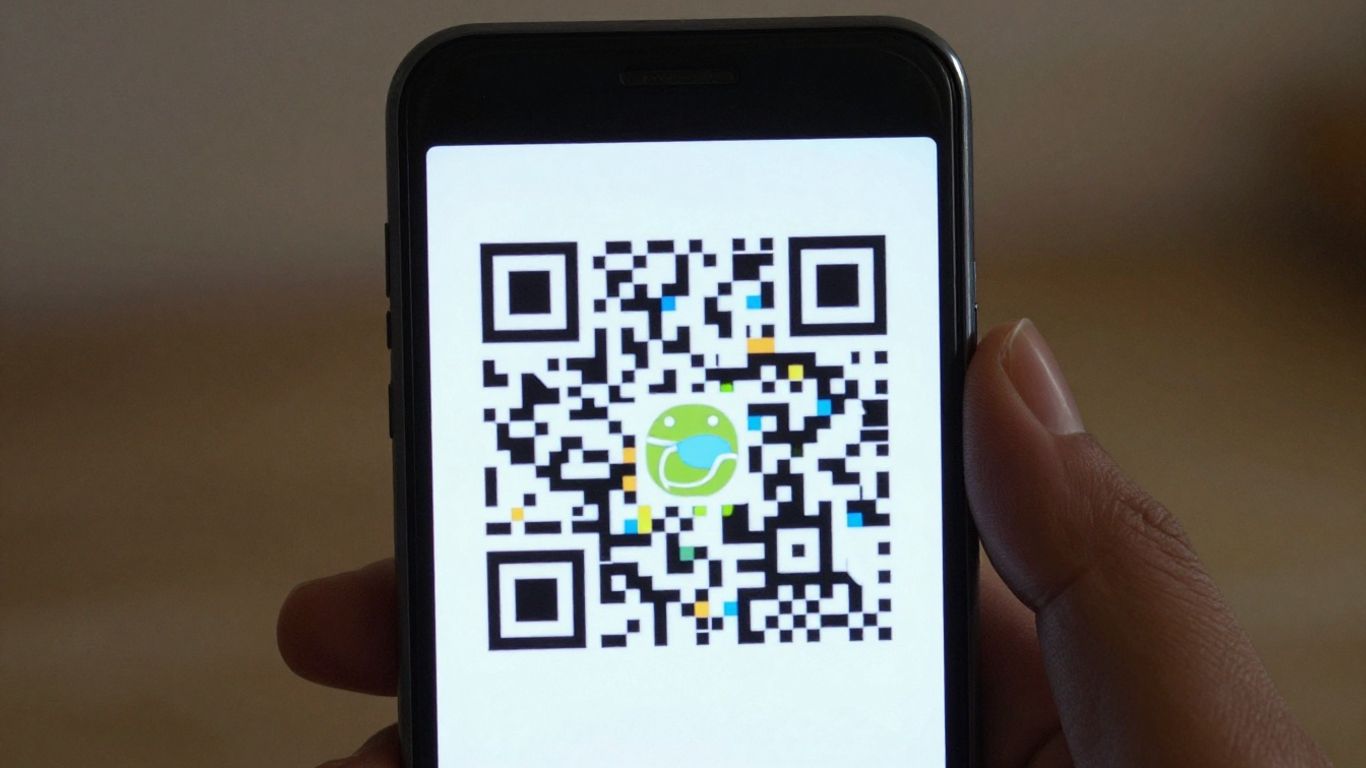
This is the simplest way to scan a QR code. Just open your phone’s standard camera app. You don’t typically need to switch to a special mode. Simply point your camera at the QR code, making sure it’s well-lit and in focus. Your phone should automatically recognise the code and display a notification or a link at the top of the screen. Tap this notification, and it will take you directly to the website or content the QR code links to. It’s that easy!
If your camera app doesn’t seem to be picking up QR codes automatically, it might be a setting you need to enable. Head into your camera app’s settings and look for an option like ‘Scan QR codes’ or ‘Google Lens suggestions’ and make sure it’s switched on. This is often the case for devices that use Google Lens for various camera features.
Enabling Google Lens Suggestions
For many Android devices, Google Lens is the engine behind the QR code scanning. If your camera app isn’t automatically detecting codes, you might need to enable Google Lens integration. Go into your main Camera app settings. You’re looking for an option that mentions Google Lens or ‘Smart suggestions’. Once enabled, pointing your camera at a QR code should bring up the Lens interface, which will then identify the code and offer to open the link. It’s a handy feature that adds a bit more intelligence to your camera.
Dedicated QR Scanner Modes
Some Android phones go a step further and have a dedicated ‘QR Code’ or ‘Scanner’ mode built directly into the camera app. You might see this as an option when you swipe through the different camera modes (like Photo, Video, Portrait, etc.). Selecting this mode can sometimes make the scanning process even faster and more reliable, as the camera is specifically optimised for reading these codes. If you can’t find it immediately, check your camera app’s settings or user manual. For those looking to manage campaigns across print, signage, and assets, services like Xcan.it are brilliant. They let you update QR code links without reprinting, track scans in one dashboard, and use dynamic QR codes to really improve your real-world marketing efforts.
When you’re just quickly scanning a code to visit a website or get some information, the built-in camera is usually all you need. It’s fast, it’s convenient, and it doesn’t require any extra downloads. Just open your camera, point, and tap.
Troubleshooting QR Code Scan Failures
Sometimes, even with the best intentions, a QR code just won’t scan. Don’t worry, it’s usually a simple fix. Most scanning issues boil down to a few common culprits related to the code itself or how it’s being presented.
Ensuring Sufficient Contrast
The most frequent reason a QR code refuses to scan is poor contrast. Think of it like trying to read white text on a white background – it’s just not going to happen. For reliable scanning, you need a strong difference between the dark modules (the squares) and the light background. Black on white is the gold standard for a reason. Avoid using pale colours, metallic inks, or trying to scan a dark code on a dark background. Even subtle colour variations can throw off the camera’s ability to read the data accurately. If you’re printing codes, always opt for a matte finish rather than glossy, as this helps reduce reflections.
The Importance of a Quiet Zone
Ever noticed that white border around a QR code? That’s called the ‘quiet zone’, and it’s more important than you might think. It’s essentially a buffer space that tells the scanner where the code begins and ends. Without a sufficient quiet zone – generally at least four modules wide on all sides – the scanner can get confused, mistaking surrounding elements for part of the code. This is especially true if you’re tempted to place a logo or other graphics too close to the code. Keep that border clear and uncluttered for the best results.
Optimising Size and Distance
It sounds obvious, but the size of the QR code and the distance from which you’re trying to scan it are critical. A general rule of thumb is that the scanning distance should be about 10 times the width of the QR code itself. So, if your code is 2cm wide, you should ideally be scanning it from about 20cm away. Trying to scan a tiny code from across a room, or a huge poster from inches away, will likely lead to frustration. If you’re using dynamic QR codes, you have the advantage of being able to update the link without reprinting, which can be useful if you need to adjust the size for different placements.
Minimising Glare and Curvature
Glare is another common enemy of a good QR scan. Reflections from lights, windows, or even the screen of the device you’re scanning can bounce off the code and obscure the modules. This is why matte finishes are recommended for printed codes. If you’re scanning a code on a screen, try adjusting the brightness or angling your device slightly to minimise reflections. Similarly, if your QR code is printed on a curved surface, like a bottle or a folded piece of paper, the distortion can make it unreadable. Try to keep the code as flat and undistorted as possible. For campaigns across print, signage, and assets, ensuring codes are presented flat and without glare is key to improving scan rates.
When to Consider a Dedicated QR App
While your phone’s built-in camera is often good enough for scanning QR codes, there are times when a dedicated app really shines. If you’re dealing with more than just simple website links, or if you need more control over your QR campaigns, it’s worth looking into specialised tools.
Advanced Scanning Needs
Sometimes, the standard camera app just won’t cut it. You might need to scan different types of codes beyond the basic QR format, like Data Matrix or PDF417, which are common in logistics and ticketing. A dedicated app can handle these with ease, ensuring you don’t miss a beat. Plus, if you’re running marketing campaigns, you’ll want features that go beyond a simple link. Tools like Xcan.it allow you to create dynamic QR codes. This means you can update the destination link even after the QR code has been printed, which is a game-changer for print materials, signage, and assets. Imagine updating a promotional offer without having to reprint everything!
Privacy and Security Features
While built-in scanners are generally safe, some dedicated apps offer enhanced security. They might provide more robust previews of links, warning you about potentially malicious sites before you even visit them. For businesses, this adds an extra layer of trust for their customers. Some apps also focus on privacy, ensuring your scan data isn’t being collected or sold. If you’re frequently scanning codes in public or for business purposes, this can be a significant consideration.
Multi-Format Support
Your phone’s camera might be great at QR codes, but what about other types of barcodes? Dedicated apps often support a wider range of formats, including:
- QR Codes
- Data Matrix
- PDF417
- Code 128
This broad support is incredibly useful if you encounter different codes in various settings, from product packaging to event tickets. For businesses looking to streamline their operations and improve real‑world campaigns across print, signage, and assets, Xcan.it offers a dashboard to track scans and manage these dynamic QR codes effectively. This level of insight and control is hard to achieve with just a standard camera app.
Scanning QR Codes From Images
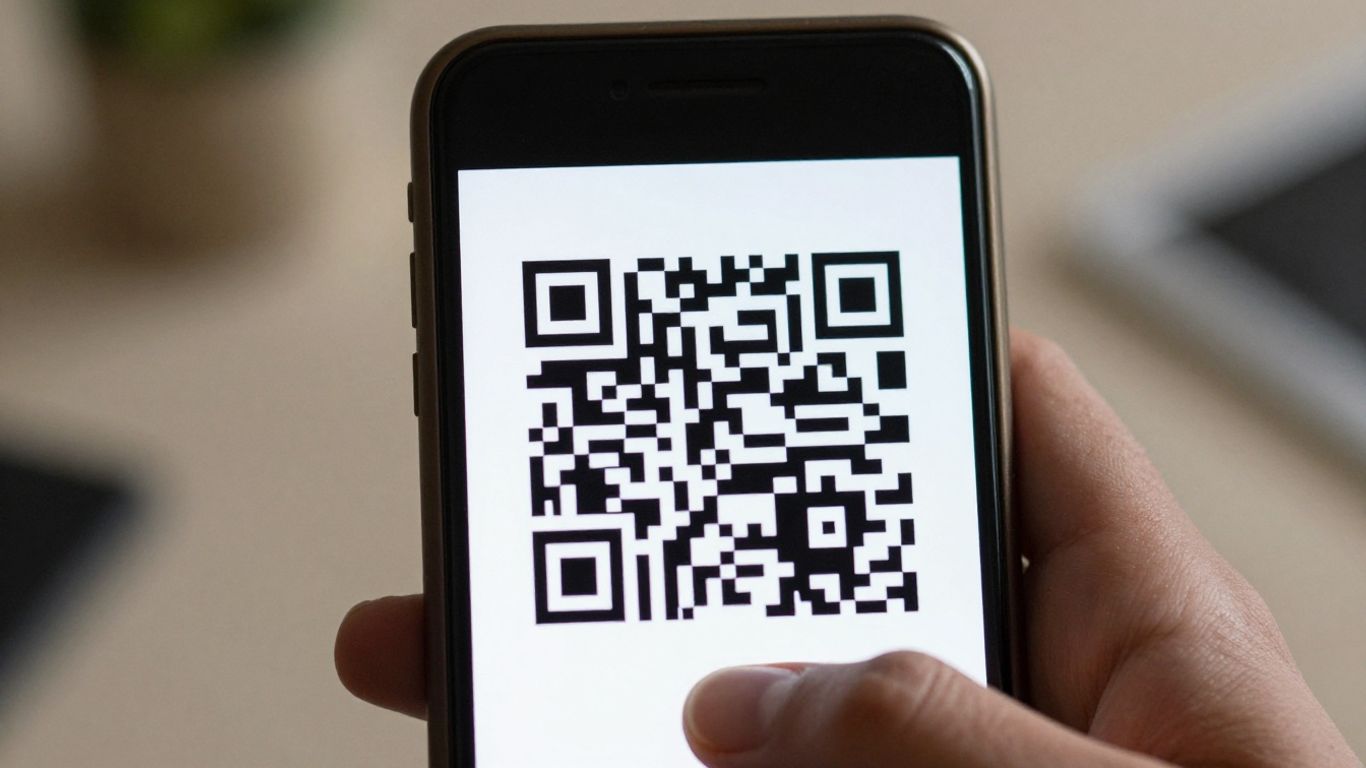
Sometimes you’ve got a QR code that isn’t right in front of you, but saved as an image on your phone. Maybe it’s a screenshot from a friend, a picture you took earlier, or even a graphic you found online. Don’t worry, your Android device can still read it.
Using Google Photos or Gallery Apps
Most modern Android phones have a neat trick built into their photo apps. If you’ve got a picture with a QR code in it, you can usually scan it directly from there. Just open up your Google Photos or your phone’s default Gallery app and find the image. Once you’ve got the photo open, look for the Google Lens icon – it often looks like a little camera lens or a colourful circle. Tapping this will activate the scanning feature within the photo. It’s a really straightforward way to get the information without needing to do anything complicated. You can then tap the detected link to go to the website or view the content using Google Lens.
Scanning Screenshots
Screenshots are a common way to save QR codes for later. If you’ve taken a screenshot of a QR code, the process is pretty much the same as scanning from any other image. Open the screenshot in your gallery app, find that familiar Google Lens icon, and tap it. The app will then analyse the image and pull out any QR codes it finds. This is super handy if you’ve seen a QR code online or in an email and wanted to save it to scan later when you have more time. It means you don’t have to keep the original webpage or email open just to access the code.
Security Considerations for On-Screen Codes
While scanning QR codes from images is convenient, it’s important to be a bit cautious. Think of QR codes in images the same way you would links in an email. Malicious actors can embed harmful links in QR codes, and these can sometimes be hidden within images or screenshots. This is sometimes called ‘quishing’. If you receive an image with a QR code unexpectedly, especially if it promises something too good to be true or asks for personal information, be extra careful. It’s always a good idea to verify the source of the image if you can. If you’re unsure, it might be best to avoid scanning it altogether. For campaigns where you need to update links or track scans, using dynamic QR codes is a smart move. Services like Xcan.it allow you to update the destination URL without reprinting the code, and you can track scan performance in a central dashboard, making your real-world campaigns much more effective across print and digital assets.
Always treat QR codes found in images or screenshots with the same level of caution as you would any other link you encounter online. Verify the source and the content before proceeding.
Making QR Codes More Scannable
Creating QR codes that work reliably for everyone is more than just generating a pattern of squares. It’s about thoughtful design and placement. The goal is to make scanning as effortless as possible, regardless of the device or lighting conditions.
Designing for High Contrast
Contrast is king when it comes to QR codes. A clear distinction between the dark modules and the light background is absolutely vital for scanners to pick up the code accurately. Think of it like trying to read white text on a very light grey background – it’s a struggle. The same applies to your QR code. While black on white is the classic and most reliable combination, you can use other dark colours on a light background, as long as the difference is significant. Avoid pale colours, metallic inks, or anything that might blend in too much. This is especially important for print and signage where lighting can vary.
Correct Sizing for Viewing Distance
The size of your QR code needs to match where people will be scanning it from. A tiny code on a large poster won’t work, and neither will a massive code on a business card. A good rule of thumb is the ’10x rule’: the scanning distance should be roughly 10 times the width of the QR code itself. So, if your code is 2cm wide, people should be able to scan it from about 20cm away. For larger applications, like posters or billboards, you’ll need to scale it up accordingly. This ensures the modules (the little squares) are large enough for the camera to focus on.
Reducing Data Density
QR codes can store a lot of information, but packing too much in can make them harder to scan, especially for older phones or in less-than-ideal conditions. This is known as high data density. If you’re linking to a very long URL or including lots of text, consider shortening the URL. A more advanced solution is to use dynamic QR codes. With services like Xcan.it, you can use a short, stable link that directs to your content. This not only makes the QR code itself simpler and more scannable but also gives you the flexibility to update the destination link later without needing to reprint the code. Plus, you get a dashboard to track scans and see how your campaigns are performing.
When designing your QR codes, always remember that simplicity often leads to reliability. A clean, well-contrasted code with adequate spacing and appropriate sizing will perform much better than a complex or cramped one. Testing your code in real-world conditions before finalising is a key step.
Understanding QR Code Basics
QR codes, those familiar black and white squares, are more than just a pretty pattern. They’re a clever way to store information that your phone can read quickly. Think of them as a bridge between the physical world and the digital one. At their heart, QR codes are a type of two-dimensional barcode, meaning they can hold a lot more data than the old-fashioned, single-line barcodes you see on products.
What the Squares Represent
The magic of a QR code lies in its structure. The pattern of black and white squares, called modules, isn’t random. These modules encode your data. The three large squares in the corners are particularly important; they act as alignment markers, helping your phone’s camera figure out the code’s orientation and size, no matter how it’s tilted.
The Role of Error Correction
Ever scanned a slightly smudged or partially obscured QR code and had it still work? That’s thanks to error correction. QR codes are built with a level of redundancy, meaning they can still be read even if a portion of the code is damaged or dirty. There are different levels of error correction, with higher levels allowing the code to withstand more damage but also increasing the density of the modules. For most everyday uses, the built-in error correction is more than enough.
Common QR Code Formats
While you’ll most often see QR codes used to link to websites (URL QR codes), they can actually store various types of information. Some common formats include:
- URL: Links to a website or online resource.
- vCard: Stores contact information, allowing you to easily add someone to your phone’s address book.
- Wi-Fi: Contains network credentials, letting you connect to a Wi-Fi network without typing the password.
- Text: Displays plain text.
- Email: Pre-fills an email with a recipient, subject, and body.
For businesses looking to manage their campaigns effectively, dynamic QR codes are a game-changer. Services like Xcan.it allow you to update the link a QR code points to without reprinting it. This means if a promotion changes or a website URL is updated, you can simply adjust it in your dashboard. Plus, you can track scan data in one place, giving you insights into how your campaigns are performing across print, signage, and other assets. This flexibility is invaluable for improving real-world marketing efforts.
QR codes are those little black and white squares you see everywhere, from posters to product packaging. They’re like a secret handshake for your phone, letting it quickly grab information. Think of them as a super-fast shortcut to websites, contact details, or even Wi-Fi passwords. They’re a simple yet clever way to connect the real world with the digital one. Want to learn more about how these handy codes work and how you can use them? Visit our website to discover the magic of QR codes!
Scanning Made Simple
So there you have it. Scanning QR codes on your Android device is pretty straightforward these days. Most of the time, your phone’s camera will do all the heavy lifting for you, no extra apps needed. Just point, tap, and you’re off to wherever the code leads. It’s a handy bit of tech that’s become part of our everyday lives, connecting the physical world to the digital with just a quick scan. Keep these tips in mind, and you’ll be scanning like a pro in no time.
Frequently Asked Questions
Do I need a special app to scan QR codes on my Android phone?
Not usually! Most modern Android phones have a built-in QR scanner in their camera app. Just open your camera, point it at the QR code, and a notification should pop up with a link to open. Some phones might need you to switch on a ‘Google Lens’ or ‘QR Code’ setting within the camera app first.
What if my phone's camera won't scan a QR code?
Don’t worry, there are a few things to try. First, make sure there’s good contrast between the dark squares and the light background of the QR code. Also, ensure the code isn’t too far away or too close – try to get it to fill a decent part of your screen without being blurry. Sometimes, a bit of glare or a crumpled code can cause problems too, so try to get it flat and out of direct bright light if possible.
When should I think about getting a separate QR code scanner app?
While your camera is usually fine, a dedicated app might be useful if you need to scan lots of different types of codes (not just QR codes), if you want to keep a history of codes you’ve scanned, or if you’re looking for extra features like scanning codes from images saved on your phone. Some apps also offer better privacy controls.
Can I scan a QR code that's on my phone screen, like in a photo?
Yes, you often can! If you have a screenshot or an image with a QR code, you can usually open it in your phone’s gallery app (like Google Photos). Look for an option to scan or use ‘Lens’ – it should be able to recognise the code within the picture and give you the link.
Why are some QR codes harder to scan than others?
It often comes down to the design of the QR code itself. Codes with low contrast (like light grey on white), those that are too small for the distance they’re meant to be scanned from, or ones with a lot of information packed into them can be tricky. Having a clear ‘quiet zone’ or border around the code is also really important for scanners to work properly.
Are there any risks to scanning QR codes?
Generally, scanning QR codes is safe, especially when using your phone’s built-in camera, which usually shows you the web address before you open it. However, like clicking any link, there’s a small risk that a QR code could lead to a dodgy website designed to steal your information. It’s always a good idea to be a bit cautious, especially if the QR code appears unexpectedly or promises something too good to be true.