Here are the main things to remember about using QR codes on your iPhone:
Key Takeaways
- Your iPhone’s camera app can scan QR codes directly; no extra app is usually needed.
- You can also scan QR codes from photos and screenshots saved on your device.
- Always be mindful of where a QR code leads; preview links when possible.
- Ensure good lighting and a clear view for successful scans.
- Troubleshooting often involves checking contrast, size, and distance.
Scanning a QR Code With Your iPhone Camera
Using the Built-In Camera App
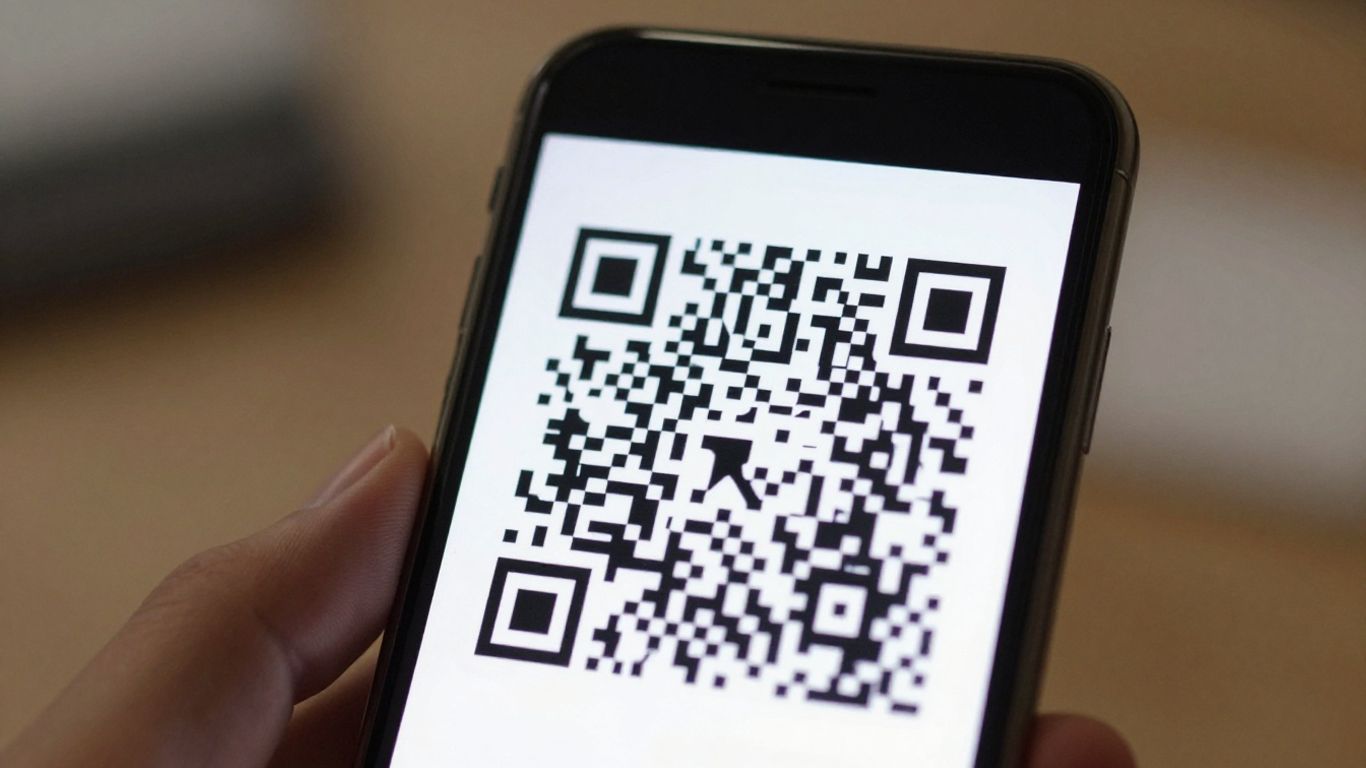
Most of the time, you won’t need a special app to scan a QR code on your iPhone. Your built-in Camera app is usually all you need. Just open it up, point it at the QR code, and wait a second. You should see a notification pop up at the top of your screen, showing you what the code links to. Tap that notification to open the link. It’s that simple.
Accessing the Code Scanner Feature
If you find yourself scanning QR codes often, you might want to add a dedicated scanner to your iPhone’s Control Centre. This gives you quick access without having to open the main Camera app. To do this, go to Settings > Control Centre and tap the green plus icon next to ‘Code Scanner’. Now, when you swipe down from the top-right corner of your screen (or up from the bottom on older iPhones), you’ll see a new icon for the Code Scanner. This full-screen scanner can sometimes be a bit more reliable than the standard camera view, especially in tricky lighting conditions.
Troubleshooting Common Scan Issues
Sometimes, your iPhone might struggle to read a QR code. This usually isn’t a big problem and can often be fixed with a few simple adjustments:
- Lighting: Make sure the QR code is well-lit. Too much shadow or glare can make it hard for your camera to focus.
- Distance: Try moving your phone closer to or further away from the code. There’s a sweet spot for every code, and it depends on its size and how much information it holds.
- Angle: Hold your phone steady and try to get the camera directly in front of the code. Avoid holding it at a sharp angle.
- Cleanliness: Ensure both your phone’s camera lens and the QR code itself are clean and free from smudges or damage.
If you’re creating QR codes for your own use, consider using a service like Xcan.it. They let you update QR code links without reprinting, track scans in one dashboard, and use dynamic QR codes to improve real‑world campaigns across print, signage, and assets. This means you can fix a broken link or update an offer without having to change the physical code itself, which is a real lifesaver for printed materials.
Scanning QR Codes From Photos and Screenshots
Sometimes you’ve got a QR code saved as an image, maybe from a screenshot or a photo you took earlier. Don’t worry, your iPhone can still read it without needing a second device or a special app. It’s all about using the tools you already have.
Scanning From Your Photo Library
If you’ve saved a QR code image to your Photos app, you can usually scan it directly from there. Open the image, and if your iPhone’s software recognises it as a QR code, you might see a small yellow frame around it. Tapping this frame, or a ‘detected code’ icon that appears, will usually take you straight to the link. On newer iOS versions, a long press on the QR code area can also reveal the link or an ‘Open Link’ option. It’s a neat trick that saves you from having to print it out again.
Using Live Text for Image-Based Codes
Live Text is a really handy feature that lets your iPhone recognise text within images. This works for QR codes too. When you open a photo containing a QR code in the Photos app, Live Text can often detect the code. You’ll see an icon or button that allows you to interact with the detected code, usually by opening the associated link. This is particularly useful if the built-in QR detection doesn’t immediately pop up.
Saving QR Codes for Later Use
It’s a good idea to save QR codes you might need later. You can save them directly to your Photos app or to the Files app. Saving to Photos is convenient for quick access, like showing someone a code or adding it to a presentation. If you’re working with designers or printers, saving to Files is better as it preserves the original file format. Just remember where you save them so you can find them easily when you need to scan them.
It’s worth noting that even QR codes saved as screenshots are generally scannable, provided the image is clear and hasn’t been overly compressed. The technology is quite robust in this regard.
For businesses looking to manage their QR codes effectively, services like Xcan.it offer advanced features. You can update the links associated with your QR codes without needing to reprint them, which is a huge time-saver. Plus, their dashboard lets you track scans and user engagement, giving you insights into how your campaigns are performing across print, signage, and other assets. This is especially useful if you’re using dynamic QR codes to keep your campaigns fresh and responsive.
Understanding QR Code Safety on iPhone
QR codes are incredibly handy, but like anything that connects the physical world to the digital, it’s wise to be a little cautious. While the QR code itself is just a pattern of data, the real risk comes from where it sends you. Think of it like a shortcut – you want to be sure it leads to the right place.
Previewing Links Before Opening
One of the best safety features built into your iPhone’s camera is the ability to preview a link before you commit to opening it. When you scan a QR code, your iPhone will usually show a notification banner at the top of the screen displaying the URL. This preview is your first line of defence. Take a moment to look at it. Does it look like a legitimate website address, or is it something strange, shortened in a suspicious way, or completely unrelated to what you expected? If it looks off, it’s best to play it safe and not tap on it. This simple step can help you avoid phishing scams or malicious websites.
Identifying Potentially Risky Codes
Beyond the link preview, there are other clues to watch out for. Consider the context: where did you find the QR code? A code on a legitimate product label or an official poster at a venue is generally less risky than a random sticker slapped on a public surface, especially if it looks like it’s been tampered with or placed over something else. Poor print quality, odd alignment, or signs of it being a hastily added sticker can all be red flags. If a QR code journey asks for sensitive information like passwords, bank details, or one-time codes immediately after scanning, be extra wary. It’s often better to manually type the website address yourself in such cases.
When to Consider a Dedicated App
For most everyday scanning needs, your iPhone’s built-in camera is perfectly adequate and often safer because it provides that crucial link preview. However, if you’re dealing with a lot of QR codes for business or specific projects, you might look into more advanced tools. Platforms like Xcan.it offer features that go beyond basic scanning. For instance, they allow you to update the destination of a QR code link even after it’s been printed, which is a lifesaver if a URL changes. You can also track scan data in a central dashboard to see how your campaigns are performing. This is particularly useful for dynamic QR codes, which offer flexibility and insights that can really improve your real-world marketing efforts across print, signage, and other assets.
Optimising QR Codes for iPhone Scans
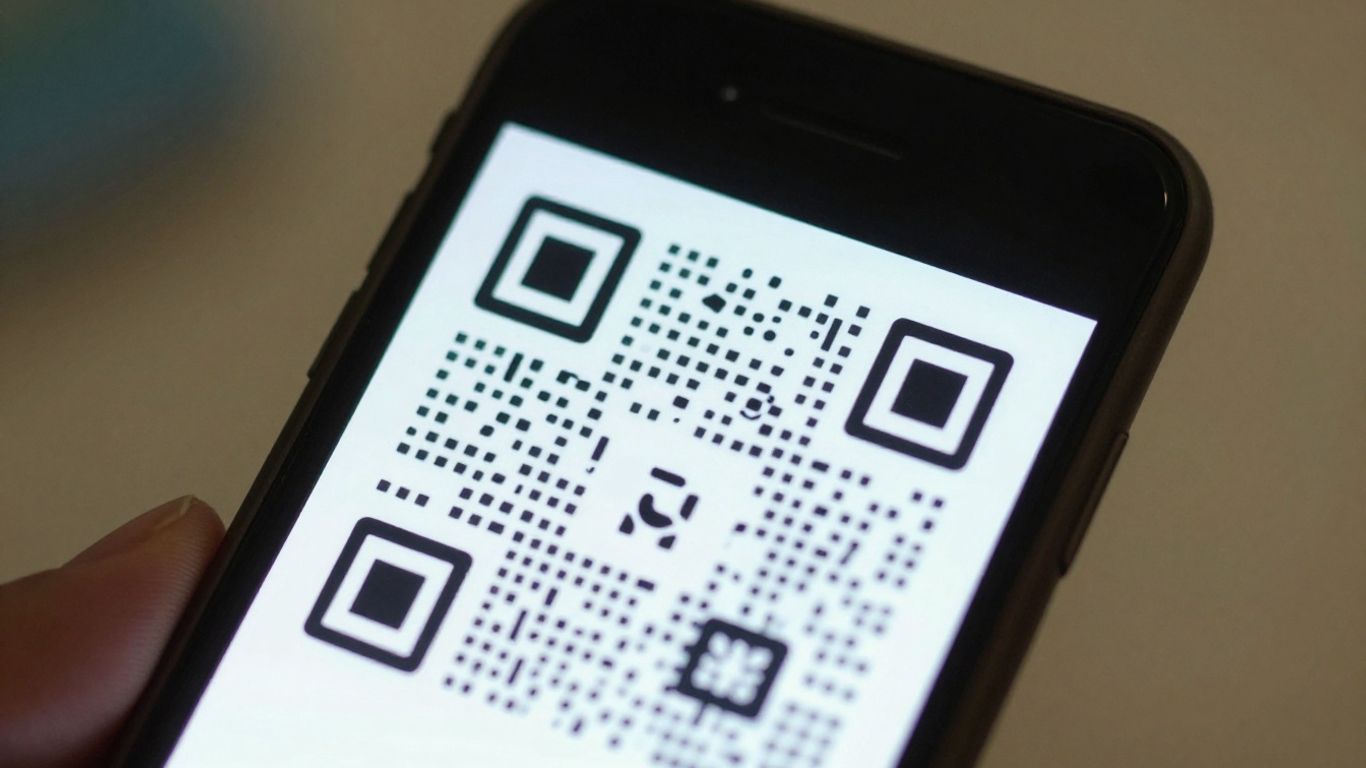
Getting a QR code to scan smoothly on an iPhone, or any smartphone for that matter, is all about a few key visual elements. It’s not just about having the code; it’s about making sure it’s easy for the camera to read. Think of it like trying to read a book in a dimly lit room – it’s possible, but much harder than in good light.
Ensuring Sufficient Contrast
This is probably the most important factor. The camera needs to clearly distinguish between the dark squares and the light background. A common mistake is using colours that look nice but don’t offer enough difference. Aim for a dark code on a light, matte background for the best results. Avoid using pale colours, metallic inks, or gradients, as these can confuse the scanner. For instance, a deep navy blue on a crisp white background is usually much more reliable than a light grey on a slightly off-white background.
The Importance of Quiet Zones
That border around the QR code? It’s called a ‘quiet zone’, and it’s vital. It’s a clear space that tells the scanner where the code actually begins and ends. Without it, or if it’s too small, the scanner can get confused. A good rule of thumb is to keep a clear border that’s at least four times the width of the smallest square module within the code. No logos, no text, just empty space. This helps the camera focus and correctly interpret the data.
Balancing Size and Scan Distance
How big should your QR code be? It really depends on where people will be scanning it from. A code on a business card needs to be smaller than one on a large poster. A general guideline is the ’10x rule’: the distance from which someone will scan the code should be roughly 10 times the width of the code itself. So, if you expect people to stand about a metre away, your code should be around 10 centimetres wide. This balance is key to making sure the code is large enough to be seen but not so large that it becomes pixelated or distorted when printed.
For campaigns where you want to update links without reprinting, consider using dynamic QR codes. Services like Xcan.it allow you to change the destination URL of a QR code even after it’s been printed. This is incredibly useful for marketing campaigns, event details, or product information that might change. Plus, Xcan.it offers a dashboard to track scans, giving you insights into how your real-world campaigns are performing across print, signage, and other assets. This flexibility and insight can make a big difference in optimising your efforts.
Advanced QR Code Features for iPhone Users
Dynamic QR Codes Explained
Static QR codes are pretty straightforward – they contain fixed information that can’t be changed once generated. Think of them like a printed address; it’s set in stone. Dynamic QR codes, on the other hand, are much more flexible. They contain a short, redirecting URL that points to your actual content. This means you can change the destination link anytime without ever needing to reprint the QR code itself. This is a game-changer for marketing campaigns, signage, or any situation where the linked information might need updating. For instance, if you’re running a promotion that changes weekly, a dynamic QR code lets you update the link to the new offer without having to design and print new materials. It’s all managed through a dashboard, making updates quick and easy.
Tracking Scans and User Engagement
Beyond just linking to content, dynamic QR codes offer powerful analytics. You can track how many times your QR code has been scanned, when and where those scans occurred, and even what type of device was used. This data gives you real-world insights into how your campaigns are performing. Are people scanning the QR code on your flyers more than the one on your posters? Are most scans happening during business hours? This kind of information helps you understand your audience better and refine your strategies. Platforms like Xcan.it provide a centralised dashboard where you can monitor all this activity, helping you see the direct impact of your QR codes on user engagement. This level of insight is invaluable for optimising real-world campaigns across print, signage, and various assets.
Creating QR Codes for Specific Actions
Dynamic QR codes aren’t just for websites. They can be configured to trigger specific actions directly from your iPhone. Imagine a QR code on a product that, when scanned, immediately opens your customer support chat, or one on a poster that adds an event directly to your calendar. This capability streamlines user interaction and makes it incredibly convenient for people to engage with your brand or service. Xcan.it offers a variety of QR code types, including those for initiating phone calls, sending SMS messages, opening emails, or connecting to Wi-Fi networks, all of which can be managed dynamically. This means you can set up these actions and then update the associated details later if needed, all from one place. It’s about making the connection between the physical and digital world as smooth and effective as possible.
Troubleshooting Unreadable QR Codes
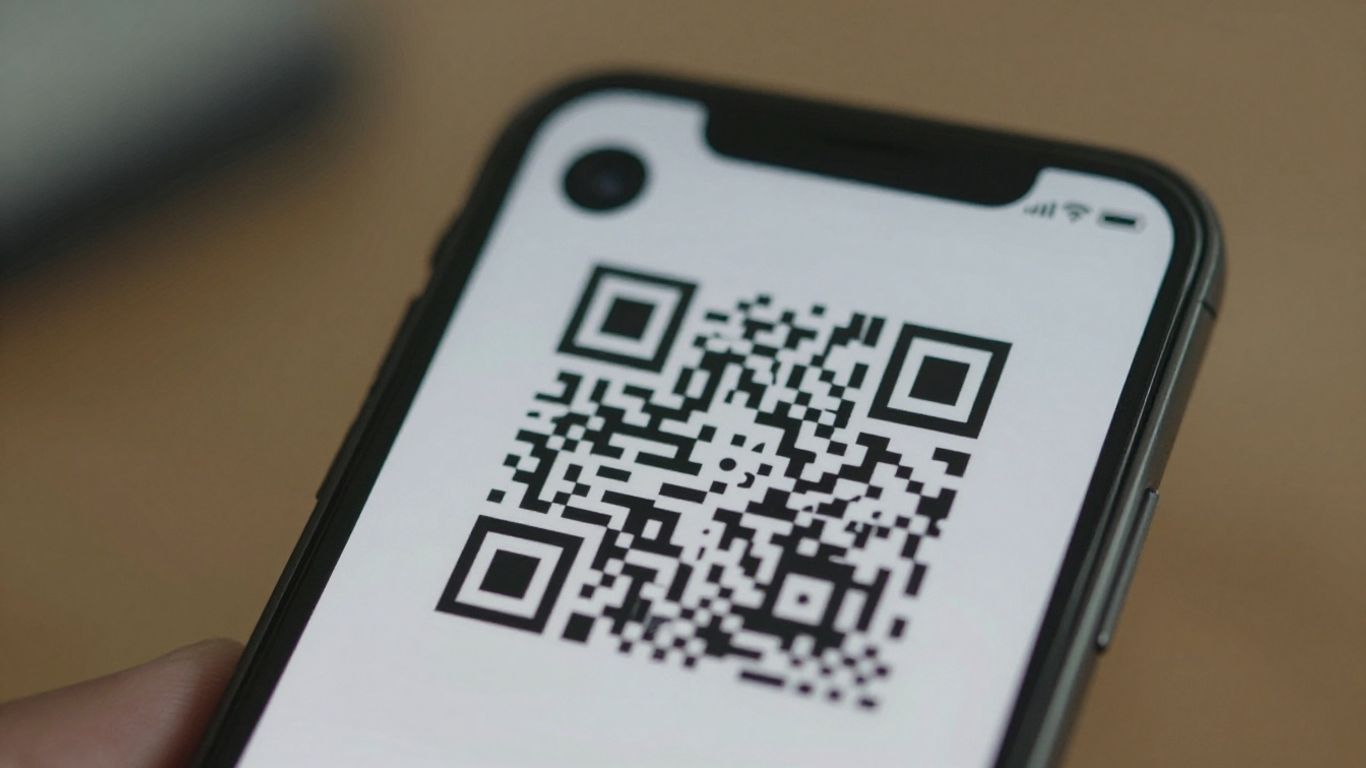
Sometimes, a QR code just won’t scan, and it’s frustrating. It’s rarely a problem with your iPhone itself, but more often down to the code’s appearance or the environment it’s in. Let’s look at why this happens and how to fix it.
Common Reasons for Scan Failures
Several factors can make a QR code unreadable. Think of it like trying to read a blurry sign from a distance – the information is there, but it’s just not clear enough.
- Low Contrast: A dark code on a very light, matte background is ideal. Pale colours, metallic inks, or gradients can make it hard for your iPhone’s camera to distinguish the pattern.
- Missing Quiet Zone: This is the blank space around the QR code. Without enough of it, the scanner can get confused. Aim for a border that’s at least four times the width of the smallest square module.
- Size and Distance: If the code is too small for how far away you’re standing, it won’t scan. A good rule of thumb is that your scanning distance should be about ten times the width of the QR code itself.
- Print Quality: Smudges, scratches, ink bleed, or a blurry print job can all cause issues. Even slight damage can make a code unreadable [1].
- Glare or Curvature: Shiny surfaces can reflect light, obscuring the code. Similarly, if the code is printed on a curved or folded surface, it might not lie flat enough to scan properly.
Quick Fixes for Print Quality
If you’re the one creating the QR code, or if you have control over its printing, these steps can make a big difference:
- Boost Contrast: Always use a dark colour (black is best) on a plain white or very light background. Avoid using colours that are too similar.
- Ensure a Quiet Zone: Make sure there’s a clear, unobstructed border around the code. Don’t let logos or other graphics creep into this space.
- Get the Size Right: If the code is for a poster, make it large enough. If it’s on a small item, ensure people can get close enough to scan it easily. Remember the 10x rule for distance.
- Use Good Artwork: Export your QR code as a vector file (like SVG or PDF) or a high-resolution raster image (300-600 DPI). Avoid stretching or compressing images, as this can distort the pattern.
- Consider Dynamic QR Codes: If your QR code contains a lot of data, it can become very dense with small modules, making it harder to scan. Using a dynamic QR code service, like Xcan.it, allows you to shorten the URL and keep the modules larger and more distinct. Plus, with Xcan.it, you can update the link later without needing to reprint the code, and you get a dashboard to track scans.
Ensuring Link Integrity
Even if the code itself scans perfectly, the link it points to needs to be sound.
- Use HTTPS: Always use secure links (HTTPS) for your QR codes. This is safer and often preferred by scanners.
- Minimise Redirects: Long chains of redirects can sometimes cause scanning issues or slow down the process. Try to link directly to your desired destination or use a minimal number of redirects.
- Check the Destination: If a code isn’t working, double-check that the URL is correct and the webpage is active and accessible. Sometimes, the issue isn’t the code but the destination it’s meant to lead to.
If you’re struggling with codes that won’t scan, especially across different print materials or signage, services like Xcan.it can help. They offer dynamic QR codes that not only let you update links without reprinting but also provide valuable insights through scan tracking on a single dashboard, improving your real-world campaigns.
Having trouble with QR codes that won’t scan? It can be frustrating when your codes aren’t readable. Often, simple issues like low contrast or a damaged code are the culprits. For more detailed advice and solutions, visit our website to learn how to fix unreadable QR codes.
Conclusion
Using QR codes on your iPhone is incredibly straightforward these days. Whether you’re scanning a code from a poster, a photo, or even a website, your iPhone has the tools to make it happen quickly and easily. Remember to stay aware of your surroundings and the source of the QR code to keep yourself safe online. With these tips, you’re all set to make the most of QR codes in your daily digital interactions.
Frequently Asked Questions
Do I need a special app to scan QR codes on my iPhone?
Nope, not usually! Your iPhone’s built-in Camera app is pretty smart and can scan QR codes all by itself. Just open the Camera and point it at the code. Sometimes, you can even add a ‘Code Scanner’ to your Control Centre for quicker access.
Can I scan a QR code from a picture on my phone?
Yes, you absolutely can! If you have a picture or a screenshot of a QR code saved in your Photos app, you can often scan it. Sometimes this is done through the Photos app itself, or by using a feature called Live Text which can recognise text within images.
What if my iPhone camera won't scan the QR code?
Don’t worry, it happens! First, check the lighting – make sure it’s not too dark or too bright with glare. Also, try holding your phone a bit closer or further away, and make sure the QR code is clear and not blurry. Sometimes, just cleaning your camera lens helps too!
How do I know if a QR code is safe to scan?
That’s a smart question. Most of the time, when your iPhone camera recognises a QR code, it will show you a preview of the link before you open it. Take a look at the web address. If it looks strange, or if you weren’t expecting it, it’s best not to tap on it.
Can I scan a QR code from my computer screen?
Yes, you can! Just hold your iPhone up to the computer screen and point your camera at the QR code. Make sure the code is clear and takes up a good portion of the screen. You might need to adjust the brightness on your computer or the distance of your phone.
What's the difference between a dynamic and a static QR code?
Think of a static QR code like a printed address – it always goes to the same place. A dynamic QR code is more like a digital address that you can change later, even after you’ve printed it. This is handy if you need to update a link or track how many people are scanning it.