
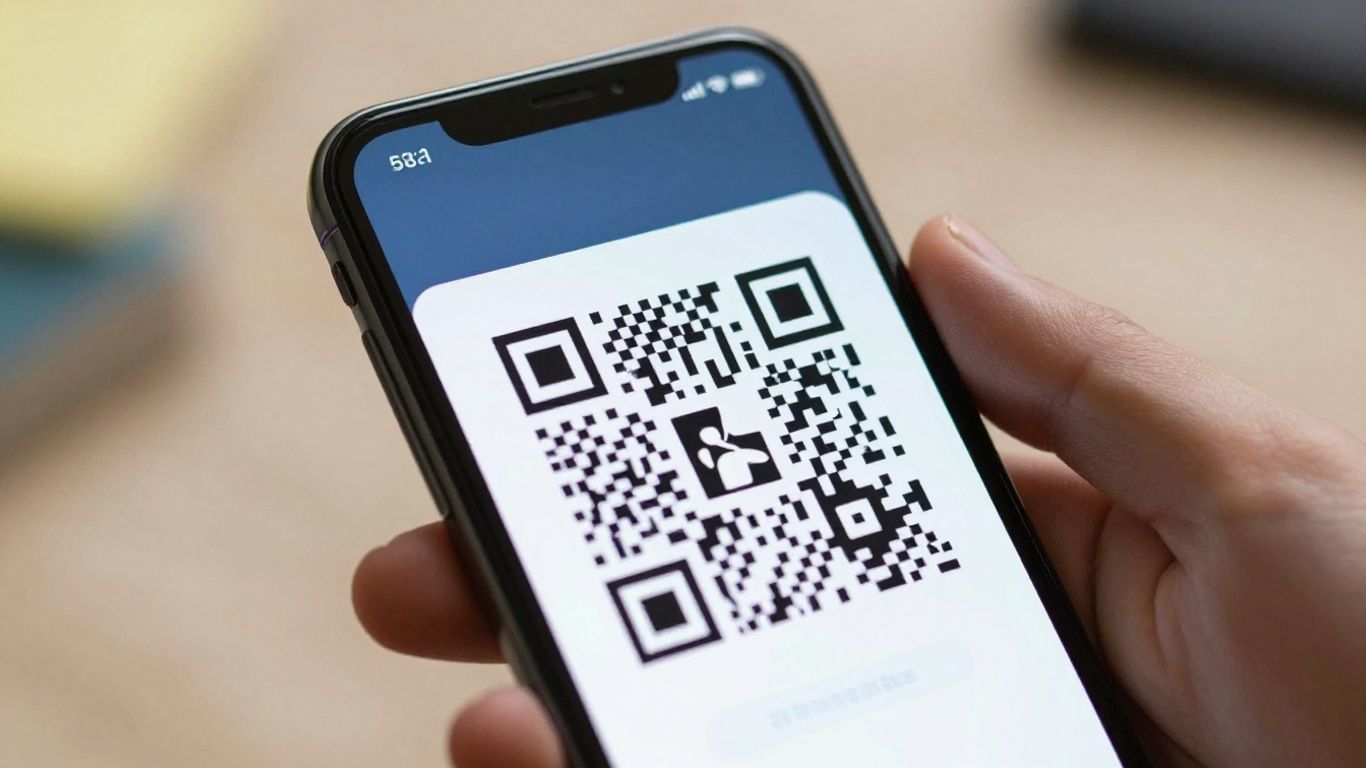
You’ve probably been there: you point your phone at a QR code, ready to get that discount or menu, and… nothing. It just won’t scan. It’s a bit annoying, right? Especially when you’re in a rush or trying to access something important. There are quite a few reasons why your qr code not scanning, and thankfully, most of them are pretty simple to fix. Let’s take a look at why this happens and how to get those codes working properly again.
Key Takeaways
- Low contrast between the QR code and its background is a major reason for scan failures. Always aim for dark modules on a light, matte surface.
- Ensure there’s a ‘quiet zone’ – a clear border around the QR code – to help scanners read it accurately.
- The size of the QR code and the distance from which it’s being scanned are linked. A general rule is that the scan distance should be about 10 times the width of the code.
- Print quality matters. Blurry, distorted, or glossy prints can make a QR code unreadable. Opt for high-resolution files and matte finishes.
- Sometimes, the issue isn’t the code itself but the phone’s camera or settings. Check that QR scanning is enabled and that the lens is clean and well-lit.
Common Reasons Your QR Code Is Not Scanning
It can be frustrating when a QR code just won’t scan. You point your phone at it, and… nothing. Before you assume the code is broken, let’s look at some of the most frequent culprits. Often, the fix is simpler than you think.
Contrast and Colour Choices
The way a QR code looks is a big deal for scanners. Think of it like trying to read a book in a dimly lit room – it’s just harder. The most common issue here is low contrast. A dark code on a light background is the gold standard for scannability. Using pale colours, metallic inks, or even trying a light-on-dark design can really throw off the camera’s ability to distinguish the dark squares from the light ones. This is especially true if the background isn’t a solid, matte colour.
The Importance of the Quiet Zone
Ever seen a QR code crammed right up against a picture or some text? That’s a problem. The ‘quiet zone’ is the clear, empty space that needs to surround the QR code. It acts like a visual buffer, helping the scanner to isolate the code itself from its surroundings. A general rule of thumb is to keep this border at least four ‘modules’ (those little squares) wide. If this space is invaded by graphics or text, the scanner can get confused, leading to failed scans. It’s a simple element, but its absence is a frequent cause of scanning failures why won’t my phone accept a QR code?.
Size and Distance Considerations
This one is all about physics. A QR code that’s too small, or viewed from too far away, simply won’t be recognised. The camera needs to be able to see the individual modules clearly. A handy rule of thumb is that the ideal scanning distance is about 10 times the width of the QR code itself. So, if you’re printing a QR code on a poster that people will view from a few metres away, it needs to be significantly larger than one printed on a business card that people will hold close to their phone. Trying to scan a tiny code from across a room is a recipe for frustration.
Print Quality and Physical Factors Affecting Scans
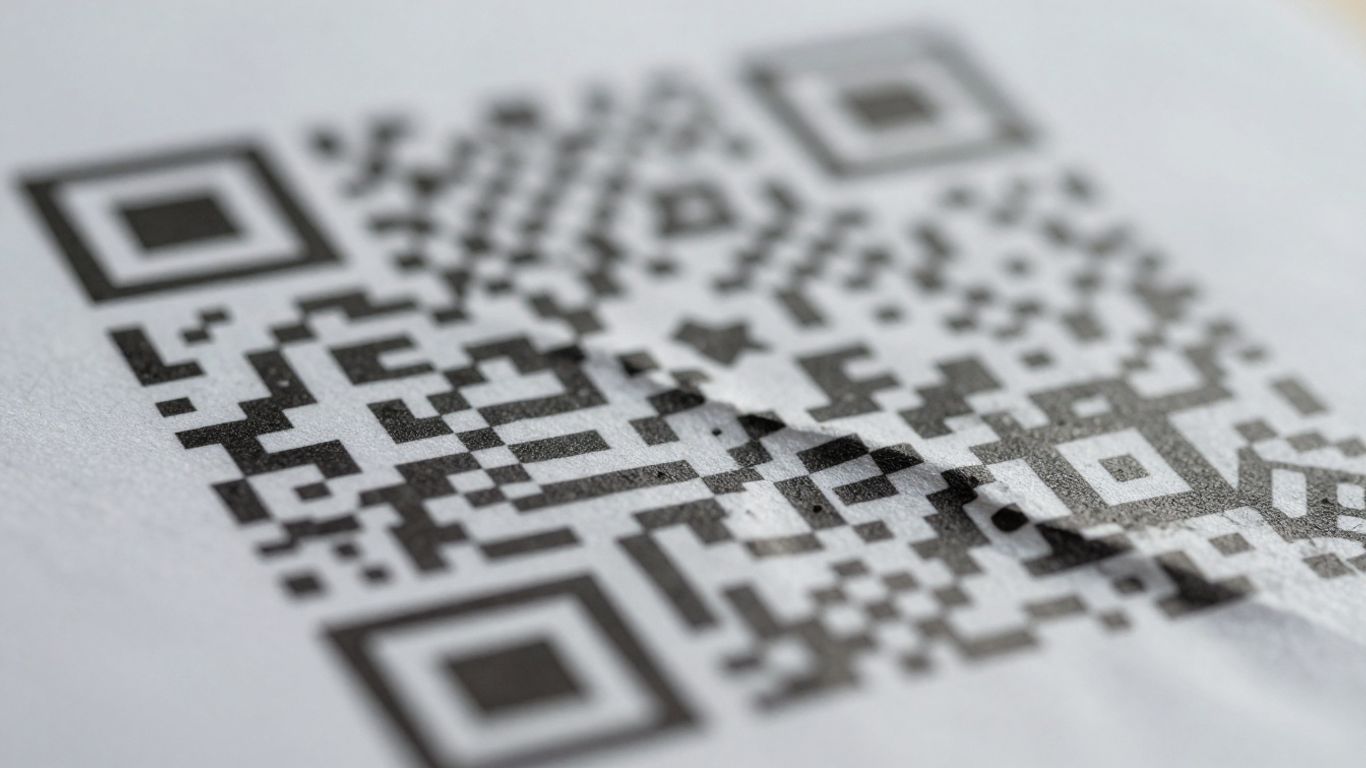
Even the best-designed QR code can run into trouble if the print quality is poor or if it’s placed in a tricky spot. Think of it like trying to read a book with smudged pages or in a dimly lit room – it’s just not going to work well.
Blurry or Distorted Prints
This is a big one. If your QR code looks fuzzy, pixelated, or stretched, the scanner won’t be able to make out the individual squares (modules) that make up the code. This often happens when a low-resolution image is enlarged too much, or if the printing process itself isn’t sharp. Always aim for high-resolution files, ideally vector formats like SVG or PDF, or at least a high-DPI raster image (300-600 DPI is a good target). Avoid stretching or compressing the image disproportionately.
Glare and Reflective Surfaces
Shiny surfaces are the enemy of QR code scanning. If light bounces off the code, it can obscure the dark modules, making it impossible for the scanner to read. This is common with glossy laminates, plastic coatings, or even just printing on very smooth paper. Opting for a matte finish for your print materials can make a world of difference. If you can’t avoid a reflective surface, try to position the code so it doesn’t catch direct light, or perhaps tilt it slightly.
Damage and Curvature
Physical damage to the QR code, like creases, tears, or dirt smudges, can also prevent scans. Similarly, if the code is printed on a curved surface, like a bottle or a pipe, the distortion can make it unreadable. It’s best to keep QR codes on a flat surface whenever possible. If a code is damaged, it simply needs to be reprinted. For assets that might get worn down, consider using durable materials or placing the code in a protected area. If you’re using codes on assets that move or get handled a lot, remember that Xcan.it allows you to update the link without reprinting, which is a lifesaver if the original code gets damaged or the campaign changes.
Troubleshooting Your Phone's Camera and Settings
Sometimes, the issue isn’t with the QR code itself, but with the device trying to read it. Your phone’s camera and its settings play a big role in whether a scan is successful.
Camera Lens and Lighting
First things first, give your camera lens a quick wipe. Fingerprints, dust, or smudges can make it impossible for your phone to focus properly. Think of it like trying to read a book with dirty glasses – it’s just not going to work.
Lighting is also super important. If it’s too dark, the camera struggles to see the code. Too bright, and you might get glare that washes out the details. Try to find a spot with even, decent light. Avoid pointing your camera directly at a bright light source or a shiny surface that reflects off the QR code.
Ensuring QR Scanning is Enabled
Believe it or not, some phones have QR code scanning turned off by default in their camera settings. It’s worth checking this. On Android, you might need to look for an option like ‘Scan QR codes’ or ‘Google Lens suggestions’ within your camera app’s settings [dff6]. For iPhones, QR code scanning is usually on automatically, but you can also add a ‘Code Scanner’ to your Control Centre for quick access.
Using a Dedicated QR Scanner App
If your phone’s native camera still isn’t cooperating, don’t despair. There are plenty of free QR scanner apps available. While most modern phones handle QR codes just fine with their built-in cameras, older devices or specific camera apps might need a little help. When choosing an app, look for one that’s ad-free, respects your privacy, and offers a preview of the link before you open it. This helps avoid dodgy websites. Using a dedicated app can sometimes offer better performance, especially in tricky lighting conditions or with less-than-perfectly printed codes.
It’s worth remembering that while you can update QR code links without reprinting using services like Xcan.it, the initial scan relies on your phone’s ability to read the code. Xcan.it also lets you track scans in one dashboard and use dynamic QR codes to improve real‑world campaigns across print, signage, and assets, making troubleshooting the scan itself a priority.
Understanding Data Density and Link Issues
Sometimes, even with a perfectly printed QR code, scanning can still be a bit of a gamble. This often comes down to how much information is packed into that little square and whether the destination it points to is actually working.
Overly Complex Data
Think of a QR code like a tiny filing cabinet. The more information you try to cram into it, the smaller and more numerous the individual "files" (or modules, as they’re called) become. This is known as data density. When a QR code is too dense, those tiny modules can become difficult for a scanner to distinguish, especially if there are any minor imperfections in the print or if it’s viewed from a slight distance. This is why very long URLs or complex text strings can sometimes cause scanning problems. A shorter URL or simpler data means larger, clearer modules, making the code much easier to read.
Problematic URLs and Redirects
Even if the QR code itself scans perfectly, the link it points to might be the culprit. A broken link (like a 404 error page) or a URL that redirects multiple times can cause issues. Some scanners might block these chains of redirects, or the destination server might be slow to respond, leading to a failed scan or a frustratingly long wait. It’s always best to use clean, direct HTTPS URLs. If you need to track clicks or change the destination later, a dynamic QR code is the way to go.
The Benefits of Dynamic QR Codes
This is where dynamic QR codes really shine. Unlike static codes where the data is fixed, dynamic QR codes point to a managed URL. This means you can update the destination link or information at any time without needing to reprint the QR code itself. This is incredibly useful for marketing campaigns, event details, or product information that might change. Plus, dynamic codes allow you to track scan data, giving you insights into how and where your QR codes are being used. Platforms like Xcan.it make it simple to manage these dynamic codes, update links on the fly, and monitor performance all from one dashboard, helping you improve your real-world campaigns across print, signage, and various assets.
Quick Fixes for a QR Code Not Scanning
Sometimes, a QR code just refuses to play ball. Don’t panic! Often, the fix is surprisingly simple. Let’s run through some common quick wins that can get your code scanning again.
Boosting Contrast and Adding a Border
This is probably the most frequent culprit. If your QR code looks a bit washed out, or the squares aren’t distinct enough, it’s going to struggle. The golden rule is dark on a light, matte background. Think classic black on white. Avoid using pale colours, metallic inks, or anything that makes the squares blend into the background. A clear, uncluttered border around the code, known as the ‘quiet zone’, is also vital. Aim for at least four modules (those little squares) of clear space on all sides. This helps scanners distinguish the code from its surroundings.
Adjusting Size and Distance
It sounds obvious, but is your QR code the right size for where it’s being placed? A general guideline is that the scanning distance should be about ten times the width of the code itself. So, if people are likely to be standing a metre away, your code should be around 10cm wide. If it’s on a poster across a room, it needs to be much larger. Conversely, if it’s on a small product label, make sure people aren’t trying to scan it from too far away. Sometimes, simply moving closer or further back is all that’s needed [4652].
Improving Print and Reducing Glare
Print quality really does matter. A blurry or distorted print can make a code unreadable. If you’re printing yourself, ensure you’re using a good resolution (300 DPI or higher) or, even better, a vector format like SVG or PDF. Avoid stretching or compressing the image. Glare is another sneaky issue. Shiny surfaces, like glossy laminates or screens, can reflect light and obscure the code’s modules. Opting for a matte finish for your print or simply tilting the code slightly to avoid direct reflections can make a huge difference. If your code is on a physical item that’s bent or creased, that can also cause problems. Try to keep it as flat as possible. If you’re finding that your link is the issue, consider using a service like Xcan.it, which allows you to update QR code links without needing to reprint the code itself. This is a lifesaver for campaigns where the destination might change, and it also lets you track scans in one dashboard, making your real-world campaigns more effective across print and signage [31d0].
When to Regenerate Your QR Code
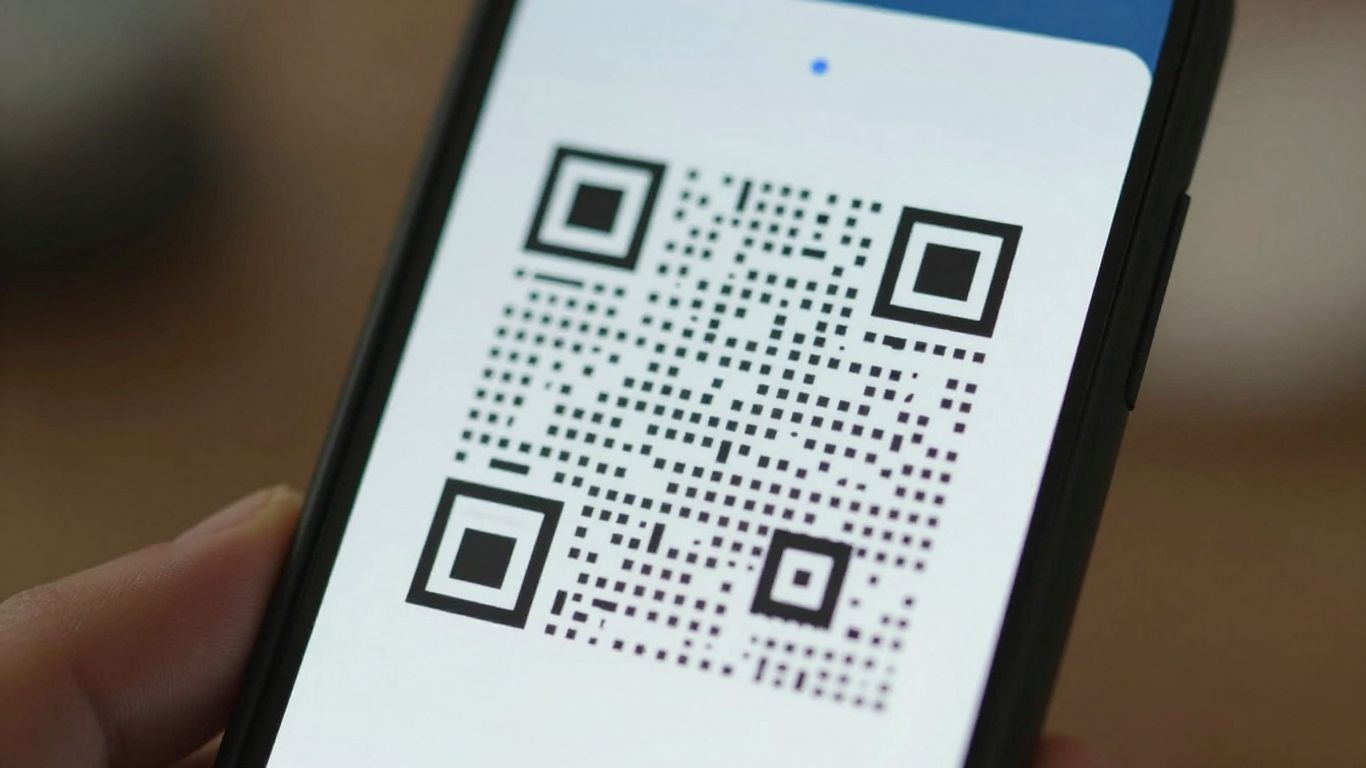
Sometimes, despite your best efforts, a QR code just won’t scan reliably. It might be down to a few things, but often, the simplest solution is to create a new one. If you’ve tried adjusting contrast, ensuring a clear quiet zone, and checking the size and distance, but it’s still a no-go, it’s probably time for a refresh.
Identifying a Badly Designed Code
Poor design is a common culprit. This can include:
- Low contrast: Using colours that are too similar or light-on-dark patterns can make it hard for scanners to read.
- Insufficient quiet zone: If there isn’t enough clear space around the code, it can confuse the scanner.
- Overly complex data: A QR code packed with too much information (high data density) can become difficult to scan, especially if it’s printed small.
- Distorted or blurry prints: This is often down to the printing process itself, leading to unreadable modules.
If your code looks a bit fuzzy, has colours that blend too much, or seems crammed with information, it’s a strong candidate for regeneration. A well-designed code should be clean and crisp. For instance, using dynamic QR codes can help keep the data density lower by using a short, redirecting URL, making the code itself simpler and more reliable.
Testing with a Known-Good Code
Before you completely give up on your current code, it’s a good idea to test your phone’s scanning ability with a known-good QR code. You can easily generate a simple, black-on-white QR code using a reliable generator. If your phone scans this test code without any issues, then the problem almost certainly lies with your original QR code’s design or print quality. If even the test code fails, you might need to look into your phone’s camera settings or consider using a dedicated QR scanner app [4974].
Seeking Expert Assistance
If you’ve tried regenerating the code and are still facing issues, or if you’re unsure about the design elements, don’t hesitate to seek help. Services like Xcan.it offer expert assistance. They can review your QR code artwork and placement, providing advice on print-ready fixes. This is particularly useful for complex campaigns across print and signage. Plus, with Xcan.it, you can update your QR code links without needing to reprint anything, track scans in a single dashboard, and utilise dynamic QR codes to really improve your real-world campaigns [2a04]. It’s a smart way to manage your QR code strategy and ensure it’s always working effectively.
Thinking about when it’s time to refresh your QR code? If your linked content has changed, or if you simply want to update the design, it’s a good idea to create a new one. Don’t let outdated links confuse your audience! Visit our website to learn more about managing your QR codes effectively.
So, What's Next?
Right then, we’ve gone through all the common reasons why your QR code might be playing hard to get and how to sort it out. Most of the time, it’s something simple like contrast or a bit of glare. But if you’re still having a nightmare, don’t sweat it. There are plenty of tools out there, like dynamic QR code platforms, that make managing and updating your codes a doddle. Plus, they often give you handy insights into how people are actually using them. So, give those fixes a go, and if all else fails, remember there’s always a smarter way to get your codes working perfectly.
Frequently Asked Questions
Why won't my phone scan a QR code?
Often, it’s down to a few simple things. The QR code might not have enough contrast (think dark on light is best!), it could be too small for the distance you’re trying to scan it from, or the print might be a bit blurry. Sometimes, a missing ‘quiet zone’ – that’s the clear space around the code – can also cause problems. Check these basics first!
What's the best way to make sure a QR code scans easily?
The key is good contrast and a clear, simple design. Use a dark colour for the code on a light, matte background. Make sure there’s a decent amount of empty space all around the code (this is the quiet zone). Also, ensure the code is printed clearly and at a size that matches how far away people will be when they scan it. A good rule of thumb is that the scanning distance should be about 10 times the width of the QR code itself.
Can I use colours in my QR code?
Yes, you can use colours, but you need to be careful. The most reliable way to scan is with dark squares on a light background. Avoid using very light colours for the code itself, or metallic inks, as these can make it hard for phones to read. Low contrast between the colours is a common reason for scanning failures.
Why does my phone say the QR code is 'invalid' or 'not supported'?
This usually means the QR code itself is damaged, poorly printed, or the link it points to is broken or blocked. Your phone might also be a bit old and not have the latest QR scanning features built-in. Try scanning a different, simple QR code to see if your phone works generally. If it does, the problem is likely with the original QR code.
Do I need a special app to scan QR codes?
For most modern smartphones, you don’t need a separate app. The built-in Camera app on iPhones and many Android phones can scan QR codes automatically. Just open your camera, point it at the code, and a notification should appear. If your phone is older or doesn’t have this feature, you can easily download a free QR scanner app from your app store.
What is a 'quiet zone' and why is it important?
The ‘quiet zone’ is simply the clear, empty space that surrounds the QR code. Think of it like a border. It’s really important because it helps the scanner clearly see the edges of the QR code and distinguish it from anything else around it. Without enough quiet zone, the scanner can get confused, and your code might not scan properly.












