
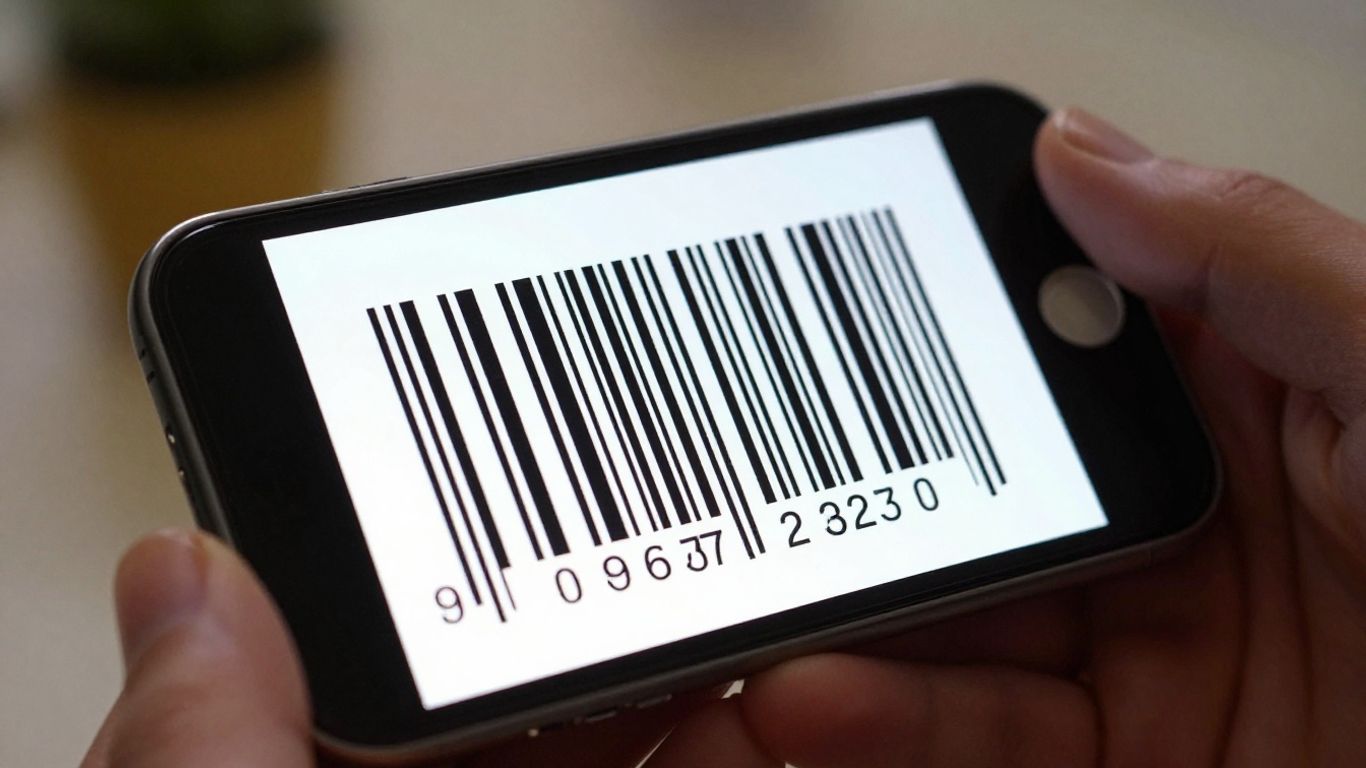
You’ve probably seen them everywhere – those little black and white squares. They’re called QR codes, and they’re a super handy way to get information quickly, especially on your iPhone. Whether it’s a link to a website, Wi-Fi details, or even a contact card, scanning them is usually pretty straightforward. This guide will walk you through how to use barcode scanner on iPhone, covering everything from using your built-in camera to getting the most out of your scans.
Key Takeaways
- Your iPhone’s Camera app can scan QR codes directly; just point and tap the notification that appears.
- You can add a dedicated Code Scanner to your Control Centre for a quicker, full-screen scanning experience.
- You can scan QR codes from photos already saved in your gallery or from screenshots.
- For more complex needs like scanning different barcode types or tracking scans, a dedicated app might be useful.
- Good lighting, clear contrast, and the right distance are key to successful barcode scanning.
Using Your iPhone's Camera App
It might surprise you, but your iPhone’s built-in Camera app is already equipped to scan QR codes. You don’t necessarily need to download a separate app for basic scanning tasks. This means you can get information from a QR code quickly and easily, right from the app you use every day.
Scanning Directly With The Camera
This is the simplest way to start. Just open your Camera app as you normally would to take a photo. Then, point your iPhone’s camera at the QR code. You don’t need to take a picture. Hold your phone steady so the QR code is clearly visible within the camera’s frame. The iPhone is designed to recognise QR codes automatically.
Understanding The Preview Banner
Once your iPhone detects the QR code, you’ll notice a notification banner appear at the top of the screen. This banner usually shows the URL or the content the QR code links to. It’s a good idea to glance at this banner before tapping it. This preview gives you a chance to see where you’re being directed, which is a handy first step in avoiding dodgy links. If the banner looks suspicious or unexpected, simply move your phone away from the code.
Troubleshooting Initial Scans
Sometimes, the camera might struggle to pick up a code. This isn’t usually a big problem and can often be fixed with a few simple adjustments.
- Lighting: Make sure there’s enough light on the QR code. Avoid harsh shadows or direct glare that can obscure the pattern.
- Distance and Size: Try moving closer to or further away from the code. The code needs to be large enough in the frame to be recognised, but not so close that the camera can’t focus.
- Angle: Ensure the code is relatively flat and not at a sharp angle to the camera. A slight tilt might help if there’s glare.
If you’re still having trouble, it might be worth checking if your iPhone’s software is up to date, as this can sometimes affect camera performance. For more advanced needs, like updating QR code links without reprinting or tracking scan data, services like Xcan.it offer dynamic QR codes that provide a dashboard for analytics and campaign improvements.
Leveraging Control Centre For Scanning
While the Camera app is handy for quick scans, sometimes you want a more dedicated, full-screen experience. That’s where adding the Code Scanner to your iPhone’s Control Centre comes in. It’s a simple tweak that can make scanning feel much more immediate and less fiddly.
Adding Code Scanner To Control Centre
Getting the Code Scanner into your Control Centre is straightforward. You’ll need to head into your iPhone’s Settings, then tap on ‘Control Centre’. From there, scroll down and tap the green plus icon next to ‘Code Scanner’. Once added, you can access it by swiping down from the top-right corner of your screen (or up from the bottom on older iPhones).
Full-Screen Scanning Experience
When you launch the Code Scanner from Control Centre, it opens up in a dedicated, full-screen view. This can be really helpful if you’re trying to scan a code that’s a bit further away or if the lighting isn’t perfect. The larger view gives you more space to manoeuvre your phone and get the code in focus without the rest of the camera interface getting in the way. It’s a small change, but it can make a noticeable difference when you’re on the go.
When To Use Control Centre
Think about using the Control Centre scanner when:
- You’re scanning codes in busy environments where you need to be quick.
- The QR code is on a sign or poster that’s a bit further from you.
- You want to minimise distractions and focus solely on the scanning task.
- You’re already using other Control Centre features and want to keep your workflow streamlined.
For businesses looking to make their QR codes work harder, tools like Xcan.it offer a significant advantage. You can update the links behind your QR codes without needing to reprint them, which is a lifesaver for campaigns. Plus, their dynamic QR codes allow you to track scan data in a single dashboard. This means you can see exactly how your print, signage, and other physical assets are performing in the real world, helping you refine your campaigns for better results. Learn more about dynamic QR codes.
Using the Control Centre scanner is a great way to get a focused scanning experience, especially when you need speed and clarity. It’s a simple addition to your iPhone that can make a real difference in everyday use.
Scanning QR Codes From Photos
Sometimes, you might have a QR code saved as an image on your iPhone, perhaps from a screenshot or a photo you took. Don’t worry, you can still scan these without needing to print them out again.
Accessing Codes In Your Gallery
Your iPhone has some clever built-in features to help you scan QR codes directly from your photo library.
- Open the Photos app and find the image containing the QR code.
- If your iPhone’s software recognises the code, you might see a small yellow frame around it. Simply tap the frame to reveal the link or action.
- Alternatively, you might see a ‘detected code’ icon or a button that looks like Live Text. Tapping this will also give you the option to open the link.
- On newer iOS versions, a long press on the QR code area can also bring up the link or an ‘Open Link’ option.
This is a really handy way to access information you’ve saved for later. If you’re using an Android device, the process is similar, often involving tapping a ‘Lens’ icon within your gallery app to detect the code.
Using Built-in Photo Detection
Most modern iPhones can detect QR codes within images automatically. This means you don’t usually need a separate app for this. The system scans the image for recognisable patterns, and if it finds a QR code, it presents you with the embedded information. It’s quite a neat trick that saves you a step.
Scanning Screenshots
Screenshots are a common place to find QR codes you want to scan later. The process is the same as scanning from any other photo in your gallery. Just open the screenshot in your Photos app, and your iPhone should detect the QR code for you. If you’ve received a QR code via a messaging app or email, you can often save the image to your gallery and then scan it using these methods. It’s a straightforward way to get the information without needing to be in front of the original printed code. For businesses looking to manage their QR codes effectively, services like Xcan.it allow you to update QR code links even after they’ve been printed. This means you can change a website URL or contact information without having to reprint any materials. Plus, they offer a dashboard to track scans, giving you insights into how your campaigns are performing across print, signage, and other assets. They also provide dynamic QR codes, which are incredibly useful for improving real-world campaigns.
Remember, just because a QR code is saved as an image doesn’t automatically make it safe. Always be mindful of where the code is leading you, even if you’re scanning it from your own photo library. It’s still a link, and those can sometimes lead to unexpected places.
When A Dedicated App Might Help
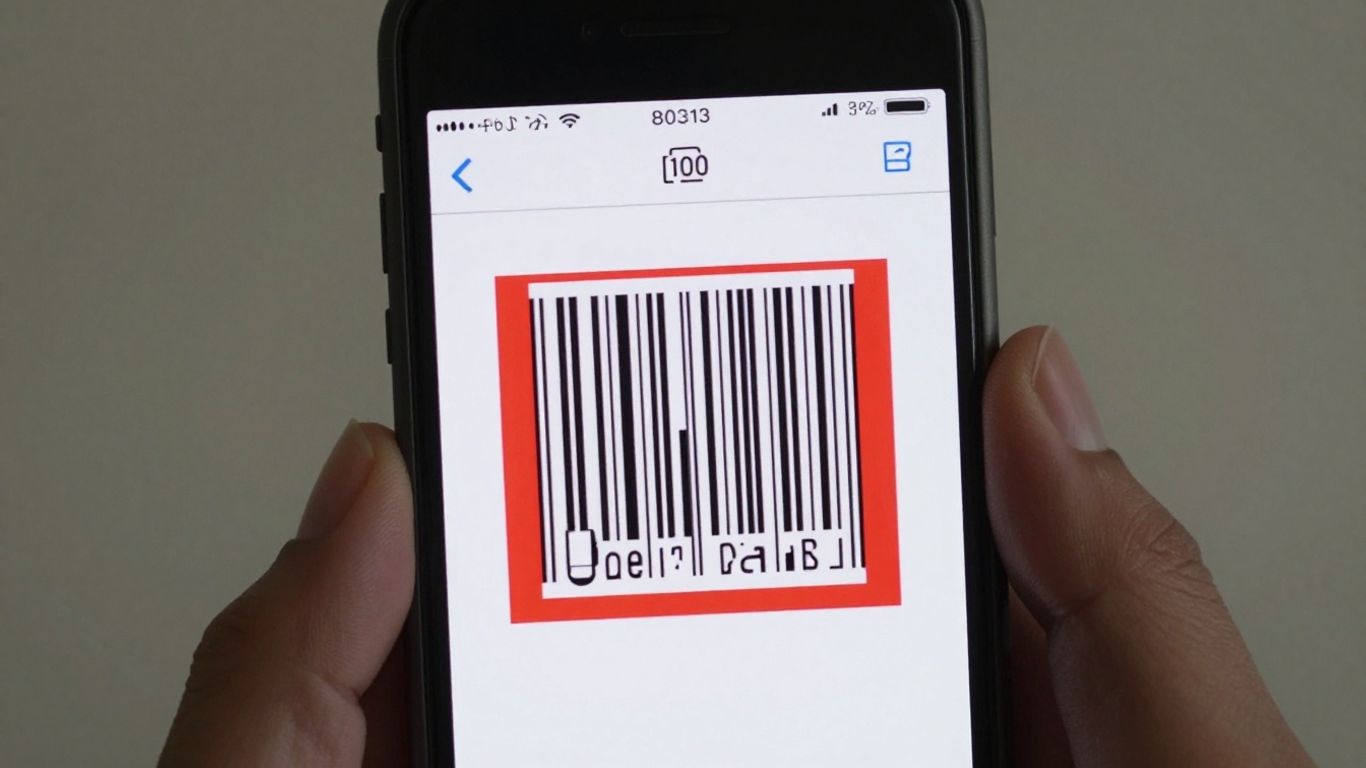
While your iPhone’s camera is pretty smart these days, there are times when a dedicated scanning app can really make a difference. Think about it: sometimes you need to scan more than just a standard website link. Maybe you’re dealing with tickets, product packaging, or even business cards. A dedicated app can often handle a wider range of barcode formats, like Data Matrix or PDF417, which the built-in camera might miss. This means fewer frustrating moments trying to get a scan to work.
Beyond just reading different types of codes, dedicated apps can offer features that the standard camera just doesn’t have. For instance, if you’re running a marketing campaign or managing inventory, you might need more than just a quick scan. You might want to track how many people are scanning your codes, where they’re scanning from, and when. This is where services like Xcan.it really shine. They allow you to create dynamic QR codes, which means you can actually update the link or information the QR code points to after it’s been printed. No more reprinting flyers because a website address changed!
Plus, with a platform like Xcan.it, you get a dashboard to track all your scans. This gives you real-world insights into how your campaigns are performing across print, signage, and other assets. It’s a game-changer for improving your marketing efforts and understanding customer engagement.
Here’s a quick look at when an app might be the better choice:
- Advanced Barcode Formats: Need to scan things like event tickets (PDF417) or product serial numbers (Code 128)? A dedicated app is your best bet.
- Batch Scanning Needs: If you have a lot of codes to scan in quick succession, some apps are built for speed and efficiency.
- Analytics and Tracking: Want to know how often your QR codes are being scanned and from where? Services like Xcan.it provide this data.
While the built-in camera is fantastic for everyday use, don’t overlook the power of specialised apps when your needs go beyond simple web links. They can offer more formats, better tracking, and the flexibility to update codes on the fly. QRbot is one such app that uses native technology for fast results.
For businesses looking to get the most out of their QR code campaigns, using a dynamic QR code solution is key. It offers flexibility and valuable insights that static codes simply can’t match. You can even find apps that support scanning from photos in your gallery, adding another layer of convenience.
Ensuring Successful Scans
Getting your iPhone to read a barcode or QR code smoothly often comes down to a few simple things. It’s not usually about the phone itself, but more about how the code is presented. Think of it like trying to read a book in a dimly lit room with smudged pages – it’s going to be a struggle.
Optimising Contrast and Lighting
The most common reason a code won’t scan is poor contrast. You want a clear distinction between the dark and light elements of the code. Black on white is the gold standard for a reason. Avoid using light colours, metallic inks, or placing a dark code on a dark background. Lighting is also key; too much glare can make the code unreadable, while too little light can make it too dim. Try to position the code so it’s evenly lit and avoid direct light sources that create reflections.
The Importance Of A Quiet Zone
Ever noticed that white border around a QR code? That’s called the ‘quiet zone’, and it’s really important. It’s a clear space that helps the scanner distinguish the code from its surroundings. Without enough of a quiet zone, the scanner can get confused. Aim for a border that’s at least four times the width of the smallest square (module) in the code. This means no text, logos, or other graphics should creep into this buffer area.
Adjusting Size and Distance
This is a classic case of ‘it’s not you, it’s me’ – or rather, ‘it’s not the phone, it’s the code’s size relative to how far away you are’. A general rule of thumb is that the scanning distance should be about ten times the width of the code itself. So, if you’re holding your phone about 30cm away, the code should be roughly 3cm wide. For larger print like posters, you’ll need a much bigger code. If a code is too dense with information, the individual squares can become too small to read, especially from a distance. In these cases, shortening the URL or using a dynamic QR code can help make the modules larger and more scannable. Dynamic QR codes from services like Xcan.it are brilliant because they let you update the link without needing to reprint the code, and they also offer scan tracking. This means you can see how many people are interacting with your campaigns across print, signage, and other assets, making your real-world marketing much more effective.
Getting a good scan is all about making it easy for the camera. Think clear, clean, and well-lit. If you’re creating codes for others to scan, consider how they’ll be used and printed. A little attention to detail here can save a lot of frustration later.
Understanding Scan Safety
While scanning QR codes is generally safe, it’s always a good idea to be a bit mindful of where you’re pointing your camera. Think of it like clicking on a link online – you wouldn’t just click any old link, would you? The same applies here.
Previewing Links Before Opening
One of the best safety features built into most modern phone cameras is the URL preview. When you point your camera at a QR code, you’ll usually see a banner pop up at the top of your screen showing the web address the code leads to. Always take a moment to check this preview. Does it look like a legitimate website, or is it something a bit strange or unexpected? If it looks dodgy, it’s best to just ignore it and move on. This simple step can save you from landing on phishing sites or downloading unwanted software. For more advanced control over your QR codes, including the ability to update links without reprinting and track scan performance, services like Xcan.it can be really helpful. They offer dynamic QR codes that give you more flexibility and insight into your campaigns.
Identifying Potentially Risky Codes
Scammers sometimes use QR codes to trick people. They might put them on fake posters, in unsolicited emails, or even on unexpected packages. If a QR code appears somewhere you weren’t expecting it, or if the URL preview looks suspicious (e.g., lots of random characters, a misspelled domain name, or a link shortener you don’t recognise), it’s probably best to steer clear. It’s also worth noting that some QR code readers offer extra safety checks, like warning you about known malicious websites. If you’re scanning codes from photos, make sure you’re using trusted methods to avoid accidentally activating a malicious code within the image itself.
Privacy Considerations
When you scan a QR code, it typically just takes you to a website or opens some information. However, it’s worth thinking about what happens next. Some QR codes might be designed to collect data, especially if they’re part of a marketing campaign. Using a QR code generator like Xcan.it can help here, as they allow for dynamic QR codes. This means you can update the destination link or track scan data through a dashboard, giving you more control and insight without needing to reprint codes. Always be mindful of the permissions you grant to any dedicated scanning apps you might use, and prefer those that offer a clear URL preview and don’t track your activity unnecessarily. Sticking to your phone’s built-in camera app is often the most private option, as it usually just shows you the link without collecting extra data.
Keeping your QR codes safe is super important. Our system helps you do just that, making sure your links are secure and easy to manage. Want to see how simple it is to keep your digital information protected? Visit our website today to learn more about scan safety!
All Set to Scan
So there you have it. Using your iPhone to scan QR codes is pretty straightforward, really. Most of the time, your camera app will just do the job without you even thinking about it. And if you ever need it to do more, adding the Code Scanner to your Control Centre is a doddle. It’s a handy little feature that’s always there when you need it, making it super easy to jump from a printed advert to a website or grab some information. Give it a go next time you see one of those little square codes – you might be surprised how simple it is.
Frequently Asked Questions
Do I still need a separate app to scan QR codes on my iPhone?
Not usually! Your iPhone’s built-in Camera app is pretty smart and can scan most QR codes automatically. Just open the camera, point it at the code, and a notification should pop up. If you want to scan codes from photos or need more advanced features, you might consider an app, but for everyday use, the camera is often enough.
Where can I find the QR scanner on my iPhone?
The easiest place to find it is right in your Camera app. Just open it up and aim at the QR code. You can also add a ‘Code Scanner’ shortcut to your Control Centre for quicker access, especially if you want a full-screen scanning experience.
What if my iPhone's camera isn't scanning the QR code?
Don’t worry, it happens! First, make sure the QR code is well-lit and not too shiny or blurry. Try holding your phone a bit closer or further away, and ensure the code fills a good portion of the screen. Sometimes, a simple restart of the Camera app or your phone can fix things.
Can I scan QR codes that are saved in my photos?
Yes, you can! If you have a screenshot or a photo of a QR code, open it in your Photos app. Your iPhone often recognises the code within the image, and you’ll see an option to tap it and open the link. It’s a handy way to scan codes you’ve saved for later.
Are there any risks when scanning QR codes?
While most QR codes are perfectly safe, there’s always a small risk. Scammers can create malicious QR codes that lead to fake websites designed to steal your information or download viruses. Always check the preview link that appears before you tap it, and if it looks suspicious, don’t open it.
When would a special QR scanner app be better than my iPhone's camera?
Your iPhone camera is great for most things, but a dedicated app might be useful if you need to scan lots of different types of barcodes (not just QR codes), if you need to scan many codes very quickly one after another (batch scanning), or if you want to track where and when codes were scanned for business purposes.












