

Ever wondered how to scan a code with your phone? It’s simpler than you might think, and most of the time, you don’t even need a special app. Whether you’re trying to get to a website, see a menu, or connect to Wi-Fi, your phone’s camera is likely all you need. This guide will walk you through the basics, from using your built-in camera to what to do if a code just won’t scan. We’ll also touch on a few things to keep in mind for safety and to make sure your own codes work properly.
Key Takeaways
- Most modern smartphones can scan QR codes using their built-in Camera app, so you often don’t need to download anything extra.
- If your phone’s camera isn’t picking up the code, try adjusting the contrast, ensuring there’s a clear space around the code, or checking the distance and lighting.
- You can scan QR codes from images or screenshots on your phone by using photo apps or specific features within your phone’s gallery.
- Be cautious when scanning codes, especially from unknown sources, and always check the preview link before opening to avoid risky websites.
- For a successful scan, make sure the code has good contrast, is a suitable size for the scanning distance, and isn’t damaged or obscured by glare.
Using Your Phone's Built-In Camera
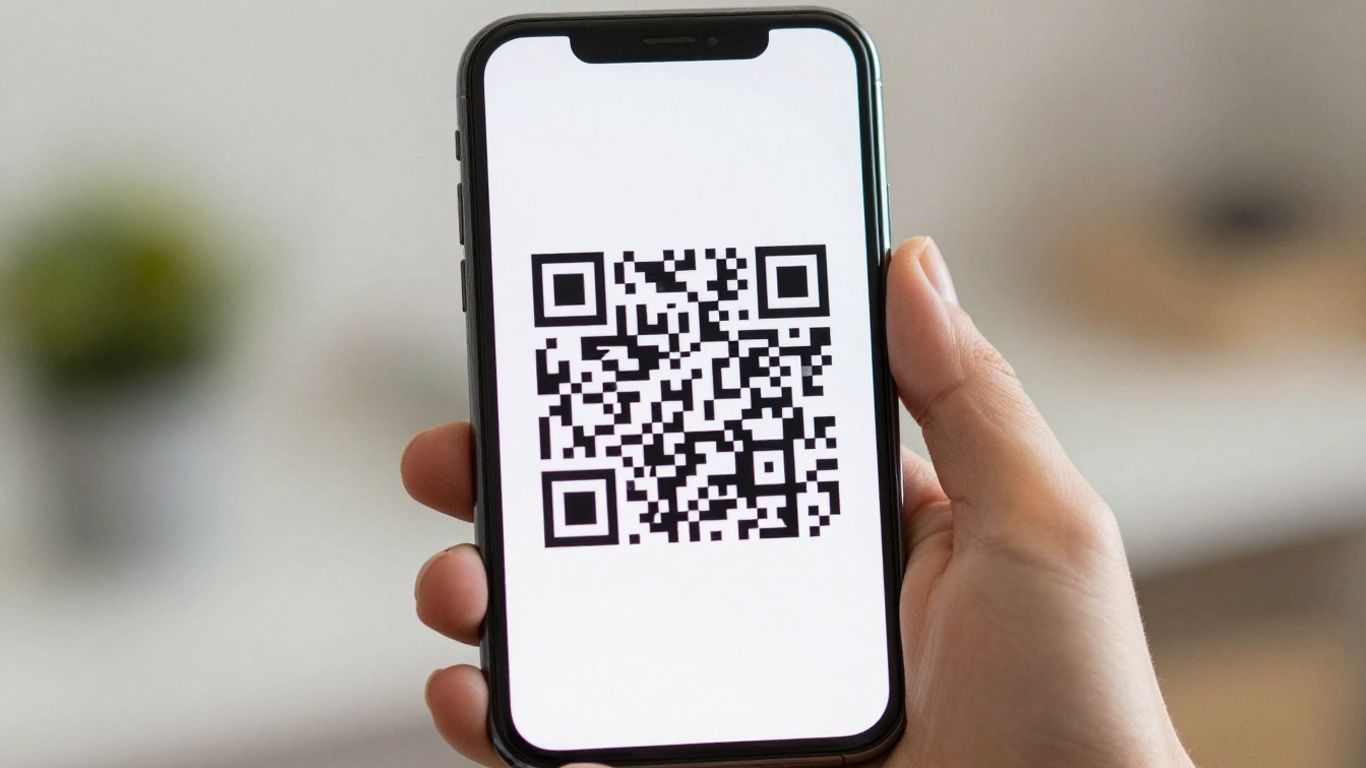
Most modern smartphones have a built-in QR code scanner, usually integrated directly into the camera app. This means you often don’t need to download a separate application to read these codes. It’s a straightforward process that most people can get the hang of quickly.
Scanning with iPhone's Camera App
For iPhone users, scanning a QR code is incredibly simple. Just open the standard Camera app. Point your phone at the QR code, making sure it’s well-lit and fills a good portion of the screen. You should see a notification pop up at the top of your screen, showing the link or information contained within the code. Simply tap this notification to open the link in your browser or take the desired action. If you want a more focused scanning experience, you can add the ‘Code Scanner’ to your Control Centre for quick access.
Scanning with Android's Camera App
On Android devices, the process is very similar. Open your phone’s default Camera app and aim it at the QR code. Many Android phones will automatically detect the code and display a link or prompt. Some devices might have a dedicated ‘QR’ mode within the camera settings, or they might rely on Google Lens suggestions. If you don’t see an immediate prompt, check your camera’s settings for a QR code scanning option or ensure Google Lens is enabled for camera use. Tapping the detected link will then take you to the content.
Troubleshooting Common Camera Scan Issues
Sometimes, your phone’s camera might struggle to read a QR code. This is often due to a few common issues. Low contrast between the code and its background is a frequent culprit. If the code is too small for the distance you’re holding your phone, or if there’s glare obscuring the pattern, the camera might not be able to focus properly. Ensure the code is well-lit, flat, and has a clear border around it (this is known as the ‘quiet zone’). If you’re still having trouble, consider using a dedicated QR code reader app, which might have more advanced scanning capabilities. For those looking to manage their QR codes effectively, platforms like Xcan.it allow you to update QR code links without reprinting, track scans in a dashboard, and use dynamic QR codes to improve real-world campaigns across print, signage, and assets.
When An App Might Be Helpful
While your phone’s built-in camera is often all you need, there are times when a dedicated QR code reader app can really make a difference. Think of it like having a specialised tool for a specific job – sometimes it’s just more efficient.
Enhancing Scan Capabilities
Sometimes, the standard camera app might struggle with certain types of codes or in tricky lighting conditions. Dedicated apps can sometimes offer features like improved low-light performance or faster autofocus, making them more reliable. They can also support a wider range of barcode formats beyond just QR codes, which is handy if you’re scanning things like event tickets (PDF417) or product packaging (Data Matrix). A good app can also provide more information about what you’re scanning, like searching product details on Amazon or eBay straight after a scan [c5b9].
Choosing a Privacy-Conscious Reader
When you do decide to download an app, it’s wise to be mindful of what you’re installing. Look for readers that are upfront about their privacy policies, ideally ones that don’t bombard you with ads or request unnecessary permissions. The best apps will show you a preview of the link before you open it, giving you a chance to check if it looks suspicious. This is a simple but effective safety measure.
Understanding Multi-Format Support
If your scanning needs go beyond simple website links, an app becomes more useful. Many apps can read various types of codes, including those for contact details, Wi-Fi credentials, calendar events, and even payment information [fdff]. This versatility means you can use a single app for a multitude of tasks, rather than relying on different tools or features for each type of code you encounter. For businesses, platforms like Xcan.it offer dynamic QR codes that allow you to update the destination link without needing to reprint the code itself. This means you can track scans in a central dashboard and adapt your real-world campaigns across print and signage on the fly, making your marketing efforts much more flexible and measurable.
Scanning Codes From Your Screen
Sometimes, the QR code you need to scan isn’t on a physical object but already on your phone’s screen – perhaps in a message, an email, or a screenshot. You can’t point your phone’s camera at its own display, but there are straightforward ways to handle this.
Scanning Screenshots on iPhone
If you’ve got a QR code saved as an image on your iPhone, the Photos app can often read it. Just open the image, and if your phone detects a QR code, you’ll usually see a small icon or a prompt appear near it. Tapping this will let you open the link or take the suggested action. It’s a neat trick that saves you from needing another device or a separate app for quick scans.
Scanning Images on Android
Android users have a similar capability. When you open a screenshot or image containing a QR code in your gallery, you can often use Google Lens. If Lens is integrated, it will automatically detect the code, or you might find a specific ‘Scan from photo’ option. This feature means you can get the information from an image without any extra downloads, making it quite convenient.
Staying Safe with On-Screen Codes
While scanning codes from your screen is handy, it’s also a common way for scams to operate. Scammers might send you a QR code in a message, hoping you’ll scan it without thinking. Always be cautious and preview the link before opening it. If a QR code comes from an unexpected source or looks suspicious, it’s best to ignore it. For those managing QR codes for campaigns, using a service like Xcan.it is a smart move. It allows you to update QR code links without reprinting, track scans in a dashboard, and use dynamic QR codes to improve your real-world campaigns across print, signage, and assets. This means you can keep your campaigns fresh and secure, even when the codes are digital.
Ensuring Your Codes Are Scannable
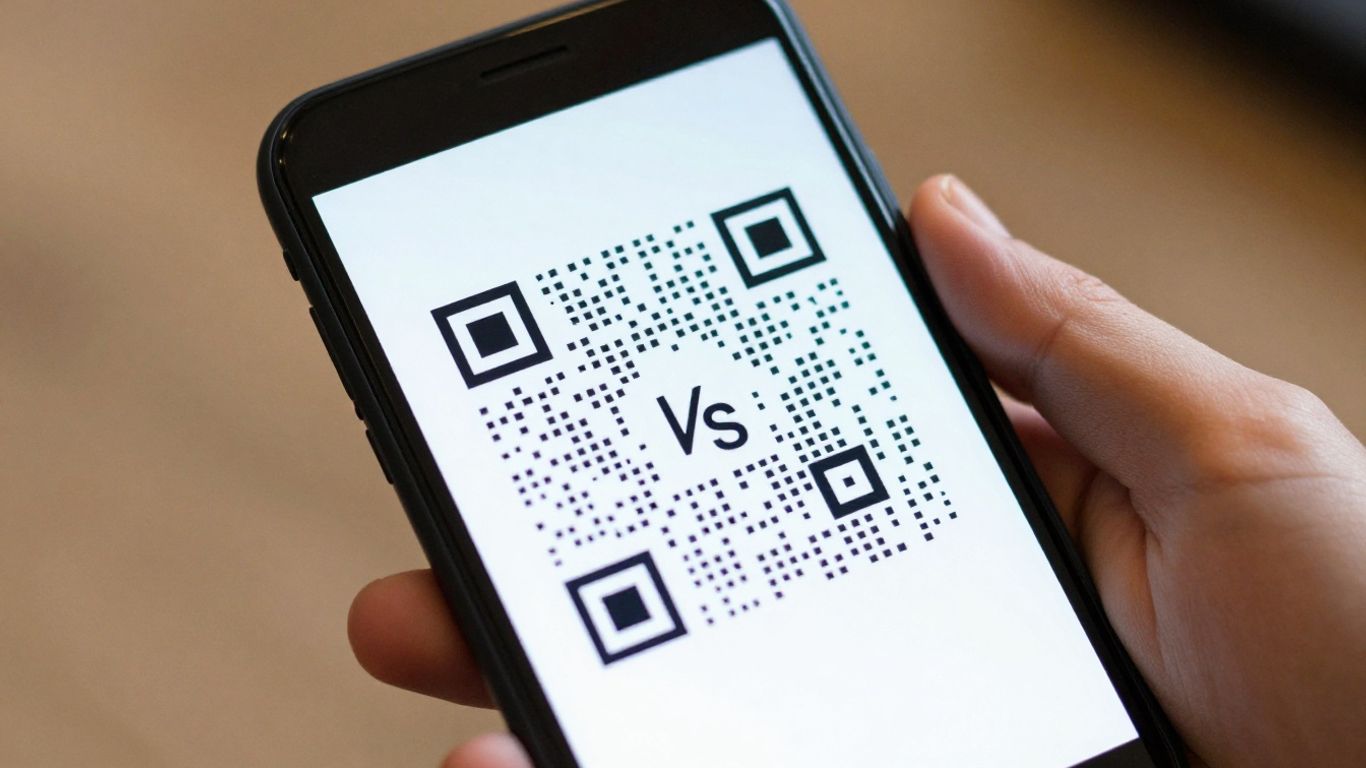
Making sure your QR codes are easy for phones to read is pretty straightforward once you know what to look for. It’s not about fancy tech, but more about the basics of good design and placement. Think of it like making sure a sign is big enough and clear enough for people to read from a distance.
Optimising Contrast and Size
The most important thing is to have a strong contrast between the dark parts of the QR code and the light background. Black on white is the gold standard for a reason – it’s what scanners are best at picking up. Avoid using pale colours, metallic inks, or anything that looks a bit washed out. The same goes for the background; a plain, matte white or light cream works wonders. If your code is too small for where it’s placed, or if people are expected to scan it from far away, it simply won’t work. A good rule of thumb is that the scanning distance should be about ten times the width of the QR code itself. So, if your code is 2cm wide, people should be able to scan it from about 20cm away. If it’s on a poster across a room, it needs to be much bigger.
The Importance of a Quiet Zone
Ever seen a QR code that looks like it’s crammed right up against other text or images? That’s a problem. Every QR code needs a bit of breathing room around it, often called a ‘quiet zone’. This is a clear, empty border that helps the scanner distinguish the code from its surroundings. Aim for a border that’s at least four times the width of the smallest squares (modules) within the code. This might seem like wasted space, but it’s absolutely vital for reliable scanning. Without it, the scanner can get confused and might not read the code at all.
Avoiding Glare and Curvature
Shiny surfaces are the enemy of scannable QR codes. If a code is printed on glossy paper or laminated, the light can bounce off it, creating glare that makes it impossible for a phone camera to read. Similarly, if the code is printed on a curved surface, like a bottle or a bent sign, the distortion can also cause scanning issues. Using matte finishes for your print materials is a simple fix. If you can’t avoid a slight curve, try to position the code so that light sources don’t directly reflect off it. Sometimes, just tilting the surface slightly can make all the difference. For campaigns where you need to update links or track performance, using dynamic QR codes is a game-changer. Platforms like Xcan.it allow you to change the destination URL without reprinting the code, and you can monitor scan data in a central dashboard. This means your print, signage, and assets can stay relevant and measurable, adapting to your needs in real-time.
Quick Fixes for Unreadable Codes
Sometimes, even with the best intentions, a QR code just won’t scan. Don’t worry, it’s usually a simple fix. Most scan failures boil down to a few common culprits: contrast, size, distance, or the environment it’s in. Let’s get that code working again.
Addressing Low Contrast and Data Density
Low contrast is a big one. If your QR code looks washed out or blends into its background, your phone’s camera will struggle. The golden rule here is dark on light, with a matte finish. Think black or a very dark colour on a crisp white or light background. Avoid pale colours, metallic inks, or anything that looks shiny. If your code is packed with information, it can become very dense, making the individual squares (modules) tiny and hard to read. Shortening the URL or switching to a dynamic QR code can help by reducing the amount of data, which in turn makes the modules larger and easier for cameras to pick up.
Resolving Size, Distance, and Print Quality
It sounds obvious, but the size of the QR code matters. A good rule of thumb is that the scanning distance should be about ten times the width of the code itself. So, if people are likely to be standing a metre away, your code should be around 10 centimetres wide. Print quality is also key. Blurry images, stretched graphics, or low-resolution exports can all make a code unreadable. Always aim for sharp, clear artwork, ideally exported as a vector file (like SVG or PDF) or a high-resolution raster image (300-600 DPI).
Checking for Damage and Glare
Physical damage, like creases, tears, or smudges, can obviously break the code. But so can glare. If the code is printed on a glossy surface, direct light can create reflections that obscure the modules. Try to use matte finishes where possible, and if you can’t avoid glare, tilting the code slightly can sometimes help the camera get a clear read. For campaigns where you need to update links without reprinting, or track scan performance, services like Xcan.it are invaluable. They offer dynamic QR codes that let you change the destination URL anytime, track scans in a dashboard, and generally improve your real-world campaigns across print and signage.
When a QR code fails to scan, it’s rarely the phone’s fault. Usually, it’s down to the code’s design or its environment. Simple adjustments to contrast, size, and placement can make all the difference.
Understanding QR Code Safety
QR codes are incredibly handy, bridging the gap between the physical and digital worlds with just a quick scan. However, like any tool, it’s wise to be aware of how they can be misused. Scammers can sometimes exploit QR codes to lead you to malicious websites designed to steal your login details or personal information. The pattern itself is just data; the risk comes from where it sends you.
Previewing Links Before Opening
When you scan a QR code, your phone will usually show you a preview of the destination link before it opens. This is a really important safety step. Always take a moment to look closely at the URL. Does it look right? Is the spelling correct for the brand you expect? If the address looks odd, is shortened in a suspicious way, or seems unrelated to where you thought it would take you, it’s best not to tap on it. Many modern phones have this built into their camera apps, which is generally the safest way to scan. Understanding these dangers and knowing how to spot them is key.
Identifying Risky Domains
Scammers often try to make fake websites look like the real thing. Pay close attention to the domain name. Look out for slight misspellings, extra characters, or unusual top-level domains (like .xyz or .biz when you’d expect .com). If a QR code is supposed to take you to your bank’s website, but the URL shows something like my-bank-security-update.com instead of the official bank address, that’s a big red flag. It’s always better to be cautious and type the website address directly into your browser if you’re unsure.
The Role of Trusted Apps
While your phone’s built-in camera app is usually the best and safest option for scanning, sometimes you might need a dedicated app, especially if you need to scan different types of codes or want more advanced features. If you do choose a third-party app, pick one that’s well-reviewed and doesn’t ask for a lot of unnecessary permissions. Look for apps that are ad-free and have clear privacy policies. Some apps even have built-in safety checks that can warn you about suspicious links before you open them. For businesses looking to manage their QR codes effectively, platforms like Xcan.it offer dynamic QR codes. This means you can update the link a QR code points to without ever needing to reprint it, track scans in a central dashboard, and generally improve your real-world campaigns across print and signage.
QR codes are generally safe, but it’s smart to be cautious. Think of them like a shortcut on your phone; most are fine, but you wouldn’t click a random link online without knowing where it goes. Always check where a QR code might lead before you scan it. For peace of mind and to manage your own QR codes safely, explore our tools at Xcan.it.
So, Ready to Scan?
And there you have it. Scanning a QR code with your phone is pretty straightforward these days. Most of the time, your phone’s camera will do all the work for you. Just open it up, point, and tap the notification that pops up. If you run into any trouble, remember those simple fixes like checking the contrast or making sure the code is well-lit. It’s a quick and easy way to connect with information, offers, or services, and now you know how to do it without any fuss.
Frequently Asked Questions
Do I need a special app to scan QR codes?
Not usually! Most modern smartphones have a built-in scanner in their camera app. Just open your camera and point it at the code. If you need more features, like scanning different types of codes or getting scan stats, then a dedicated app might be helpful.
Why won't my phone scan a QR code?
There are a few reasons this might happen. Make sure the code has good contrast (dark on light is best), isn’t too small or too far away, and there’s a clear space around it. Also, check for glare or if the code is damaged or creased, as this can make it unreadable.
Can I scan a QR code that's already on my phone screen?
Yes, you can! You can’t point your camera at your own screen, but you can use your phone’s photo gallery or tools like Google Lens. Open the image with the QR code in your gallery, and your phone should offer an option to scan it.
Are QR codes safe to scan?
Most QR codes are safe, but it’s wise to be cautious. Some sneaky people hide harmful links in QR codes. Always check if your phone shows you where the link will go before you tap it. If it looks suspicious, don’t open it.
How can I make sure my own QR codes scan easily?
To make your QR codes easy to scan, ensure they have a good contrast between the dark and light parts. Give them a clear border, known as a ‘quiet zone’, and make sure they’re printed large enough for the distance people will be scanning from.
What's the difference between a QR code and a barcode?
Think of a barcode as a simple list of items, usually found on products in shops. A QR code is like a super-powered barcode; it can hold much more information, like website links, contact details, or even Wi-Fi passwords, and it can be read from any direction.












