
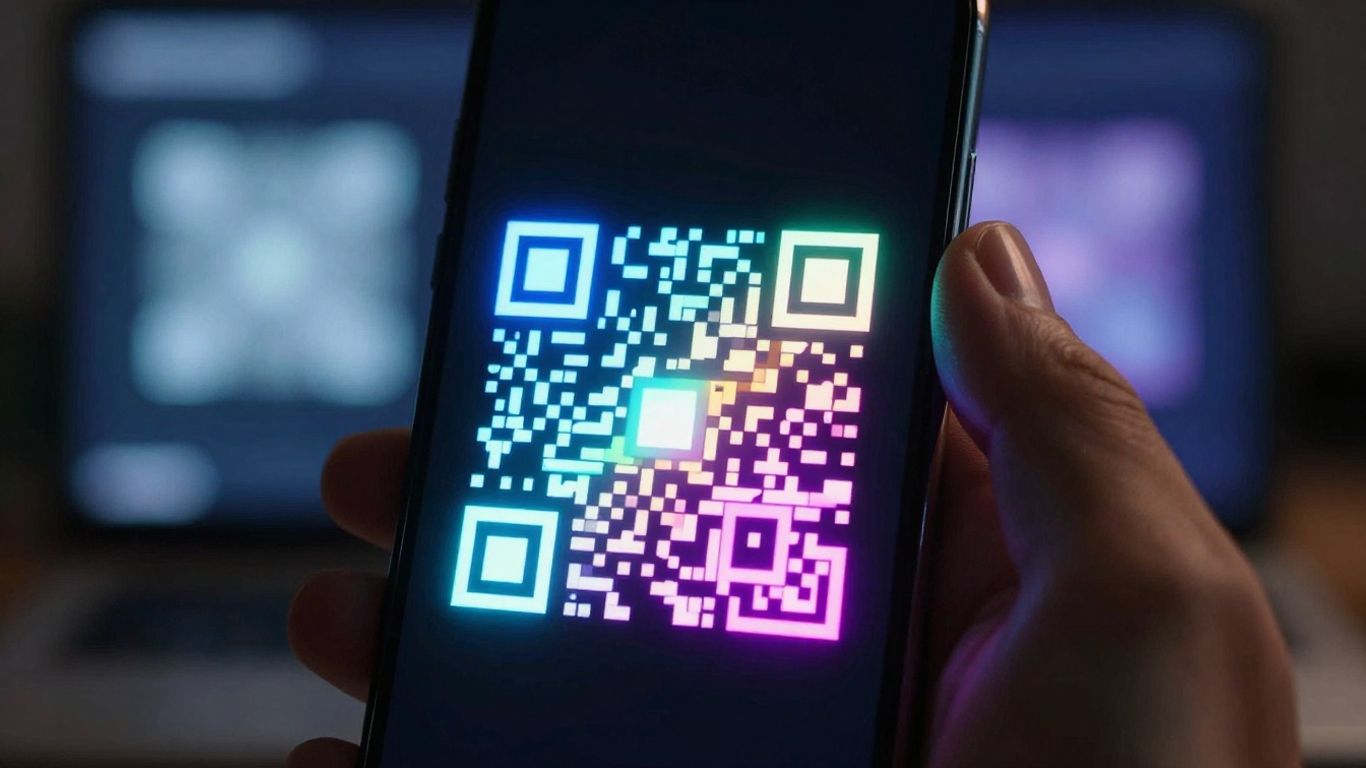
Looking for a way to quickly access information on your Android phone? QR codes are everywhere these days, from menus to posters. But how do you actually read them? We’ve rounded up some of the best qr code reader in android options for 2026, so you can get scanning without any fuss. Honestly, it’s simpler than you might think, and most of the time, you probably already have what you need.
Key Takeaways
- Most Android phones can scan QR codes using their built-in Camera app or Google Lens.
- If your phone’s camera doesn’t scan, look for a dedicated qr code reader in android that is fast and doesn’t show ads.
- Prioritise apps that show a preview of the link before opening it for added safety.
- Consider apps that support various code formats, not just QR codes, for more versatility.
- A good qr code reader in android should focus quickly, even in low light, and handle different sizes of codes.
1. Google Lens
Google Lens is a pretty neat tool that’s built right into many Android phones, often accessible through your camera app or even your photo gallery. It’s not just for scanning QR codes, though it does that brilliantly. Think of it as a visual search engine. Point your camera at something, and Lens can identify it, translate text, find similar products, or even help you solve homework problems.
When it comes to QR codes, Lens is super straightforward. Just open your camera app, and if Lens is enabled, it’ll usually pop up a notification or a little icon when it spots a QR code. Tapping that takes you straight to the linked content, whether it’s a website, a Wi-Fi login, or contact details. It’s all about making that connection between the physical world and the digital one as smooth as possible.
For businesses looking to make their QR code campaigns more dynamic and trackable, services like Xcan.it really shine. They let you update the link behind a QR code without needing to reprint anything, which is a lifesaver for signage or print materials. Plus, you get a dashboard to see how many scans you’re getting, where they’re coming from, and what’s working. This kind of insight is invaluable for improving marketing efforts across print, signage, and even physical assets. Dynamic QR codes from Xcan.it mean your campaigns can stay relevant and effective, even after they’ve been printed. Google Lens is a great starting point for everyday scanning needs.
2. Phone Camera App
For most people, the easiest way to scan a QR code is to just use the camera app that’s already on their phone. Seriously, most modern smartphones have this built right in. You just open up your camera, point it at the code, and boom – a notification pops up. It’s quick, it’s simple, and you don’t need to download anything extra. This is especially handy if you just need to quickly check a menu or get a website address.
It’s the fastest, most straightforward method for everyday QR code scanning.
If you find your phone’s camera isn’t quite cutting it, or you’re looking for more advanced features, then you might consider a dedicated app. But for most users, the native camera is perfectly fine. It’s designed to be safe, too, usually showing you a preview of the link before you actually open it, which is a nice little safety net.
Using your phone’s built-in camera is often the best starting point. It’s fast, secure, and requires no extra downloads, making it ideal for quick scans of menus, websites, or contact information.
While the built-in camera is great for basic use, if you’re running campaigns or need more control, services like Xcan.it offer a lot more. With Xcan.it, you can actually update the link on a QR code even after it’s been printed. Imagine that – no more reprinting if a URL changes! Plus, you get a dashboard to track how many times your codes are scanned, giving you real-world insights. They also offer dynamic QR codes, which are super useful for improving campaigns across print, signage, and even on physical assets. It’s a step up from just scanning a static code. For those needing more robust features, exploring options like advanced AI scanning might be the next logical step.
3. Code Scanner
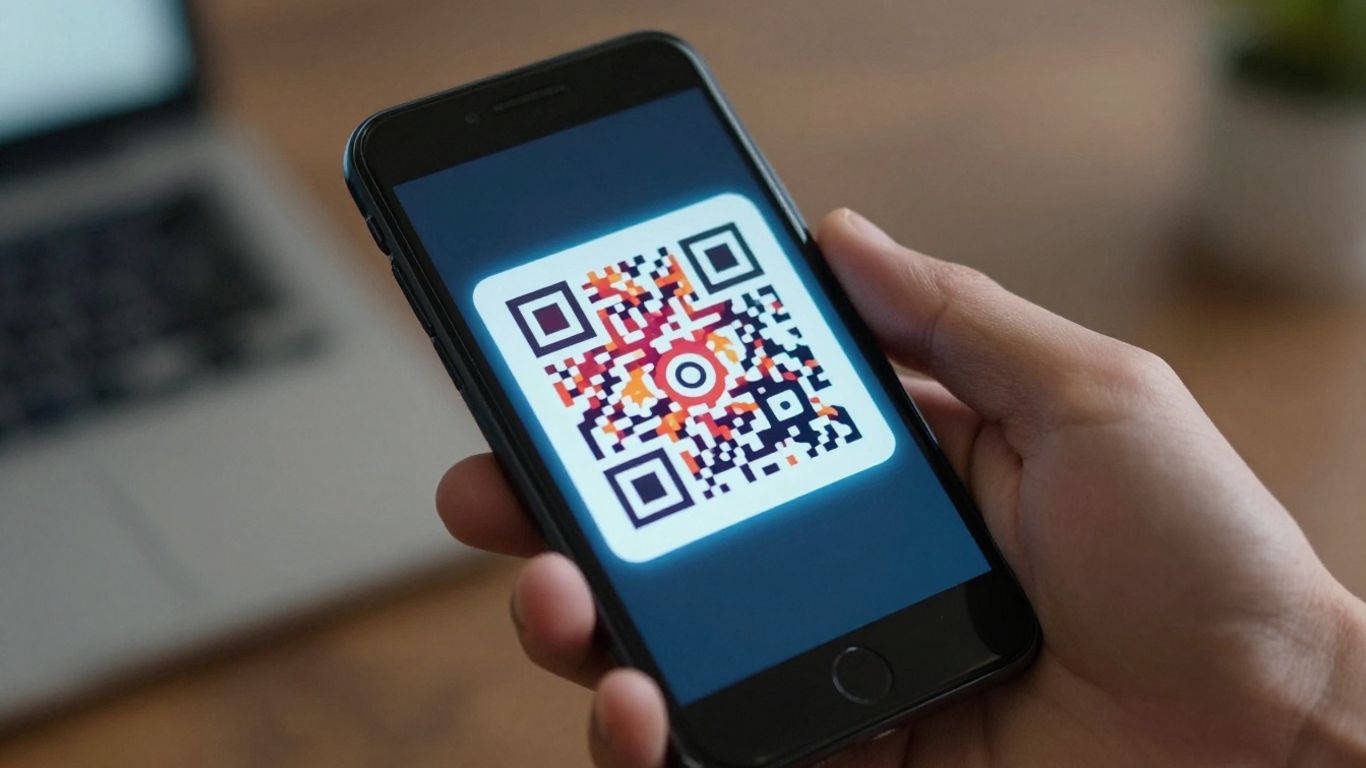
While your phone’s built-in camera is often the first port of call for scanning QR codes, sometimes you need a bit more power. That’s where dedicated scanner apps come in, and Code Scanner is a solid option to consider. It’s designed to be quick and efficient, handling various types of codes with ease.
What sets some of these apps apart is their ability to manage the QR codes themselves, not just read them. Take Xcan.it, for example. They offer a way to update the links in your QR codes even after they’ve been printed. This is a game-changer for campaigns where details might change, saving you the hassle and cost of reprinting everything. Plus, you can track how many times your QR codes are scanned through a single dashboard, giving you real insights into what’s working. They also provide dynamic QR codes, which are brilliant for improving real-world campaigns across print, signage, and even on physical assets.
When choosing a scanner, look for features like:
- Speed and Accuracy: It should lock onto codes quickly, even in less-than-ideal lighting.
- Privacy: Ad-free and no unnecessary tracking are big pluses.
- Format Support: Beyond standard QR codes, support for Data Matrix or PDF417 can be useful.
- Link Previews: A good scanner will show you where a link goes before you open it, adding a layer of safety.
Using a tool that allows you to edit your QR code links after printing means you can adapt your marketing materials on the fly. This flexibility is invaluable for keeping campaigns fresh and relevant without constant reprints.
If you’re looking for a more robust solution that goes beyond simple scanning, exploring platforms like Xcan.it can really make a difference to how you manage your QR code campaigns. They offer a way to keep your links live and trackable, which is pretty neat.
4. QR & Barcode Scanner
When you need a bit more than your phone’s built-in camera, a dedicated QR and barcode scanner app can be a real lifesaver. These apps often pack in extra features that make scanning quicker and more versatile. Think about scanning product barcodes while shopping to compare prices instantly, or using a built-in flashlight feature for those dimly lit menus.
The best scanner apps offer lightning-fast scanning without needing to press buttons or take photos. They can handle a variety of formats, not just QR codes, but also Data Matrix, PDF417, and Code 128, which is handy for tickets, packaging, and even ID cards. Plus, many can decode codes even when you’re offline, which is a bonus when you’re out and about with spotty signal.
Here’s what to look for in a good QR and barcode scanner:
- Speed and Accuracy: It should focus quickly, even on small or dimly lit codes.
- Multi-Format Support: Handles QR, Data Matrix, PDF417, and Code 128.
- Offline Capability: Scans codes without needing an internet connection.
- Privacy: Ideally, it should be ad-free and not track your data.
- Safety Features: Previews URLs and warns about potentially risky links.
For those looking to manage their QR campaigns more effectively, tools like Xcan.it offer some seriously smart features. Imagine being able to update the link on a QR code after you’ve printed it – no more reprinting! You can also track how many times your codes are scanned from a single dashboard, giving you real insights into what’s working. This is especially useful for dynamic QR codes, which can really boost your campaigns across print, signage, and even physical assets dynamic QR codes.
Using a dedicated app can sometimes offer more control and insight than your phone’s native camera. It’s worth exploring if you’re using QR codes for anything beyond a quick website link.
Our QR & Barcode Scanner makes it super easy to read codes. Whether it’s for a quick link or important info, our tool handles it all. Want to see how simple it is? Visit our website today to try it out!
Wrapping Up
So there you have it, a look at some of the best QR code reader apps for your Android device in 2026. Most of the time, your phone’s built-in camera will do the trick just fine, which is handy. But if you find yourself needing a bit more, whether it’s for different types of codes or just a cleaner, ad-free experience, there are some solid options out there. Remember to keep an eye on privacy and how fast the app actually works when you’re picking one. Happy scanning!
Frequently Asked Questions
Do I need a special app to scan QR codes on my Android phone?
Not usually! Most modern Android phones can scan QR codes right from their built-in Camera app. Sometimes, you might need to enable Google Lens suggestions in your camera settings. If your camera app doesn’t do the trick, then a separate app might be handy.
What's the difference between a regular QR code and a dynamic one?
A regular QR code is like a one-way street; once it’s made, you can’t change where it leads without making a new one. A dynamic QR code, however, is much more flexible. You can change the destination link later, even after you’ve printed the code, and you can also track how many people scan it. Think of it as a smart link that you can update anytime.
Are free QR code scanner apps safe to use?
Many free apps are perfectly fine, but it’s wise to be cautious. Look for apps that don’t have lots of ads or ask for unnecessary permissions, like access to your contacts. The safest bet is often to use your phone’s built-in camera, as it’s usually secure and doesn’t track you.
What makes a QR code hard to scan?
Several things can make a QR code tricky to read. If the colours are too similar (like light grey on white), if the code is too small for the distance you’re scanning from, or if it’s printed on a shiny surface that causes glare, it might not work. Sometimes, a damaged or poorly printed code is the culprit too.
Can I scan a QR code that's on my phone screen, like in a photo?
Generally, your phone’s camera app is designed to scan physical codes in the real world. Scanning a QR code directly from your phone’s screen or from a saved image usually requires a dedicated QR code scanner app that has this specific feature. Some apps allow you to import an image and scan the code within it.
What should I do if my phone's camera won't scan a QR code?
First, make sure you’re holding the phone steady and the entire QR code is visible within the camera’s frame. Check your camera settings to ensure QR code scanning is enabled. If it still doesn’t work, try a different app or ensure the QR code itself is clear and has good contrast.












