
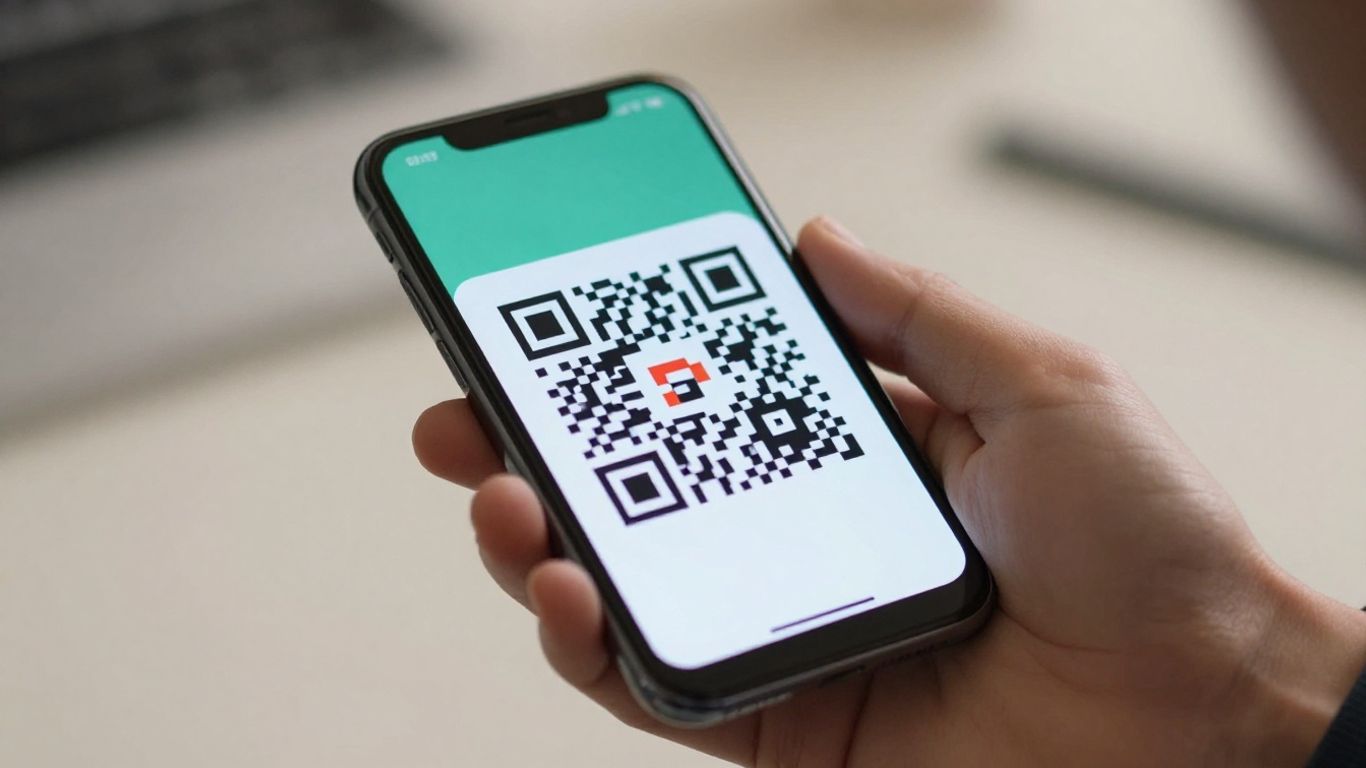
Ever wondered how to scan a QR code on your phone? It’s actually pretty straightforward these days. Most modern smartphones have this built right in, so you don’t even need a separate app most of the time. Whether you’ve got an iPhone or an Android device, the process is usually just a matter of opening your camera app. We’ll walk you through how to do it, plus what to do if you run into any snags.
Key Takeaways
- Most smartphones can scan QR codes directly using their built-in camera app.
- On iPhones, simply open the Camera app and point it at the QR code. A notification should appear.
- For Android users, open the Camera app. Some devices have a dedicated QR mode, or you might need to enable Google Lens suggestions.
- If your camera isn’t scanning, try improving the contrast, ensuring the code is the right size for the distance, and reducing glare.
- For QR codes on your phone screen (like screenshots), use your phone’s gallery and built-in image analysis tools or Google Lens.
Using Your Phone's Built-In Camera
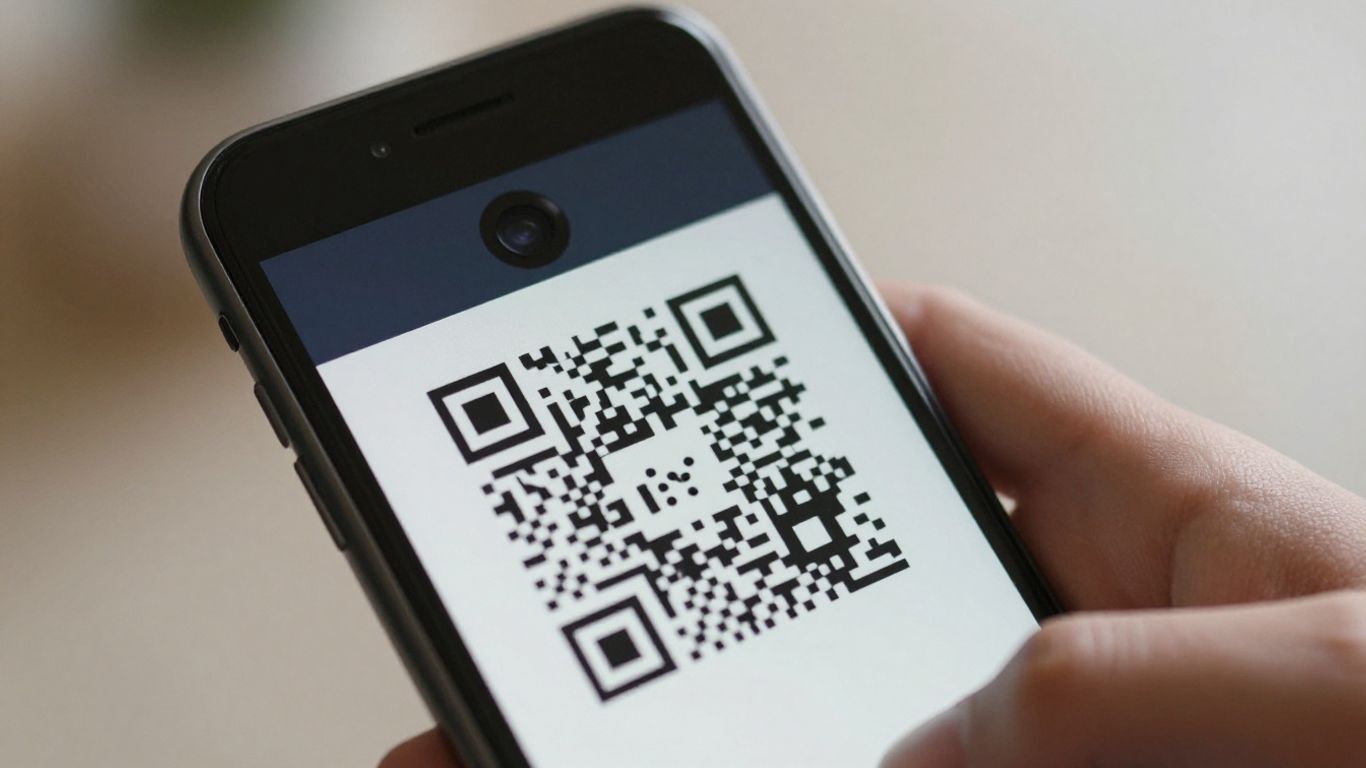
Most modern smartphones have a built-in QR code scanner, usually integrated directly into the camera app. This means you often don’t need to download a separate application to read these handy codes. It’s designed to be quick and straightforward, making it easy to access information from the physical world.
How to Scan with iPhone Camera
For iPhone users, scanning a QR code is incredibly simple. Just open your standard Camera app. Point your iPhone at the QR code, making sure it’s visible within the frame. Your phone should automatically recognise the code. A notification banner will appear at the top of the screen, showing you the link or information contained within the QR code. Simply tap this banner to open the content in Safari or the relevant app. If you want a more dedicated scanning experience, you can also add the ‘Code Scanner’ to your Control Centre for quick access.
Scanning with Android Devices
Android devices are very similar. Open your default Camera app and point it at the QR code. Most Android phones will detect the code and display a pop-up or notification with a link to tap. Some Android phones might require you to enable QR code scanning within the camera settings, often under a ‘Google Lens’ or ‘QR Code’ mode. If you see a notification, tap it to proceed. This built-in functionality means you can get information from printed materials in seconds.
When to Use a Dedicated App
While the built-in camera is excellent for most situations, there are times when a dedicated QR scanner app might be beneficial. If you frequently scan codes for specific purposes, like inventory management or accessing detailed analytics, a specialised app could offer more features. For instance, platforms like Xcan.it allow you to create dynamic QR codes. This is a game-changer because it means you can update the link or information associated with a QR code after it’s been printed. No more reprinting if a website address changes! Plus, Xcan.it provides a dashboard to track scan data, giving you insights into campaign performance across print, signage, and other assets. This level of control and insight is where dedicated solutions really shine.
Troubleshooting Common Scan Issues
Sometimes, even with the best intentions, a QR code just won’t scan. It can be a bit frustrating, especially when you’re in a hurry. But don’t worry, most of the time, it’s a simple fix. Let’s look at what might be going wrong and how to sort it out.
Improving Contrast and Clarity
This is probably the most common reason a QR code refuses to be read. Think of it like trying to read a book with faded ink – it’s just difficult.
- High Contrast is Key: The best QR codes have very dark modules (the little squares) on a very light background. Black on white is the gold standard for a reason. Avoid using pale colours, metallic inks, or trying to scan a code that’s a light colour on a dark background. It just confuses the camera.
- Matte Finishes Work Best: Glossy surfaces can create glare, which is like a bright light shining on the code, making it unreadable. Opt for matte paper or finishes whenever possible.
- Avoid Over-Decoration: While it might look nice, adding too much artwork or a busy background pattern can interfere with the scanner’s ability to pick out the essential data.
Ensuring Proper Size and Distance
It sounds obvious, but the size of the QR code and how far away you are from it really matter. There’s a sweet spot for scanning.
- The 10x Rule: A good rule of thumb is that the scanning distance should be about 10 times the width of the QR code itself. So, if the code is 10cm wide, you should be able to scan it from about 1 metre away. If you’re trying to scan a tiny code from across a room, it’s probably not going to work.
- Fill the Frame (But Not Too Much): Try to get the QR code to fill a good portion of your phone’s camera view, but don’t get so close that the camera can’t focus. Move back and forth slowly until the image looks sharp.
- Consider the Environment: If the QR code is on a poster, it needs to be large enough for someone standing a few feet away to scan. If it’s on a small product label, people will need to hold their phone quite close.
Addressing Glare and Print Quality
This is where the physical presentation of the QR code can cause headaches.
- Tame Reflections: Glare from lights or screens can make parts of the QR code invisible to the camera. Try tilting your phone slightly, or repositioning the code itself if possible, to avoid direct reflections.
- Keep it Flat: Folds, creases, or a curved surface can distort the QR code’s pattern. This distortion can make it unreadable. If the code is on packaging that gets bent, or on a curved sign, it might need a different placement or a more robust printing method.
- Print Resolution Matters: A blurry or pixelated QR code is a recipe for scan failure. If you’re printing them yourself, make sure you’re using a high-resolution file (at least 300 DPI for raster images, or preferably a vector format like SVG or PDF) and that your printer is set to a good quality.
For businesses using QR codes on a large scale, especially across print, signage, and various assets, managing these issues can become a significant task. Platforms like Xcan.it offer solutions that go beyond simple generation. They allow you to update QR code links without reprinting, track scans in a central dashboard, and utilise dynamic QR codes to optimise your campaigns in real-time. This means if a link changes or you want to see how well a particular poster is performing, you can adjust it easily and gather insights.
If you’re still having trouble, remember that using dynamic QR codes can help. With Xcan.it, you can update the destination URL of a dynamic QR code at any time, even after it’s been printed. This is incredibly useful if a website address changes or if you want to direct users to a special offer. Plus, you get valuable scan data, showing you where, when, and how often your codes are being used, all from one dashboard. This makes your print campaigns much more measurable and adaptable. Learn more about dynamic QR codes.
Scanning QR Codes from Your Screen
It’s a bit of a modern puzzle, isn’t it? You get a QR code sent to you in a message or as a screenshot, and suddenly your phone’s camera can’t seem to scan its own screen. Don’t worry, this is a common situation, and there are straightforward ways to handle it on both iPhones and Android devices.
Scanning Screenshots on iPhone
On an iPhone, you don’t need a separate app to scan a QR code that’s already saved as an image. Just open the screenshot or photo in your Photos app. You’ll often see a small QR code icon or a ‘detected code’ badge appear near the code itself. If you tap this, it will recognise the code and offer to open the link. Sometimes, the QR code might even get a yellow highlight that you can tap directly. If you’re using Safari or Chrome, you can also use the share sheet to open the recognised code in your browser.
Scanning Images on Android
Android users have a similar process. Most modern Android phones can scan QR codes directly from an image using Google Photos or your phone’s default gallery app. Just open the image and look for the Google Lens icon. Tapping this will scan any QR code within the picture, allowing you to open, copy, or share the link. Some phones might also have a ‘Scan from photo’ option built directly into their camera app settings.
Safety Considerations for Digital Codes
It’s important to remember that QR codes found on screens, whether in emails, messages, or PDFs, can be used in scams. These are sometimes called ‘quishing’ attacks. Always treat these codes with the same caution as you would an email link. If a QR code arrives unexpectedly, especially if it’s asking for personal information or promising something too good to be true, be extra careful. It’s wise to independently verify the message’s authenticity and always check the URL before tapping to open it. For those managing QR campaigns, using a service like Xcan.it is a smart move. It allows you to update QR code links without needing to reprint them, which is incredibly useful if details change. Plus, you can track scans in one dashboard, giving you insights into how your campaigns are performing across print and digital assets. This means you can adapt your real-world campaigns on the fly, making them more effective and responsive.
When scanning QR codes from digital sources, always be mindful of potential security risks. Treat them like any other online link and verify the destination before proceeding.
Understanding QR Code Basics
QR codes, those little square grids you see everywhere, are essentially visual shortcuts. They’re a type of barcode, but instead of just lines, they use a pattern of black and white squares to store information. Think of them as a bridge between the physical world and the digital one. When your phone scans one, it’s like it’s reading a tiny digital signpost that points to a website, contact details, or even just a bit of text.
What Makes a QR Code Scannable
For a QR code to work, a few things need to be just right. The most important is contrast. A dark code on a light background is usually best. Imagine trying to read a black pen mark on a dark grey t-shirt – it’s tough! The same applies to QR codes. Bright, clear colours make a big difference. Also, the pattern itself needs to be clear. Too much clutter or very small details can confuse your phone’s camera.
The Role of Quiet Zones
Ever noticed a bit of empty space around the QR code? That’s called a ‘quiet zone’, and it’s more important than you might think. It’s like a buffer that helps your phone’s camera distinguish the code from its surroundings. Without it, the scanner can get confused, leading to failed scans. A good rule of thumb is to keep this border clear of any other graphics or text. It doesn’t need to be huge, but it does need to be there.
Data Density and Module Size
QR codes can hold a surprising amount of information, but the more data they contain, the more complex the pattern becomes. This complexity is measured by ‘data density’, which affects the size of the individual squares, or ‘modules’. A code packed with lots of data will have smaller modules. While modern phones can handle this, older devices or cameras with less sharp focus might struggle. If you’re finding codes are tricky to scan, especially on print, it might be because the data is too dense. Using a service like Xcan.it can help here, as their dynamic QR codes allow you to update the links without needing to reprint, and they can help manage the data density to ensure better scan rates across different devices. This means you can adapt your campaigns on the fly, track scans in one dashboard, and improve your real-world marketing efforts without the hassle of reprinting everything.
QR codes are designed to be robust, with built-in error correction. This means they can often still be scanned even if a small part of the code is damaged or obscured. However, this doesn’t mean you can ignore the basics – good contrast and a clear quiet zone are still key for reliable scanning.
Choosing the Right QR Scanner
When you’re looking for a way to scan QR codes, it’s not just about getting the job done; it’s about doing it efficiently and safely. While your phone’s built-in camera is often the first port of call, sometimes you might need a bit more. Think about what you’ll be scanning and how often. If you’re just scanning the occasional menu or poster, the camera app is probably all you need. But if you’re involved in marketing campaigns or need to manage codes regularly, you’ll want something a bit more robust.
Prioritising Privacy and Security
It’s easy to download any QR scanner app, but not all are created equal. Some might bombard you with ads, while others could be collecting your data without you even realising it. Always check the permissions an app requests before installing it. Does it really need access to your contacts or location? Look for apps that are upfront about their data policies and, ideally, offer a preview of the link before you open it. This gives you a chance to spot anything suspicious. Tools like Xcan.it, for example, focus on providing a secure experience, ensuring your interactions are private.
Benefits of Multi-Format Support
While QR codes are everywhere, they aren’t the only type of scannable code out there. You might come across Data Matrix codes on product packaging or PDF417 codes on tickets or ID cards. If you find yourself scanning a variety of these, a scanner that supports multiple formats will save you from downloading different apps for each type. This kind of versatility means you’re prepared for whatever code comes your way, making your scanning experience smoother.
Evaluating Scanner Performance
How quickly and accurately does the scanner work? This is where things can get a bit technical, but essentially, you want a scanner that:
- Focuses fast: Especially in low light or on slightly blurry codes.
- Handles glare: Shiny surfaces can make codes unreadable.
- Reads small codes: Useful for codes printed on small items.
- Works offline: Decodes the code even without an internet connection (though opening the link will still need data).
For businesses, using a platform like Xcan.it can be a game-changer. It allows you to create dynamic QR codes, which means you can update the destination link without needing to reprint the physical code. This is incredibly useful for campaigns where details might change, like event dates or promotional offers. Plus, Xcan.it provides a dashboard to track scans, giving you insights into how your campaigns are performing across print, signage, and other assets. It turns a simple scan into a measurable action.
Advanced QR Code Features
QR codes are brilliant for bridging the physical and digital worlds, but they can do so much more than just link to a website. Think of them as dynamic tools that can evolve with your needs.
Dynamic QR Codes Explained
Static QR codes are a bit like a one-way street; once created, the information they hold is fixed. If the destination URL changes, you’re stuck with a broken link unless you reprint everything. This is where dynamic QR codes come in. They act as a pointer to a URL that you can change later. This means you can update where a QR code leads without ever having to reprint it. Imagine putting up a poster for an event, and then needing to change the date or time – with a dynamic code, you just update the link behind it. This flexibility is a game-changer for marketing campaigns, signage, and any printed material that might need updating. Platforms like Xcan.it make this easy, allowing you to manage all your dynamic QR codes from a single dashboard.
Tracking Scans for Insights
Beyond just updating links, dynamic QR codes offer a powerful advantage: trackability. When someone scans a dynamic QR code managed through a service like Xcan.it, the scan itself can be logged. This isn’t just about knowing if a code was scanned, but also when, and sometimes even where (with user permission, of course). This data can be incredibly useful. For instance, you could see which of your printed flyers are getting the most attention, or if a QR code on a product is leading to more sales than expected. This insight helps you understand what’s working and what’s not, allowing you to refine your strategies without guesswork. Xcan.it provides a dashboard where you can see these scan patterns, helping you make smarter decisions for your real-world campaigns.
Integrating Print and Digital
Advanced QR code features really shine when you think about how they connect different parts of your business. For example, a QR code on a product’s packaging could link to a setup guide, a customer support page, or even a re-order form. If you’re running a promotion, you can use dynamic QR codes to direct people to a landing page that you can update with new offers or information as the campaign progresses. Xcan.it helps you manage these connections, letting you update QR code links without reprinting, track scans in one dashboard, and use dynamic QR codes to improve real‑world campaigns across print, signage, and assets. It turns static print into an interactive, measurable part of your digital strategy.
Did you know you can do more with QR codes than just link to a website? Our advanced features let you change the destination of your QR code even after it’s been printed! Imagine updating a menu or a special offer without needing to create a new code. It’s super handy for businesses that need to keep their information fresh. Want to see how easy it is to manage your dynamic QR codes? Visit our website today to learn more!
And That's It!
So there you have it. Scanning a QR code on your phone is pretty straightforward these days, whether you’re using the camera app or a dedicated scanner. Most of the time, it just works without any fuss. Remember to keep those codes clear and well-lit for the best results. Now you can easily jump from a poster to a website, or from a product label to more info, all with a quick scan. Happy scanning!
Frequently Asked Questions
Do I still need a separate app to scan QR codes?
Not usually! Most modern smartphones have a built-in QR scanner in their camera app. Just open your camera and point it at the code. If you need more advanced features, like scanning different types of codes or tracking scans, then a dedicated app might be useful.
Why won't my phone's camera scan a QR code?
There are a few common reasons. The QR code might be too small, too far away, or have poor contrast (like light colours on a light background). Make sure there’s a clear space around the code, avoid shiny or crinkled surfaces, and try moving closer or adjusting the lighting.
Can I scan a QR code that's on my phone screen?
You can’t point your phone’s camera at its own screen, but you can scan QR codes from images saved on your phone. On iPhones, open the image in the Photos app and look for a QR code icon or a prompt to scan. On Android, you can often use Google Lens from your photo gallery.
Are QR codes safe to scan?
Most QR codes are safe, but like anything online, there’s a small risk. Scammers can create QR codes that lead to fake websites designed to steal your information. Always check the preview link that appears before you tap to open it, and be cautious if the code came from an unexpected source.
How can I make sure a QR code is easy to scan?
To make a QR code easy to scan, ensure it has good contrast (dark on light), a clear border around it (called a ‘quiet zone’), and is large enough for the distance it will be scanned from. Avoid putting complex logos right in the middle, as this can sometimes make it harder to read.
What's the difference between a dynamic and a static QR code?
A static QR code’s information is fixed once it’s created. A dynamic QR code, however, lets you change the destination link or information later, even after the code has been printed. This is super handy for marketing campaigns or when details change, as you don’t need to print new codes.












