So, you’ve got a QR code and you’re on your Mac, wondering how to get it to work. It might seem a bit tricky at first, especially if you’re used to doing it on your phone. But honestly, it’s not that complicated. We’ll walk through how to scan a QR code on your Mac without any fuss. Whether it’s for work or just something you’ve come across, getting that information is usually pretty straightforward.
Key Takeaways
- Most Macs can scan QR codes using built-in tools like the Camera app or Safari’s Reader Mode.
- Understanding the basics of QR codes, like their structure and purpose, helps with scanning.
- The Camera app on your Mac can be used for quick QR code scans directly.
- Third-party apps and browser extensions offer alternative ways to scan QR codes on your Mac.
- Ensuring good quality, appropriate size, and clear contrast are important for successful QR code scans.
Effortless QR Code Scanning On Your Mac
Leveraging Built-In Mac Capabilities
Most modern Macs, like iPhones, have built-in capabilities to scan QR codes without needing extra software. Your Mac’s camera can often detect and interact with QR codes automatically, making the process surprisingly simple. This means you can usually just point your camera at a code and get instant access to the information it holds. It’s a handy feature that’s often overlooked.
Understanding QR Code Basics for Mac Users
QR codes, those little pixelated squares, are essentially a way to store information that a device can read quickly. Think of them as a shortcut to a website, contact details, or even Wi-Fi login information. For Mac users, understanding that these codes are just data containers is key. The better the quality of the QR code – think clear contrast, good size, and a clean border – the easier your Mac will be able to read it. It’s not magic, just clever design.
Quick Access Through Safari's Reader Mode
While not a direct QR code scanner, Safari’s Reader Mode can sometimes be helpful if a QR code links to a webpage with a lot of text. If you’ve managed to get the URL from a QR code, pasting it into Safari and then activating Reader Mode can strip away distracting ads and formatting, leaving you with just the essential content. It’s a neat trick for simplifying the information you receive after a scan. For those looking to manage their QR codes effectively, services like Xcan.it allow you to update QR code links without reprinting, track scans in one dashboard, and use dynamic QR codes to improve real‑world campaigns across print, signage, and assets.
Scanning QR Codes Directly On Your Mac
While Macs aren’t typically equipped with built-in cameras for scanning like smartphones, there are still straightforward ways to interact with QR codes directly on your computer. You don’t always need a separate app to get the job done, making it quite convenient.
Using the Camera App for Instant Scans
This might sound a bit counterintuitive since Macs don’t have built-in cameras for scanning in the same way a phone does. However, if you have an iPhone, you can use its camera to scan a QR code and then easily share the information or link to your Mac. The iPhone’s camera app automatically detects QR codes, presenting a notification that you can tap to open the associated link or information. Once you have the link on your iPhone, you can AirDrop it to your Mac or send it via Messages or Mail for immediate access on your larger screen. This method bridges the gap between the physical QR code and your Mac’s digital workspace.
Enabling QR Code Scanning in macOS
macOS doesn’t have a dedicated
Alternative Methods for Mac QR Code Scanning
While your Mac’s built-in tools are handy, sometimes you need a bit more flexibility. If the Camera app or Safari’s Reader Mode isn’t quite cutting it, there are other ways to get that QR code information onto your screen.
Exploring Third-Party Applications
Sometimes, the built-in options just don’t have all the bells and whistles you might want. For those times, a dedicated app can be a real lifesaver. You can find a whole host of QR code scanner apps on the App Store. Many of these are free and offer features that go beyond basic scanning. Think about apps that can scan multiple types of barcodes, not just QR codes, or those that provide more detailed information about the scanned link before you open it. It’s worth having a look around to see which free barcode and QR code scanner apps best suit your needs.
Scanning QR Codes from Images and Screenshots
What if the QR code isn’t on a physical object but already on your Mac’s screen, perhaps in an image file or a screenshot? This is a common scenario, especially if someone’s sent you a code via email or messaging. You can’t point your Mac’s camera at its own screen, obviously. However, many image viewers and editing tools can now recognise QR codes within images. You might find that simply opening the image file in Preview or another compatible application will bring up an option to scan the code. If not, you can always use an online QR code scanner that allows you to upload an image file for analysis. This is a handy way to get information from saved graphics without needing to print them out again.
Utilising Browser Extensions for Convenience
For those who spend a lot of time browsing the web, a browser extension can be a super convenient way to scan QR codes. Instead of switching apps or opening new tabs, you can often just click an icon in your browser’s toolbar. Some extensions can scan QR codes directly from the webpage you’re viewing, while others might let you upload an image file. This is particularly useful if you encounter QR codes on websites that aren’t easily scannable by other methods. It keeps the whole process within your browser window, making it feel quite slick. For a quick scan without leaving your browser, you can try using an online QR code scanner directly in a tab.
Ensuring Successful QR Code Scans
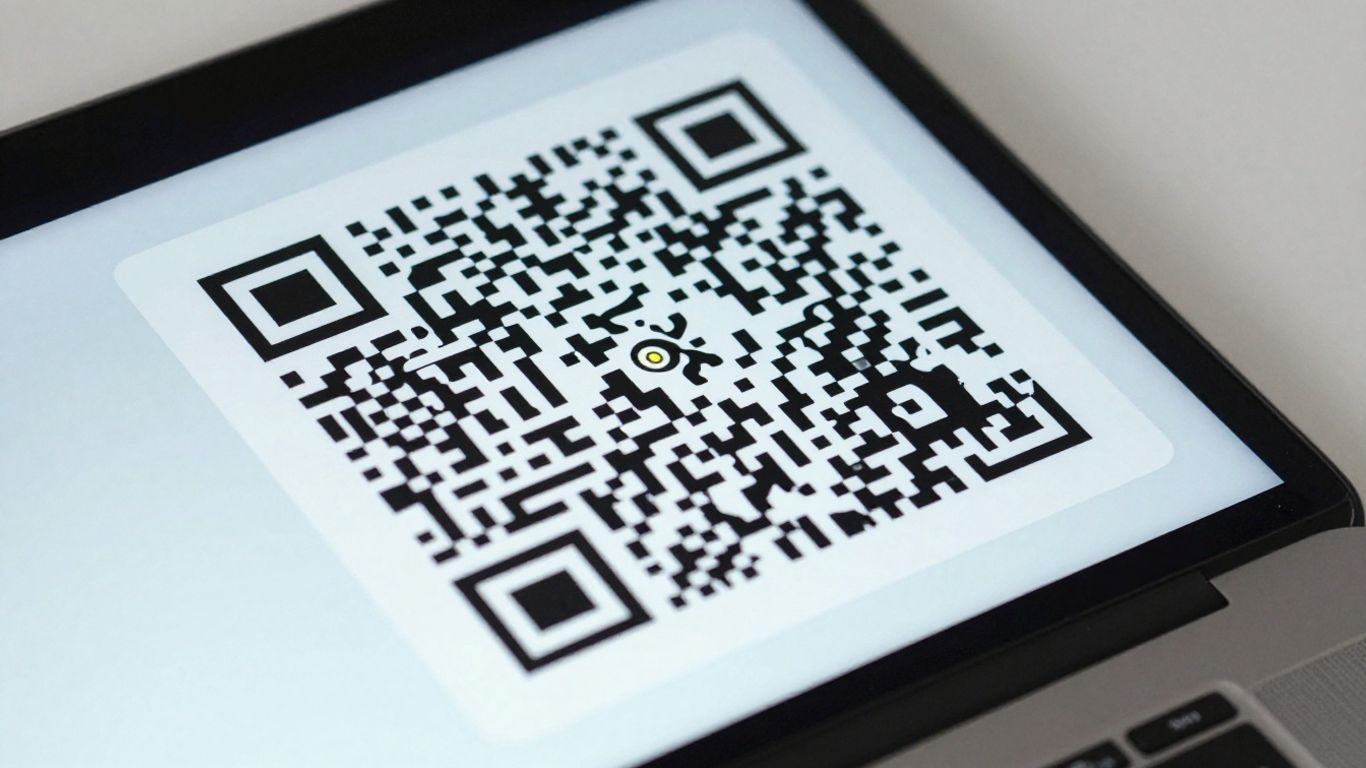
Getting a QR code to scan reliably on your Mac, or any device for that matter, often comes down to a few key details. It’s not usually the technology itself that’s the problem, but rather how the code is presented. Think of it like trying to read a book in a dimly lit room – the words are there, but it’s just harder to make them out.
Optimising QR Code Quality for Mac
To make sure your QR codes are easy to scan, pay attention to the basics. High contrast is your best friend here, meaning dark squares on a light, matte background. Avoid using pale colours, metallic inks, or anything that might make the squares blend in too much. Also, give your QR code some breathing room with a ‘quiet zone’ – a clear border around the code, at least four modules wide, with no other graphics or text intruding. This helps scanners identify the code boundaries more easily.
Understanding Scan Distance and Size
Ever tried to scan a tiny QR code from across the room? It’s a recipe for frustration. A good rule of thumb is that the scanning distance should be about ten times the width of the QR code itself. So, if you expect people to be standing about a metre away, aim for a code that’s roughly 10 centimetres wide. For larger displays like posters, you’ll need to scale it up accordingly. If a code is too dense with information (like a very long URL), the individual squares can become too small to scan, especially from a distance. This is where dynamic QR codes shine.
Best Practices for Clear and Reliable Scans
Beyond contrast and size, a few other factors play a role:
- Lighting and Glare: Avoid glossy finishes or direct light sources that can create glare, obscuring the code’s details. Matte finishes are generally better.
- Print Quality: Ensure your QR code is printed clearly. Vector formats like SVG or PDF are ideal, or a high-resolution raster image (300-600 DPI). Avoid stretching or compressing images, which can distort the code.
- Data Density: If you have a very long URL or a lot of information to encode, consider using a dynamic QR code. Services like Xcan.it allow you to use a short, editable link. This means you can update the destination URL without needing to reprint the QR code, which is incredibly useful for marketing campaigns or signage. Plus, dynamic codes let you track scan data in a single dashboard, giving you insights into how your campaigns are performing.
Using dynamic QR codes can significantly improve the reliability of your real-world campaigns across print, signage, and various assets. They offer flexibility and valuable analytics that static codes simply can’t match.
If you’re having persistent issues, remember that services like Xcan.it can help you manage and optimise your QR codes. You can update links on the fly, track performance, and ensure your codes are always working as intended, making your real-world campaigns more effective. For those looking to troubleshoot, checking the link itself is also important; ensure it uses HTTPS and avoids overly long redirect chains, as some scanners might block those. If you’re having trouble with a specific QR code, you might find help by looking into how to fix an unreadable QR code.
Advanced QR Code Scanning Features
While basic QR code scanning on your Mac is straightforward, there are ways to get more out of this technology, especially for businesses or complex projects. Think beyond just opening a website; consider how you can manage and optimise your QR code interactions.
Scanning Multiple QR Codes Simultaneously
Sometimes you might encounter more than one QR code at once, perhaps on a flyer with multiple offers or on a product display. While your Mac’s built-in camera or simple apps can handle one at a time, dedicated tools can speed this up. Some third-party applications are designed to scan several codes in quick succession, which can be a real time-saver if you’re cataloguing items or processing information from multiple sources. This is where specialised software can really make a difference, offering a more efficient workflow than trying to scan each code individually.
Accessing Scan History and Analytics
For those using QR codes in marketing or for tracking purposes, knowing what happens after a scan is key. This is where dynamic QR codes shine. Unlike static codes that point directly to a URL, dynamic codes use a redirect. This redirect allows services to track how many times a code has been scanned, when, and sometimes even where. This data is invaluable for understanding campaign performance. For instance, Xcan.it allows you to update QR code links without reprinting and track scans in one dashboard, giving you a clear overview of your campaign’s reach and effectiveness across print, signage, and other physical assets.
Integrating QR Code Scanning with Workflows
Taking QR code scanning to the next level involves integrating it into your existing processes. Imagine a scenario where scanning a QR code automatically updates a database, logs an inventory item, or triggers a notification. While this often requires custom development or specific software integrations, the potential is huge. For businesses, using dynamic QR codes with tracking capabilities, like those offered by Xcan.it, can significantly improve real-world campaigns. You can update links on the fly, monitor scan activity, and gain insights that help refine your strategies, all without needing to reprint materials. This flexibility is a game-changer for managing ongoing promotions or updating information on physical products and signage.
Want to do more with your QR codes? Our advanced features let you do all sorts of cool things, like updating them even after they’ve been printed! Imagine changing a menu or a special offer without needing a new code. It’s super handy. Ready to see how easy it is to make your QR codes work harder for you? Visit our website today to explore all the possibilities!
All Set to Scan
So there you have it. Scanning a QR code on your Mac is pretty straightforward, really. Most of the time, your built-in camera will do the job without any fuss. Just remember to keep things clear – good lighting, a steady hand, and a code that isn’t too small or too far away. If you run into any bother, a quick check of the contrast or a slight adjustment in distance usually sorts it out. It’s a handy little tool for getting information quickly, and now you know how to use it on your Mac with ease.
Frequently Asked Questions
Do I need to download a special app to scan QR codes on my Mac?
Not usually! Your Mac has built-in ways to scan QR codes. You can often use the Camera app or even Safari’s Reader Mode. It’s quite handy and means you don’t have to clutter your computer with extra software for a simple task.
Can I scan a QR code that's on my Mac's screen?
Yes, you can! If you have a QR code saved as an image or a screenshot on your Mac, you can often scan it. Some apps allow you to open an image and scan the code within it, or you might be able to use your iPhone’s Live Text feature if you have it nearby.
What if the QR code isn't scanning properly on my Mac?
If a QR code is being tricky, check a few things. Make sure the code is clear and not blurry. Ensure there’s enough light and no glare on the screen. Sometimes, you might need to adjust the size of the QR code on your screen or try scanning from a slightly different angle.
Are there any risks when scanning QR codes on my Mac?
While generally safe, it’s wise to be cautious. Some QR codes can lead to dodgy websites or try to download unwanted files. Always look at the preview if your scanner offers one before you commit to opening the link. Stick to scanning codes from trusted sources.
Can I scan QR codes from images using third-party apps?
Absolutely. There are many apps available that are specifically designed for scanning QR codes, and they often have features for scanning codes directly from image files or screenshots saved on your Mac. These can sometimes offer more options than built-in tools.
How can I make sure my QR code scans well if I'm creating one?
To ensure good scans, make sure your QR code has high contrast (like black on white), a clear border around it (called a ‘quiet zone’), and isn’t too small for the distance people will be scanning from. Using a simple, direct link also helps a lot.