
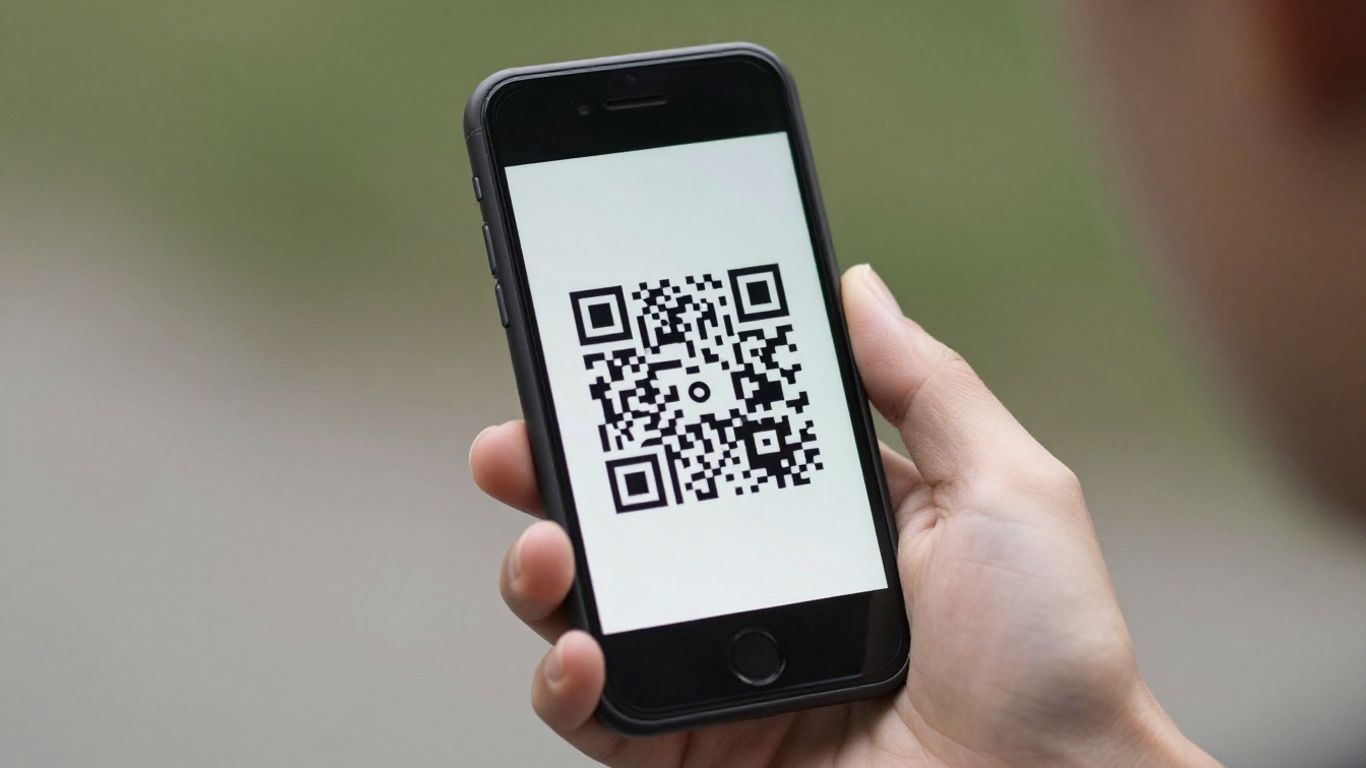
You’ve probably seen them everywhere – little black and white squares on posters, menus, and even shop windows. These are QR codes, and they’re a super handy way to quickly get information on your phone. Whether you need to visit a website, make a call, or just get some text, scanning a QR code is usually pretty straightforward. This guide will walk you through how to scan QR code with your phone, making sure you can get the most out of these handy little things.
Key Takeaways
- Most modern smartphones can scan QR codes directly using their built-in camera app, so you usually don’t need a separate app.
- For iPhones, simply open the Camera app; for Android, use your Camera app or enable Google Lens suggestions.
- If scanning doesn’t work, try adjusting the lighting, ensuring the code is flat and in focus, and checking the distance.
- Dedicated QR scanner apps can offer extra features like enhanced privacy, security checks, and multi-format scanning.
- QR codes can link to websites (URLs), initiate phone calls, or display plain text, making them versatile tools for various purposes.
Using Your Phone's Built-In Camera
Most modern smartphones have a built-in QR code scanner, meaning you don’t need to download a separate app just to get started. It’s usually integrated right into your phone’s camera. This is brilliant because it’s quick, it’s already there, and it generally keeps things simple and safe.
Scanning with iPhone's Camera App
For iPhone users, it’s incredibly straightforward. Just open up your standard Camera app. Point it at a QR code, and your phone should automatically recognise it. You’ll see a notification pop up at the top of your screen, usually showing the web address or the action the QR code is set to perform. Simply tap on that notification, and it will take you straight to the link or perform the action. If you want a more full-screen scanning experience, you can add the ‘Code Scanner’ to your Control Centre for quick access.
Scanning with Android's Camera App
Android users will find a similar process. Open your default Camera app and point it at the QR code. Many Android phones will automatically detect the code and display a link or prompt. If yours doesn’t, you might need to enable a setting. Look in your Camera app’s settings for an option like ‘Google Lens suggestions’ or a dedicated ‘QR code’ mode. Once enabled, it should work just like the iPhone’s camera. Google Lens is particularly good at recognising codes and offering actions.
Troubleshooting Common Scanning Issues
Sometimes, even with the built-in camera, a QR code might be a bit stubborn. Don’t worry, there are a few common reasons and quick fixes:
- Contrast: The code needs to stand out. A dark code on a light background works best. Avoid shiny or very pale colours.
- Lighting: Make sure there’s enough light, but try to avoid glare or reflections bouncing off the code. Sometimes tilting your phone slightly can help.
- Distance and Size: You need to be close enough for the camera to focus, but not so close that the code fills the entire screen. A good rule of thumb is that the distance you hold your phone from the code should be about 10 times the width of the code itself.
- Quiet Zone: QR codes need a clear border around them, often called a ‘quiet zone’. If this space is cluttered or too small, the scanner might struggle. Aim for at least a 4-module width (the small squares making up the code) of clear space.
- The Link Itself: Occasionally, the link the QR code points to might be problematic – perhaps it’s a very long, redirect-heavy URL, or a site that’s slow to load. While your camera can scan it, the phone might hesitate to open it. Using a service like Xcan.it can help here. They offer dynamic QR codes, which means you can update the destination link without needing to reprint the code. This is super handy if a website changes or you want to direct people to a special offer. Plus, Xcan.it lets you track how many people are scanning your codes from a central dashboard, giving you real insights into your campaigns across print and signage.
If you’ve tried these tips and it’s still not working, it might be worth considering a dedicated QR scanner app, but for most everyday uses, your phone’s camera should do the trick perfectly well.
When to Consider a Dedicated QR Scanner App
Most modern phones in the UK—iPhone or Android—will scan a QR code straight from the camera app, no fuss, no extra downloads. But sometimes you just want (or frankly, need) a bit more. That’s when a dedicated QR scanner app makes all the difference. Here’s what to look for, why privacy matters, and how going beyond built-in scanning can help you run smarter campaigns, especially if you use a platform like Xcan.it.
Enhancing Privacy and Security
Built-in cameras are usually safe, but not all scanner apps are created equal. If you’re choosing an app, consider these points:
- No ads and no tracking: Your scans shouldn’t be someone else’s data.
- Apps that show you a link preview before opening anything, so you avoid risky websites.
- Minimal permissions: A scanning app shouldn’t need your contacts, location, or anything odd—just access to your camera.
- Regular updates and transparent privacy policies.
It’s worth testing how your scanner handles suspicious or ‘shortened’ links. Some apps flag risky domains or let you copy a link without opening it, which makes accidental clicks less likely. For a practical comparison of privacy-first QR check-in tools in 2026, see this simple feature-by-feature review.
Sometimes it isn’t just about scanning codes—it’s about feeling confident that your data, and your customers’, are staying private regardless of which QR you scan.
Accessing Advanced Features
There’s a reason most professionals and businesses look at specialist QR apps or platforms. You open up:
- Multi-format support: Read QR, Data Matrix, PDF417, Code 128, and other barcode types in a single app.
- Offline decoding: Scan codes even without mobile data (especially useful at events or underground stations).
- Analytics and batch processing: Track how often each code is scanned, by which device, and where—it turns every scan into useful feedback.
- Dynamic QR code management: With platforms like Xcan.it, you can update the link behind a QR code after printing, so you don’t have to waste money on reprinting signs and posters whenever your offer changes.
- Monitoring from one dashboard: You see all scan stats in real time, making it easy to compare sites or track a whole campaign at once.
Here’s a quick table showing what you get with a basic phone camera versus a dedicated app or Xcan.it:
| Feature | Built-In Camera | Dedicated QR App | Xcan.it Platform |
|---|---|---|---|
| Scans QR codes | Yes | Yes | Yes |
| Multi-barcode support | No/Partial | Yes | Yes |
| Scan analytics/dashboard | No | Sometimes | Yes |
| Update QR link post-print | No | No | Yes |
| Privacy controls | Good | Varies | Strong |
| Batch/asset tracking | No | Sometimes | Yes |
Choosing the Right App for Your Needs
So, when should you stick to native, and when is it time to go for more? Here are a few signs:
- You print lots of QR codes and want to avoid reprinting each time a destination link changes.
- You want to monitor how QR codes perform across different branches, ads, or print assets in one dashboard.
- You care about security, privacy and want proper warnings before links are opened—especially for business/customer use.
For most everyday scans—menus, tickets, quick web links—the camera app truly does the job. But if you’re running real-world campaigns and want to see what works, Xcan.it gives you full control and better results without extra gimmicks.
- Update or swap out QR destinations instantly (even after signs are in the field).
- Track scans by location, time or campaign (imagine seeing exactly which ad boards around London bring in the clicks).
- Run smarter campaigns—using digital feedback from printed materials without wasting a penny on reprints.
If you’re serious about QR for events, customer check-ins, signage, or real-world marketing, taking a closer look at specialist QR options means your codes become more than just links—they become a channel you manage and improve.
Understanding Different QR Code Types
QR codes aren’t just one-size-fits-all; they come in various flavours, each designed for a specific job. Knowing what each type does can help you use them more effectively, whether you’re a business owner or just someone scanning them out and about.
URL QR Codes for Websites
These are probably the most common type you’ll encounter. A URL QR code is essentially a shortcut to a web address. When you scan one, your phone will usually prompt you to open a specific webpage. This could be anything from a company’s homepage, a product page, an online menu, or even a booking form. They’re incredibly versatile and form the backbone of many digital-physical connections. For businesses, using dynamic URL QR codes, like those offered by Xcan.it, means you can change the destination link at any time without needing to reprint the code. This is brilliant for campaigns where offers or landing pages might change. Plus, you can track how many people are scanning them and where from, giving you real insights into your marketing efforts.
Phone QR Codes for Instant Calls
Ever seen a poster or a business card with a QR code and thought, "I should call them"? A phone QR code makes that super simple. Instead of having to manually type in a phone number, scanning this type of code automatically opens your phone’s dialler with the correct number already filled in. All you have to do is hit the call button. It’s perfect for situations where you want an immediate action, like calling a taxi from a sign, or a customer service line from a product. Using a service like Xcan.it allows you to not only create these codes but also track how many people are initiating calls from them, and you can even update the phone number if needed, all without reprinting.
Text QR Codes for Information
Sometimes, you just need to share a bit of text without sending someone to a website or making them call. That’s where text QR codes come in. These codes simply display a block of plain text when scanned. This could be anything from a short message, a Wi-Fi password, a discount code, or even simple instructions. They don’t require an internet connection to display the information, which can be handy. While they don’t offer the dynamic features of URL codes for tracking, they are a straightforward way to share static information quickly and easily.
Ensuring a Smooth Scanning Experience
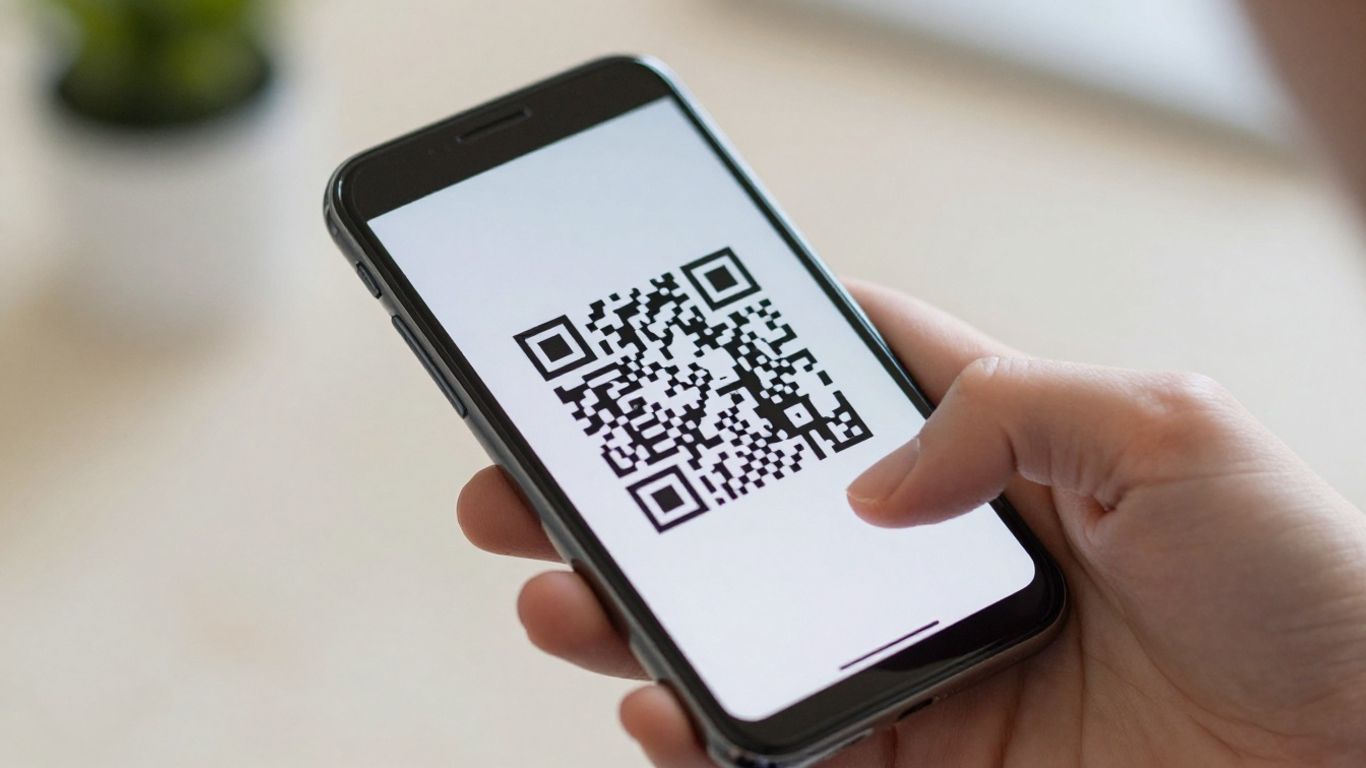
Getting a QR code to scan first time, every time, is mostly about a bit of common sense and paying attention to a few details. It’s not usually the phone’s fault if it struggles; more often, it’s the code itself or the environment it’s in. Let’s look at how to make sure your QR codes are as easy to scan as possible.
Optimising QR Code Appearance
Think of a QR code like a tiny, pixelated map. For your phone’s camera to read it clearly, the map needs to be sharp and easy to see. This means:
- Contrast is key: The most reliable codes use a dark colour (like black) on a light background (like white). Avoid pale colours, metallic inks, or busy patterns behind the code. A matte finish is also better than glossy, as it reduces glare.
- Give it breathing room: A QR code needs a clear border around it, often called a ‘quiet zone’. This space, at least four times the width of the smallest square module, tells the camera where the code begins and ends. Don’t cram other graphics or text right up against it.
- Keep it simple: While it’s tempting to add logos or fancy designs, remember that these can sometimes interfere with the scanning process. If you do brand your QR codes, make sure the core elements remain clear and distinct.
Understanding Scan Distance and Size
How far away someone is from the QR code, and how big the code is, are directly related. A general rule of thumb is that the ideal scanning distance is about ten times the width of the QR code itself. So, if you’re printing codes on posters that people will see from a few metres away, the code needs to be proportionally larger than one printed on a business card that someone will hold close to their phone.
The Importance of Good Lighting
Just like taking a photo, a QR code needs decent light to be captured clearly. Codes in dimly lit areas or those that are constantly in shadow can be tricky to scan. Similarly, direct sunlight can cause glare, especially on glossy surfaces, making it hard for the camera to focus. Positioning your QR codes in well-lit spots, away from direct glare, will make a big difference.
For businesses using QR codes across multiple locations or for different campaigns, managing and updating them can become a headache. This is where dynamic QR codes shine. Platforms like Xcan.it allow you to update the destination link of a QR code without needing to reprint it. This is incredibly useful for changing website URLs, updating contact details, or modifying promotional offers. Plus, you get the added benefit of tracking scans in a central dashboard, giving you insights into which codes are performing best and where.
Using dynamic QR codes with a service like Xcan.it means your real-world campaigns across print, signage, and assets become much more flexible and measurable. You can adapt quickly, learn from scan data, and optimise your approach without the hassle of reprinting.
Real-World Examples of QR Code Use
QR codes aren’t just for digital menus anymore; they’re popping up everywhere, making everyday tasks simpler for all of us. You’ve probably seen them on everything from posters in train stations to flyers tucked under your windscreen wiper. They’re a quick way to bridge the gap between the physical world and online information, and businesses and public services are really starting to get the hang of it.
Local Businesses and Services
Think about your local high street. Many shops are using QR codes to offer more than just a product. You might see a QR code on a cafe’s window that links directly to their menu, or perhaps on a restaurant’s table tent that lets you book a table for your next visit. For tradespeople, like plumbers or electricians, a QR code on their van can be a direct line to their booking page or even trigger a phone call. This makes it super easy for potential customers to get in touch right when they need you. For instance, a restaurant might use a QR code on its entrance to let people check table availability and call instantly, with the marketing team tracking which placements bring in the most calls [8a8f].
Public Sector Initiatives
It’s not just businesses; local councils and even the police are getting on board. Some councils are putting QR codes on bins so you can easily report if it’s overflowing, saving you the hassle of finding the right phone number or webpage. In North Yorkshire, police officers have even been seen wearing QR codes on their uniforms, allowing the public to scan and sign up for local crime alerts and updates. The DVLA has also introduced QR codes for its online account users, making it simpler to share driving licence information when needed, like for car hire [3620].
Enhancing Customer Interaction
QR codes are brilliant for making things interactive. Imagine you’re at a market, and a stall has a QR code that tells you more about the product or offers a discount. This immediate access to information or a special offer can really make a difference. For businesses, this means they can update links without reprinting anything, track how many people are scanning, and use dynamic QR codes to make their campaigns more effective across print and other assets. It’s all about making it easier for customers to engage and for businesses to understand what’s working. The retail sector, for example, is using QR codes to give consumers more information and allow manufacturers to connect better with shoppers [92c7].
The real power of QR codes lies in their ability to create a frictionless experience. Whether it’s a simple scan to call a taxi, or a more complex journey leading to a booking page, the goal is to remove barriers and make the next step as easy as possible for the user. This immediate connection is what makes them so effective in today’s fast-paced world.
QR codes are everywhere these days, helping us do all sorts of cool things. From instantly getting restaurant menus to accessing special movie content, they make life easier. Businesses use them for everything from marketing to tracking products. Want to see how these handy codes can work for you? Visit our website to explore more.
So, What's Next?
And there you have it! Scanning QR codes with your phone is really quite straightforward now, isn’t it? Most of us have the tech built right into our cameras, so there’s usually no need for extra apps. Just open up your camera, point it at the code, and follow the prompt. It’s a handy little trick that can save you time and hassle, whether you’re grabbing a menu, checking into a venue, or just getting more info on something you’ve seen. Give it a go next time you see one – you might be surprised how simple it is.
Frequently Asked Questions
Do I need a special app to scan QR codes?
Not usually! Most modern smartphones, both iPhones and Androids, have a built-in QR scanner in their camera app. Just open your camera, point it at the QR code, and a notification should pop up. If it doesn’t, you might need to enable QR scanning in your phone’s camera settings, or check if your phone has a dedicated QR scanner tool.
What happens when I scan a QR code?
When you scan a QR code, your phone reads the information it contains. Most often, this is a web address (URL) that will open in your phone’s browser. It could also be a phone number to call, a text message to send, contact details to save, or a link to an app to download.
Can scanning a QR code be dangerous?
While QR codes are generally safe, it’s wise to be a little cautious. Some QR codes can be made to link to dodgy websites or download harmful software. Always look at the preview that appears after scanning before you tap to open. If it looks suspicious or is a shortened link you don’t recognise, it’s best not to proceed.
Why won't my phone scan a QR code?
There are a few reasons this might happen. Make sure the QR code is well-lit and not too far away or too close to your camera. Ensure the code itself is clear and not damaged. Sometimes, a shiny or crinkled surface can cause glare that stops the scan. Also, check that your phone’s camera app has QR scanning enabled in its settings.
What's the difference between a QR code and a barcode?
Think of barcodes as the older, simpler version. They usually store a small amount of information, like a product number, and are often seen on shop items. QR codes are like supercharged barcodes; they’re square, can store much more information, and can link to websites, videos, and more. You’ll see them everywhere these days, from posters to restaurant menus.
Can I scan a QR code that's on my phone screen?
Yes, you can! If you see a QR code on your phone’s screen (maybe in an email or on a website), you can usually scan it using another device’s camera. Alternatively, some phones have a feature where you can open your gallery or a specific app to scan a QR code directly from an image on your screen.












