
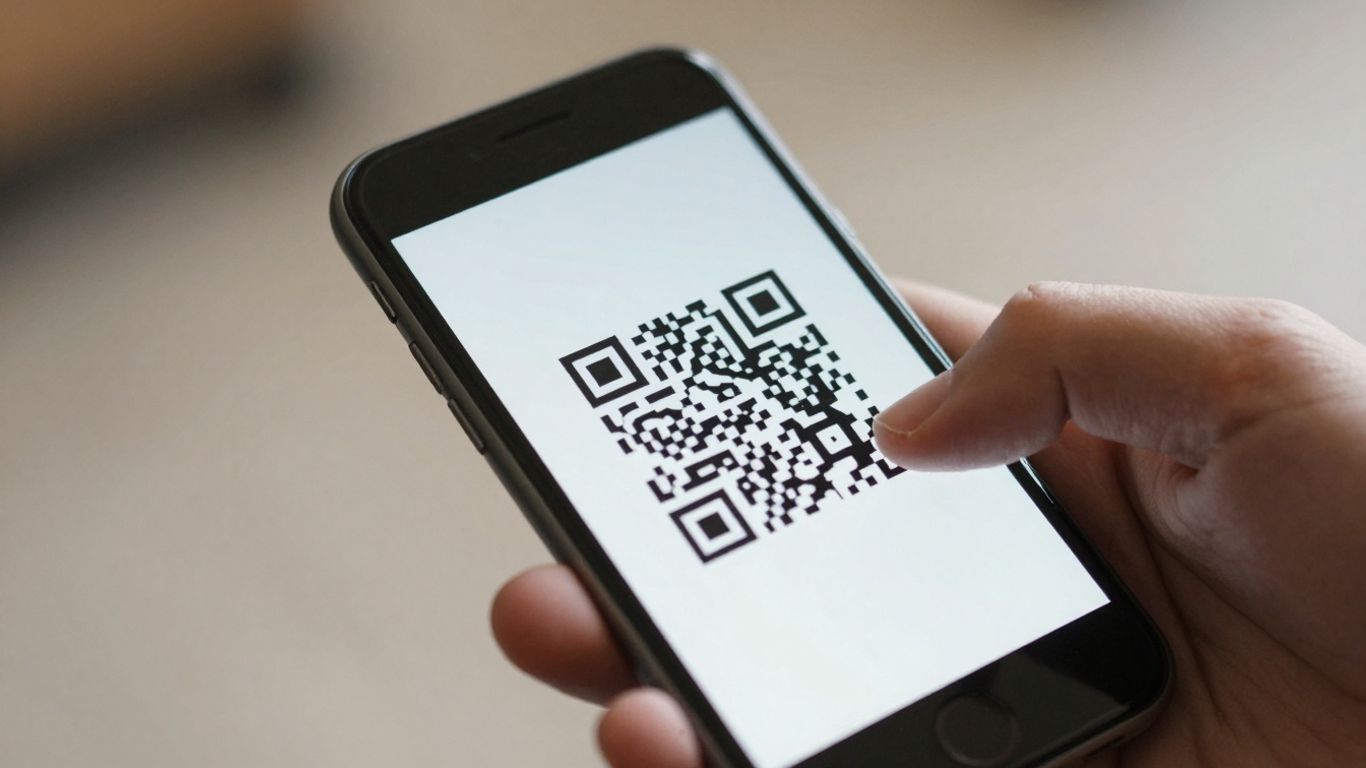
It can be a bit frustrating when you point your phone at a QR code, expecting a quick link to a website or information, and… nothing happens. You might be wondering, ‘Why won’t my phone scan QR code?’ Don’t worry, it’s a common issue, and usually, it’s something simple to fix. Whether it’s a problem with your phone’s camera, the code itself, or even the lighting, we’ll walk through the most likely reasons and how to get things working again.
Key Takeaways
- Make sure your phone’s camera lens is clean and the lighting conditions are good, avoiding direct glare on the QR code.
- Check that your phone’s camera settings are enabled to scan QR codes, or consider using a dedicated QR scanner app.
- Ensure the QR code itself has good contrast, is large enough, and has a clear space around it.
- Physical obstructions, screen reflections, or damaged codes can prevent scanning.
- Sometimes, the issue might be with the destination link or network restrictions, not your phone.
Is Your Phone's Camera Ready to Scan?
Before you start blaming the QR code itself, let’s make sure your phone’s camera is in the best shape to read it. Think of it like trying to read a book in a dark room with smudged glasses – it’s just not going to work well.
Check Camera Settings
Most modern smartphones have QR code scanning built right into the camera app. However, this feature might be switched off by default. On iPhones, it’s usually automatic, but you can also add ‘Code Scanner’ to your Control Centre for quick access. For Android users, check your camera app’s settings. You might need to enable ‘Google Lens suggestions’ or a specific ‘QR mode’. If your phone’s native camera isn’t picking up codes, don’t worry, there are other options.
Clean Your Lens
This sounds obvious, but it’s surprisingly common. A smudged or dirty camera lens is one of the biggest culprits for scan failures. Fingerprints, dust, or pocket lint can blur the image your camera is trying to process. Give your lens a gentle wipe with a soft, lint-free cloth – the kind you’d use for eyeglasses. It’s a simple step that makes a huge difference.
Improve Lighting Conditions
QR codes need enough light to be scanned effectively. Trying to scan a code in dim lighting is like asking your phone to read tiny print in the dark. Conversely, too much direct light can cause glare, which also makes the code unreadable. Try to find a well-lit area, but avoid pointing your camera directly at a bright light source or a reflective surface. If you’re scanning a code on a screen, increasing that screen’s brightness can sometimes help.
For businesses looking to make their QR codes as scannable as possible across various environments, using a service like Xcan It can be a game-changer. They allow you to create dynamic QR codes that can be updated if your links change, meaning you don’t have to reprint anything. Plus, their tracking dashboard helps you see how your campaigns are performing in the real world.
Troubleshooting the QR Code Itself
Sometimes, the issue isn’t with your phone at all, but with the QR code itself. A poorly designed or printed QR code can be a real headache, making your phone’s camera struggle to read it.
Assess Contrast and Clarity
This is probably the most common culprit. If the QR code is too light, too dark, or blurry, your phone’s camera just won’t be able to make out the pattern. A good QR code needs strong contrast between the dark modules and the light background. Think classic black on white – it’s a winner for a reason. Avoid using pale colours, metallic inks, or gradients, as these can all confuse the scanner. If the code looks fuzzy or washed out, it’s unlikely to scan.
Ensure Adequate Size and Distance
Ever tried to read tiny print from across the room? It’s the same principle with QR codes. If the code is too small for the distance you’re holding your phone, it won’t scan. A general rule of thumb is that the scanning distance should be about 10 times the width of the QR code. So, if your code is printed on a poster that people will view from a few metres away, it needs to be quite large. Conversely, if you’re holding your phone very close to a tiny code, the camera might struggle to focus.
Verify the Quiet Zone Around the Code
This might sound a bit odd, but that clear space around the QR code is super important. It’s called the ‘quiet zone’, and it needs to be at least four ‘modules’ (the little squares) wide on all sides. This border helps the scanner distinguish the code from its surroundings. If there’s text, a logo, or any other graphics encroaching on this space, it can interfere with scanning. It’s tempting to cram extra branding in, but it often backfires and makes the code unreadable. For campaigns where you need to update links or track engagement, using dynamic QR codes is a game-changer. Platforms like Xcan.it allow you to change the destination URL without reprinting the code, and you can monitor scan data in a central dashboard. This means your print, signage, and asset campaigns can be easily adapted and measured.
When Your Phone Won't Scan QR Codes
So, you’ve pointed your phone at a QR code, and… nothing. It’s a common frustration, but usually, the fix is pretty straightforward. Let’s break down why your phone might be playing hard to get with those little squares.
Native Scanning Capabilities
Most modern smartphones, both iPhones and Androids, have built-in QR code scanning capabilities right in their default camera app. You don’t usually need a separate app anymore. For iPhones, just open the Camera app and point it at the code; a notification banner should appear. On Android, it’s often similar, or you might need to enable Google Lens suggestions or a specific ‘QR’ mode within your camera settings. It’s worth checking your phone’s camera settings to make sure this feature is switched on if you’re not seeing anything happen.
Consider a Dedicated QR Scanner App
If your phone is a bit older, or if the native camera app just isn’t cooperating, a dedicated QR scanner app can be a lifesaver. There are plenty available on app stores, but be discerning. Look for ones that are well-reviewed, don’t bombard you with ads, and clearly state their privacy policy. These apps can sometimes offer more robust scanning or additional features that the built-in camera might lack. They can be particularly useful for older devices that might not have had native QR scanning built into their operating systems.
Older Devices and Software Limitations
As mentioned, older phones, especially those running outdated versions of iOS or Android, might not have native QR scanning support. The camera hardware itself might also be less capable in terms of autofocus speed or low-light performance, making it harder to lock onto a code. In these cases, a good third-party app is often the best solution. It’s not that the phone can’t scan QR codes, but rather that the software it’s running doesn’t have the built-in tools to do so easily.
The good news is that even with older tech, a reliable scanner app can often bridge the gap.
For businesses using QR codes across various devices, managing this can be tricky. This is where services like Xcan.it come in handy. Their dynamic QR codes mean you can update the destination link without needing to reprint the physical code. This is a huge advantage if you need to change a URL, update an offer, or fix a broken link. Plus, Xcan.it provides a dashboard to track scans, giving you insights into how your QR codes are performing in the real world across print, signage, and other assets. It helps turn those static squares into dynamic, measurable tools for your campaigns.
Addressing Glare and Physical Obstructions
Sometimes, even with a perfectly good phone and a well-designed QR code, scanning can be a struggle. This often comes down to the physical environment and how the code is presented. Reflections, smudges, or even the material the code is printed on can throw your phone’s camera off.
Minimising Screen Reflections
If you’re trying to scan a QR code displayed on a screen – be it a phone, tablet, or monitor – glare can be a real nuisance. Direct light hitting the screen creates a mirror effect, making it impossible for your camera to read the code. Try adjusting the angle of the screen or your phone, or even moving to a spot with less direct light. Sometimes, simply increasing the brightness of the screen you’re scanning can help cut through minor reflections.
Handling Curved or Damaged Codes
QR codes printed on curved surfaces, like bottles or packaging, can also be tricky. The distortion means the squares aren’t flat for the camera to capture accurately. Similarly, if a code is creased, torn, or smudged, parts of it might be unreadable. If possible, try to flatten the surface or find an angle where the code appears as undistorted as you can get it. For damaged codes, unfortunately, the best solution is often to reprint it.
The Impact of Glossy Finishes
Printing QR codes on glossy paper or using a shiny laminate can create significant glare, much like reflections on a screen. This is because the light bounces off the surface directly into your camera lens. Opting for a matte finish for your printed QR codes is usually the best bet. If you’re using a service like Xcan.it, you can often specify print recommendations or even get dynamic QR codes that can be updated if the initial print has issues, saving you the hassle of reprinting.
Understanding Link Issues and Security
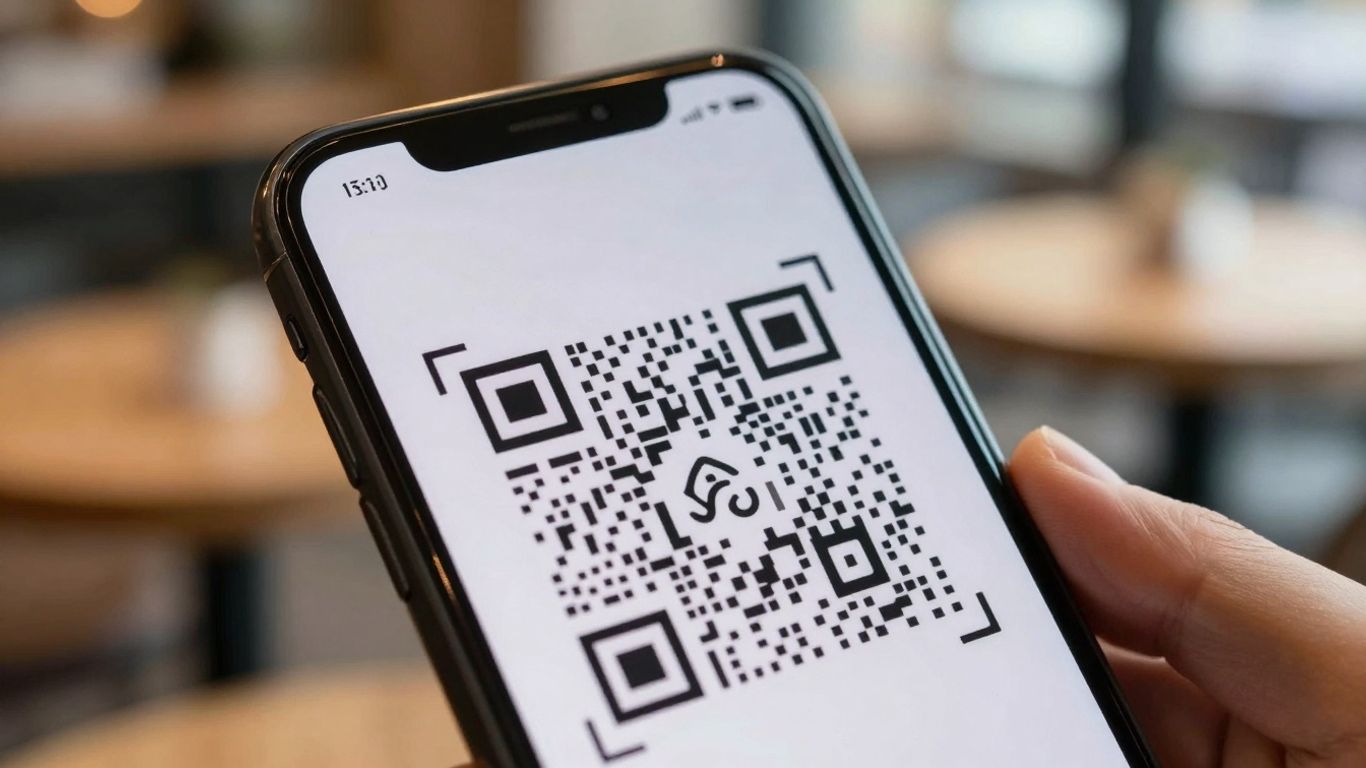
Sometimes, the problem isn’t with your phone or the QR code’s appearance, but with the destination it’s trying to send you to. A QR code is essentially a shortcut, and like any shortcut, it can sometimes lead to a dead end or somewhere you didn’t expect.
Checking the Destination URL
When you scan a QR code, your phone’s camera app usually shows you the web address (URL) it’s about to open. This preview is your first line of defence. If the address looks strange, is a jumble of characters, or doesn’t match the context where you found the QR code, it’s best to be cautious. Scammers sometimes use QR codes to direct people to fake websites designed to steal login details or personal information, a tactic known as ‘quishing’ [e822]. Always check that the URL makes sense before you tap to open it. If you’re unsure, it’s better to type the expected website address manually into your browser.
The Role of Redirect Chains
Some QR codes might not link directly to their final destination. Instead, they can be set up to go through a series of redirects – one link leading to another, and so on. While not always malicious, these redirect chains can sometimes be used to obscure the true destination or to mask a potentially unsafe link [65d6]. Many modern QR scanner apps and phone cameras will show you the initial URL, but they might not reveal every step in the chain. If a QR code seems to take an unusually long time to load or goes through multiple pages before reaching its final destination, it could be a sign of a complex redirect. For smoother and safer scanning, it’s often best to use dynamic QR codes that minimise these redirect chains.
Network or Security Blocks
Occasionally, your phone might not scan a QR code, or the link might fail to open, because of network or security settings. This can happen if the destination URL is flagged as unsafe by your phone’s security software, or if your network (like a work or public Wi-Fi) has security filters in place that block certain types of links or websites. If you’re trying to scan a code in a corporate environment, it’s possible that security policies are preventing access to the linked content. In such cases, the QR code itself is likely fine, but external factors are interfering with the connection.
Optimising Your Scanning Environment
Sometimes, even with a perfectly good phone and a clear QR code, you might still run into trouble. This often comes down to the environment where you’re trying to scan. Think of it like trying to take a photo in a dark room – the camera struggles to see what it needs to. The same applies to QR codes.
Adjusting Phone Distance and Framing
Getting the distance right is key. Too close, and the camera can’t focus. Too far, and the QR code becomes too small to read. A good starting point is usually about 15-25 cm away. You want the QR code to fill a decent portion of your phone’s screen, but not so much that it’s cut off or distorted. Try to centre it in the frame as best you can. Slowly move your phone closer or further away until the camera locks on and the code appears sharp. It’s a bit like tuning a radio to get a clear signal.
Testing with Different QR Codes
If you’re having trouble with one specific QR code, it’s worth testing your phone’s scanning ability with a different one. Try a simple, high-contrast QR code, perhaps one generated online from a trusted source. This helps you figure out if the problem lies with your phone or the original QR code itself. If your phone scans other codes without issue, then the original code might be the culprit – perhaps it’s too small, has low contrast, or is overly decorated [3c88].
The Importance of a Steady Hand
Shaky hands can be a real nuisance when trying to scan QR codes. Even a slight wobble can throw off the camera’s focus, making it difficult for the app to read the data. Try to hold your phone as steady as possible. Resting your elbows on a stable surface or leaning against something can make a big difference. If you’re in a situation where holding still is tricky, like on a moving train, it might be best to wait until you’re in a more stable environment. For businesses using QR codes on print, signage, or assets, consider using dynamic QR codes. Platforms like Xcan.it allow you to update the destination link without reprinting the code, track scan performance in a dashboard, and adapt your campaigns on the fly based on real-world results [665b]. This flexibility is invaluable for keeping your marketing efforts current and effective.
Making sure your scanning setup is just right is super important. A good environment means your QR codes will work smoothly every time. Think about good lighting and making sure there’s enough space around the code. These simple steps can make a big difference in how well things scan. Want to learn more about setting up your scanning space perfectly? Visit our website today for all the tips and tricks!
So, What Now?
Right then, we’ve gone through the common hiccups that stop your phone from reading those little black and white squares. Most of the time, it’s something simple like a smudged lens, bad lighting, or a setting you didn’t even know was off. And if the code itself is the problem? Well, you’ve got the know-how to spot that too. Remember, with a bit of tweaking, most QR code issues can be sorted out pretty quickly. Happy scanning!
Frequently Asked Questions
Why won't my phone scan a QR code?
Often, it’s because the camera settings aren’t quite right, or the lighting isn’t good enough. Make sure your phone’s camera is set up to scan QR codes, clean the lens if it’s smudged, and try scanning in a brighter spot. Sometimes, a wobbly hand or a code that’s too far away or too close can also cause problems.
Do I need a special app to scan QR codes?
Not usually! Most modern smartphones, like iPhones and many Androids, have a built-in QR scanner in their main camera app. Just open your camera and point it at the code. If yours doesn’t work, you can easily download a free QR scanner app from your phone’s app store.
What if the QR code is blurry or hard to see?
This often happens if the code is printed too small, has poor contrast (like light colours on a light background), or if there’s glare on it. Try moving your phone closer or further away to find the sweet spot. If you’re the one who made the code, try making it bigger, using black on white, and ensuring it’s not shiny.
Can older phones scan QR codes?
Older phones might struggle a bit. Some might not have the scanning feature built into their camera app, meaning you’ll need to download a separate QR scanner app. Also, older cameras might not focus as well, especially in dim light or with codes that aren’t very clear.
What's a 'quiet zone' and why is it important?
The ‘quiet zone’ is simply the clear, empty space around the QR code. It’s super important because it helps the scanner properly identify the code and read the information. If there’s text, images, or other clutter too close to the edges, the scanner can get confused and fail to read it.
Why does a QR code sometimes lead to a broken link?
The QR code itself might be perfectly scannable, but the web address (URL) it points to could be wrong, deleted, or moved. Sometimes, the link might also be blocked by your phone’s security settings or a network filter. It’s always a good idea to check the link preview if your phone shows one before you visit the website.












