
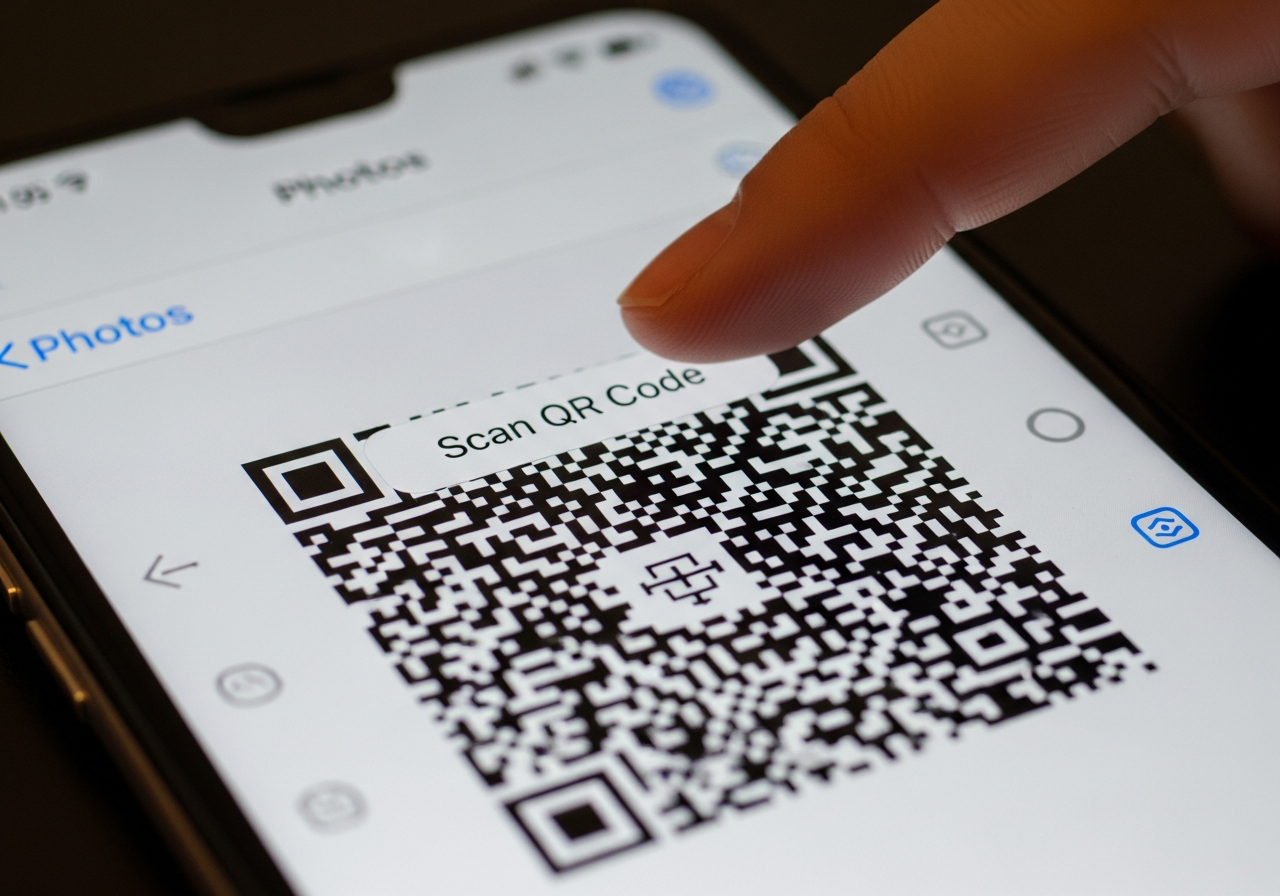
Can I scan a QR code saved in my photos?
More and more QR codes arrive as screenshots and images: a menu from a friend, an event ticket, a support email that tells you to “scan this code”, or a code you grabbed from a website before it disappeared. You can’t point your camera at your own screen – but modern phones quietly added something better: the ability to scan QR codes directly from images in your gallery. The upside is convenience. The downside is that scammers now hide malicious QR codes inside perfectly normal-looking pictures and PDFs, banking on the fact that people treat saved photos as “safe”.
💡 Short answer
Yes. On both iPhone and Android you can scan a QR code that’s saved in your photos by using tools that analyse the image instead of the live camera. On iPhone, you’ll usually open the picture in Photos and use features like Live Text or a detected code icon. On Android, you’ll typically use Google Lens from Google Photos or your gallery. The important part is what happens next: treat the detected link with the same suspicion you’d give any link in an email. Check the URL, avoid logging in or paying through unexpected pages, and delete suspicious screenshots so you don’t accidentally scan them later.
Ways to scan a QR code saved in your photos
-
iPhone (Photos + Live Text / detected codes)
Open the image in Photos. If iOS detects a QR code:- you may see a small yellow frame around the code you can tap, or
- a “detected code” icon or Live Text-style button you can tap to open the link.
-
Android (Google Photos / Gallery + Lens)
Open the image in Google Photos or your gallery and tap the Lens icon. Lens will analyse the image, detect any QR code, and show the associated URL or action at the bottom of the screen. -
From messaging apps and email
If the QR code came through WhatsApp, iMessage, or email, you can:- tap the image to view it full-screen, then look for a QR/scan or Lens icon, or
- save the image to your gallery and scan it there using the steps above.
-
Using third-party QR apps (with care)
On older phones, you might need a separate app that can load an image and scan the code inside it. These can be useful, but some come with aggressive ads or data collection, so pick a reputable app and avoid anything that demands unnecessary permissions. -
Security reality check
Security teams have started tracking “quishing” – phishing attacks that embed QR codes in screenshots, PDFs, and images. Just because the code lives in your camera roll doesn’t make it safe; it’s still just a link you haven’t opened yet.
Step-by-step: scanning a QR code from your photo gallery
- Find the image with the QR code.
Open your phone’s Photos / Gallery / Google Photos app and locate the screenshot or photo that contains the QR code. - On iPhone: use Photos and Live Text/detected codes.
- Open the image in Photos.
- Wait a second to see if a yellow frame appears around the QR code, or a small QR/Live Text-style icon appears in the corner.
- Tap the frame or icon and iOS will show you the link or action it found. You can then open it in Safari or another app.
- On Android: use Google Lens.
- Open the image in Google Photos or your gallery.
- Tap the Lens icon (often near the bottom of the screen).
- Lens will highlight the QR code and display the detected URL or action; tap it to open, copy, or share.
- Pause and inspect the link.
Before you tap:- Check that the domain name is spelled correctly and uses HTTPS.
- Ask yourself whether it makes sense that this sender would use a QR instead of a normal link.
- Be wary of shortened URLs you can’t easily verify.
- Be extra cautious with logins, payments, and downloads.
If scanning the QR from your photos leads directly to:- a login page,
- a payment or invoice, or
- a file download or app install,
- Clean up risky screenshots.
If you realise a QR code was part of a scam or suspicious message, delete the image so you or a colleague don’t scan it absent-mindedly in the future.
FAQs
Is scanning a QR code from my photos safer than scanning a printed one?−
Not really. The technology is the same: your phone decodes a pattern and opens whatever link is inside. A QR code in your photos might feel safer because it came via someone you know or an email you recognise, but attackers increasingly exploit that trust by sending malicious codes that only reveal their true destination after you scan.
Do I need a special app to scan QR codes from photos?+
On most recent iPhone and Android devices, no – the built-in Photos/Gallery apps plus Live Text or Google Lens are enough. Only older phones tend to require a dedicated app. If you do install one, choose something reputable, check reviews, and avoid apps that ask for broad access to your contacts, messages, or location.
Why won’t my phone detect the QR code in an image?+
Common reasons include: the code is too small in the picture, the image is blurry or overexposed, part of the code is cropped off, or your software is out of date. Try zooming in, increasing brightness, or viewing the image in a different app (e.g. Google Photos instead of the default gallery). If all else fails, you can open the same message on another device and scan with your phone’s camera instead.
Can QR codes in screenshots carry malware?+
The QR code itself doesn’t “contain” malware – it contains a URL or action. The danger comes if that URL leads you to download a malicious app or file, or to a phishing page that steals your credentials. As long as you avoid installing unknown apps or entering sensitive information on untrusted sites, scanning from photos is no more dangerous than scanning from paper.
Should I let my staff scan QR codes from screenshots and emails at work?+
It depends on your risk appetite, but many organisations now treat QR codes in emails, PDFs, and screenshots as a phishing vector. A pragmatic policy is to train staff to apply the same checks they would to links in email: don’t act on unexpected QR-based requests, and verify anything involving payments, password resets, or document signing via a known-good channel.
Talk to an Xcan It Specialist
Designing QR journeys that might be screenshotted, forwarded, and saved for later? We’ll help you build flows that stay safe and usable wherever your codes end up.












